Samsung PC screen is rotated
Many external monitors and tablet PCs can be rotated to better suit your workspace, but if you rotate it by accident, you can quickly revert it to your preference.
Samsung PC screen is rotated
1
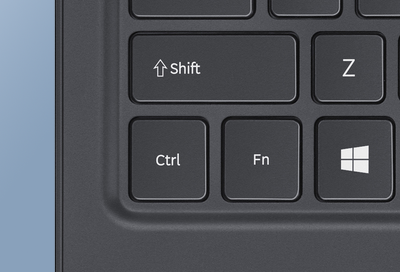
Press Ctrl + Alt + Up.
In many cases this shortcut will reset the screen to its default landscape orientation.
Important
For the remaining steps, it will be easier to use a touchscreen instead of your mouse. Or, you can connect an external display like a TV with HDMI to help adjust settings on the original display.
2
Manually change the display orientation.
Select Settings, select System, and then select Display. Alternatively, you can try right clicking the Desktop and then selecting Display settings. If you have multiple displays connected, select the one that is rotated.

From the Display settings page, select Display orientation, and then choose your preferred screen orientation. Landscape is the default orientation.
Important
If you're using a tablet PC docked with a keyboard, you must remove the keyboard before you can toggle Rotation lock.
3
Toggle Rotation lock.
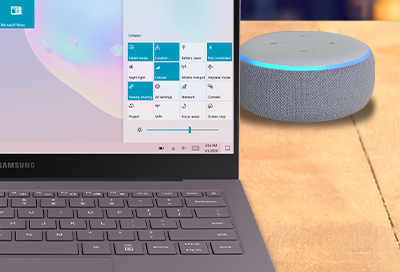
Rotation lock can be found in the notification panel at the corner of the screen that is supposed to be in the bottom right. You may need to click Expand if you have previously collapsed the tiles.
Try turning Rotation lock on or off and then physically rotating your PC to the correct orientation.
4
Reboot the PC.
If the previous steps still didn't resolve the orientation, a reboot may help.
5
Contact Microsoft.
This Windows setting is completely in charge of display orientation. If it somehow is not working for you, contact Microsoft for additional support.
Recommended Articles
Samsung PC does not start, power on, or charge
Unlike desktop computers, laptops need to be frequently charged since they have an internal battery. If your Samsung PC will not start or turn on, it probably needs a quick charge. On the other hand, if the laptop is not charging or the charger doesn’t seem to be working, or you have a desktop with power issues, then you’ll need to check the power
Samsung PC power button is not working properly or is broken
If the Power button doesn't work properly, make sure nothing is causing the Power button to stick. It may be necessary to clean the Power button or keyboard. You may wipe down the keyboard with a damp microfiber cloth, or use a compressed air canister for cleaning between the keys. Do not directly apply liquid cleaners to the PC and do not use hous
Cannot enable keyboard backlight on Samsung PC
If you have a backlit keyboard, it can be turned on and off with the Fn and F9 keys. If the key combination does not work, you may need to install the appropriate Samsung Settings app on your PC. If the key combination does something else (like turn the screen on and off), this means your model does not have a backlit keyboard.
We're here for you
Contact Samsung Support
Contact us online through chat and get support from an expert on your computer, mobile device or tablet. Support is also available on your mobile device through the Samsung Members App.