Samsung Sound app forced OTN failure during setup

If the Samsung Sound app fails to control your soundbar or Wi-Fi speaker after registration, it may be due to a failed forced software update (OTN). This issue can occur if the update is interrupted, the device is rebooted, or there's a network/server problem. Follow these steps to resolve the issue by re-registering your device.
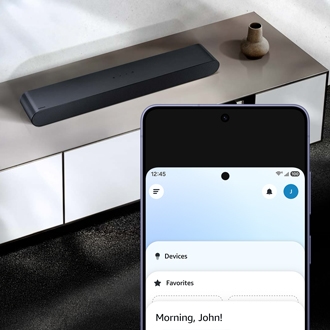
A hand holds a Galaxy S26 Ultra searching for a black Samsung soundbar on a blue cabinet.

Samsung Sound app forced OTN failure during setup

Note
The Samsung Sound app is available in the Google Play Store and Apple App Store. Ensure your device and app are up to date for optimal performance.
1

Remove the registered device from the Sound app.

Open the Samsung Sound app on your phone or tablet, and then tap the Settings icon in the top right corner.

A Galaxy S26 Ultra showing the Samsung Sound app with the settings gear icon highlighted in a blue circle. 

Tap Manage speakers, and then tap Remove next to the affected sound device.

2

Re-register the device.

From the main page in the Samsung Sound app, tap Add speaker. Alternatively, tap the Settings icon and then tap Add speaker. Follow the on-screen instructions to re-register your speaker.

A Galaxy S26 Ultra displaying the Samsung Sound settings menu with the Add speakers option highlighted in a blue box. 

  • Ensure the speaker is powered on and within range.
  • If the speaker isn't detected, move your phone or tablet closer and tap Device not found? at the bottom of the screen. Then, tap Scan QR code or Scan nearby to complete the registration process.
Was this content helpful?
We're here for you

Contact Samsung Support

Contact us online through chat and get support from an expert on your computer, mobile device, or tablet. Support is also available on your mobile device through the Samsung Members App.