Keycap has come off of Samsung laptop keyboard
If a key has separated from your keyboard, you can easily replace the key yourself without any special tools, as long as all the pieces are available and undamaged.
Keycap has come off of Samsung laptop keyboard
1
Make sure you have all the parts.
The key assembly is comprised of the following pieces:
- The Keycap or Key

- The Plunger

- The Scissor Assembly

2
Prepare for the procedure.
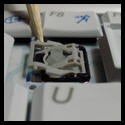
Make note of the position of the small clips on the keycap. These will attach to the scissor assembly. The small rubber plunger will push up on the bottom of the key.
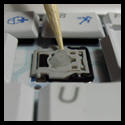
If the scissor assembly is loose, take extra care in reattaching the assembly. Clip the lower part of the bar under the bottom rail, then snap the upper part over the top rail before lining up the keycap to reattach it.
3
Press the keycap into place.
Line up the clips with the scissor assembly and press the key into place. You may need to wiggle the key a little to get it to snap down correctly.
To replace the spacebar, apply even pressure to both ends of the spacebar, and then press down to reattach it.
4
Request service.
If the key doesn't snap into place or continues to come off, or if any of the parts are broken, visit our Support Center to request service.
Recommended Articles
Sleep settings are not applying on Samsung PC
If you've set your PC to sleep after 20 minutes, but it isn't working, make sure you've applied the settings to both battery power and when your PC is plugged in. You may also want to check your power plan settings.
Reduced battery life on Samsung PC
Does it feel like your battery charge's duration isn't as much as it used to be? If the battery just doesn't feel like it lasts that long anymore, don't lose hope. A function called Smart Battery Calibration can help reset your battery's performance and recalibrate its minimum and maximum charge so you can keep using it to its current maximum capac
Touchpad is not working on Samsung PC
If your Samsung PC's touchpad is not working, it may simply be locked or disabled. There is an easy way to unlock it and get the touchpad working again. If that doesn't do the trick, resetting the driver or installing updates could help. If all else fails, try a factory reset.
We're here for you
Contact Samsung Support
Contact us online through chat and get support from an expert on your computer, mobile device or tablet. Support is also available on your mobile device through the Samsung Members App.