SmartThings Tracker status shows disconnected

If the Tracker's status is "Disconnected" in the SmartThings app, the Tracker is either damaged, powered off, has poor communication, or cannot obtain a signal (GPS, CPS, or WPS).
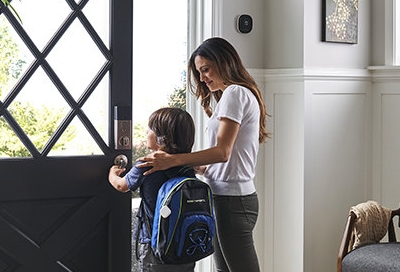
A woman guiding a child with a backpack that has a SmartThings Tracker attached.

SmartThings Tracker status shows disconnected

Note
  • Contact your wireless service provider for network convergence details.
  • Make sure the Tracker is not powered off or damaged, and is in a location where the network coverage is available before continuing with the steps below.
1

Restart the Tracker.

Press and hold the Power button for three seconds. The LED will blink three times before it powers off. Leave the Tracker off for 30 seconds. Then, press and hold the Power button until the LED turns blue.
2

Check for software updates.

Check for software updates to the SmartThings app and your phone. Make sure your phone is connected to a Wi-Fi network before installing updates. After you've installed the available updates, restart your phone.
Note
Your service plan for the Tracker will not be affected.
3

Remove and reconnect the tracker with SmartThings.

  1. From your phone, navigate to and open the SmartThings app. 
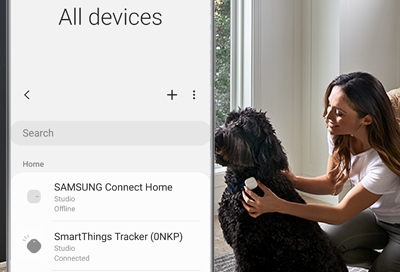
  2. Tap Devices in the bottom row, and then tap All devices in the upper row. 
  3. Locate and tap the tracker.
  4. Tap More options (the three vertical dots), and then tap Remove device. Tap REMOVE again to confirm.

Once the Tracker is deleted, it will be initialized. The LED will flash blue during this time. When the LED blinks red, green and blue, the tracker is ready to connect with SmartThings. If the LED isn't blinking red, green and blue, then restart the Tracker.
If the issue persists, contact 1-800-SAMSUNG to verify that your service plan is still active. Please provide the Tracker's serial number and IMEI number.
Was this content helpful?
We're here for you

Contact Samsung Support

Contact us online through chat and get support from an expert on your computer, mobile device or tablet. Support is also available on your mobile device through the Samsung Members App.
auto-contact_us-pc-2x auto-contact_us-pc-2x