Importing and Exporting Samsung Music Playlists
 Please Note: The information on this page is for Australian products only. Models, sequences, error codes or settings will vary depending on location and/or where the product had been purchased. To be redirected to your local support page please click here.
Samsung Music gives you the power to backup and restore playlists at any time. Whether you change a device or reinstall Samsung Music, your music is always right where you left it.
Managing Playlist Settings


Step 1. Run your Samsung Music app, tap on the more options icon and then select the “Settings”.


Step 2. Tap on “Manage playlists” at the bottom of the Samsung Music settings screen.


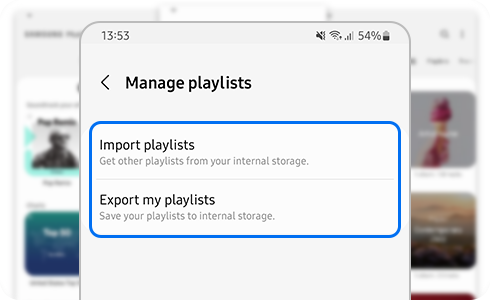
Step 3. At “Manage playlists”, select the option you want to use between “Import playlists” or “Export my playlists”.
What can I do with the Manage playlists setting?
- Import playlists:
Allows you to select from a list of backed up playlists to decide which ones you want to import.
- Export my playlists:
Allows you to back up and export all your playlists in your Samsung Music catalogue.
Note: You can select 'Play all songs' to play every track in your music player or in a particular playlist. Whereas, 'Play selected song' plays an selected individual track.
Step 1. Run your Samsung Music app, tap on the more options icon and then select the “Settings”.
Step 2. Tap on “Manage playlists” at the bottom of the Samsung Music settings screen.
Step 3. At “Manage playlists”, select the option you want to use between “Import playlists” or “Export my playlists”.

Thank you for your feedback!
Please answer all questions.
Contact Info
Contact us
WhatsApp
![]()
![]()

