Using Audio broadcast with the Galaxy S26 & Buds4
About Audio broadcast
Audio broadcast lets you broadcast music, voice, or other sounds from your phone so that anyone nearby can listen. There's no limit to the number of people that can listen to your broadcast as they're close enough to receive the signal. Audio broadcast uses the Auracast standard.
How to Share
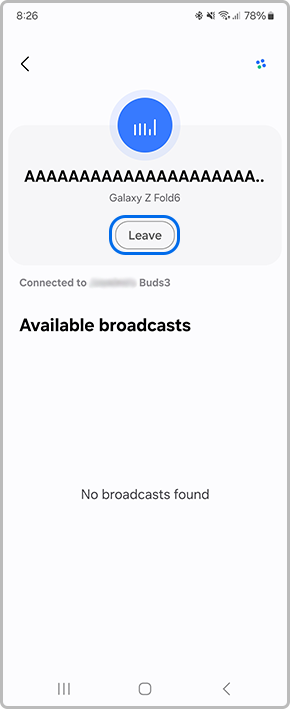
Tap the Broadcast button to start. You can broadcast media sounds from your phone or broadcast your voice using your phone's built-in microphone or a USB microphone. Bluetooth microphones aren't supported.
How to Listen
Listeners need an audio device that supports Bluetooth LE Audio, such as a speaker or headphones. Check out the audio device manufacturer's instructions for connecting to Auracast broadcasts.
Please Note: This guide is designed for Australian variant Galaxy devices, if you have an international device and require further support click here to get in touch with your Samsung subsidiary.
*Devices with Auracast Source ability are available only on Samsung Galaxy smartphones, tablets with Android One UI version 6.1.1 or later, and select TV models. Supported Galaxy smartphone and tablet models include: S24+, S24, S24 Ultra, S23+, S23, S23 Ultra, Z Fold6, Z Flip6,Z Fold5, Z Flip5, A55 5G,Tab S9+, Tab S9+ 5G, Tab S9, Tab S9 Ultra, Tab S9 Ultra 5G, Tab S9 FE+, Tab S9 FE+ 5G, Tab S9 FE, Tab S9 FE 5G, Tab S9 5G. Supported TV models include: 2024 NeoQLED 8K QND800, QND900, 2023 Neo QLED 8K and 2023 MICRO LED models.
*Devices with Auracast Assistant ability are available only on Samsung Galaxy smartphones, tablets with Android One UI version 5.1.1 or later. Supported Galaxy smartphone and tablet models include: S24+, S24, S24 Ultra, S23+, S23, S23 Ultra, Z Fold6, Z Flip6,Z Fold5, Z Flip5, A55 5G,Tab S9+, Tab S9+ 5G, Tab S9, Tab S9 Ultra, Tab S9 Ultra 5G, Tab S9 FE+, Tab S9 FE+ 5G, Tab S9 FE, Tab S9 FE 5G, Tab S9 5G.
*Connecting 2 or more devices to Auracast is limited to Samsung Galaxy devices.
*The quality of the Auracast audio stream may vary depending on the application, network connection and other factors.
Devices operating on One UI 8.5 and above


Ensure you share the password with anyone you want to connect to your broadcast.


 to Pause or
  to Exit the broadcast.

Devices operatings on One UI 8.0 and below
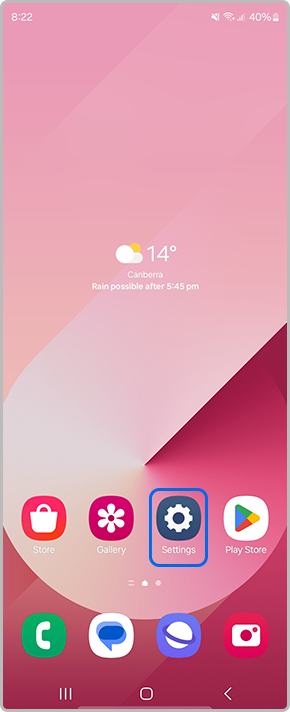
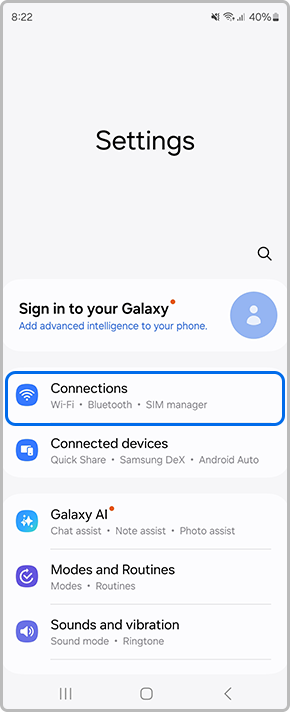
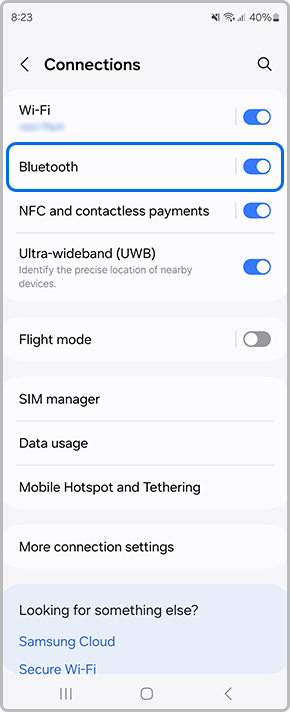
 More options
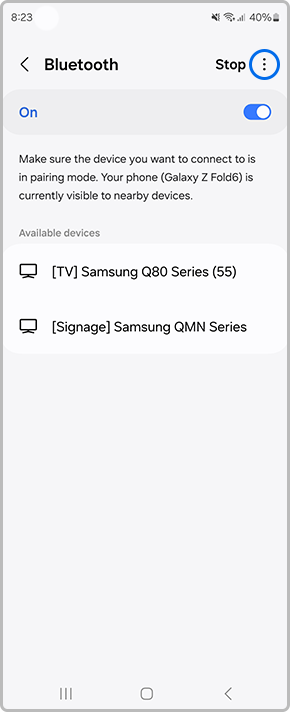
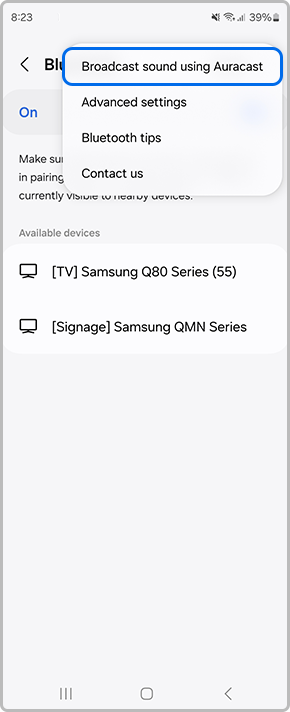
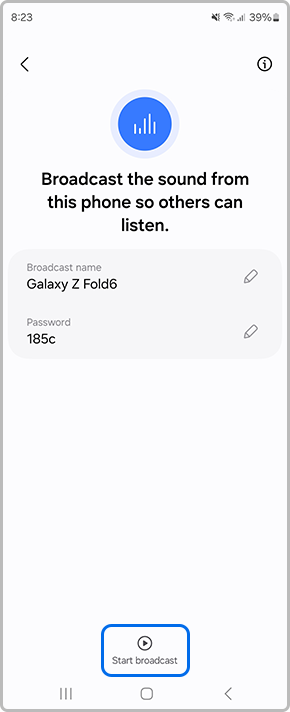
Ensure you share the password with anyone you want to connect to your broadcast.
 Settings


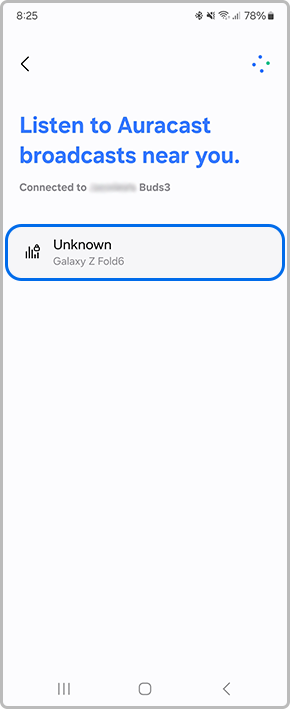
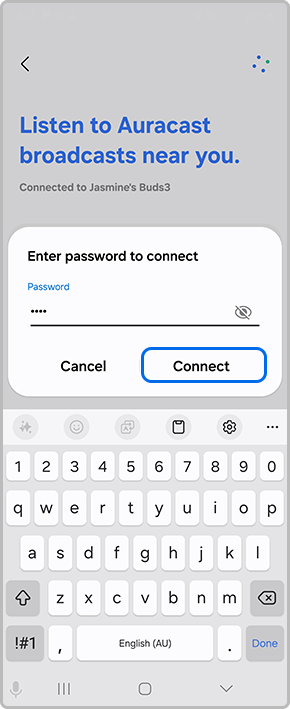

Thank you for your feedback!
Please answer all questions.
Contact Info
Contact us
WhatsApp
![]()
![]()

