Audio Delays on your TV
Have you ever sat down to watch a movie or play a game and notice that the sound is out of sync with what you’re watching? If you have connected your TV to a soundbar or other external device, this is a common issue. Follow the troubleshooting guide below to fix the audio delay issue you are experiencing.
 Please Note: The information on this page is for Australian products only. Models, sequences or settings will vary depending on location and/or where the product had been purchased. To be redirected to your local support page please click here.
Why does an audio delay occur?
Depending on the broadcasting signal transmitted by the broadcasting station, an audio delay may occur in some or all of the TV programs they are broadcasting. There is a slight difference in processing speed between video and audio signals. Usually the difference is not notable, however sometimes it is.
If it’s not due to the broadcaster, another reason an audio delay often occurs is a bad connection to an external device you’ve connected to the TV. Sometimes, an external device such as a set-top box will produce a slight difference because of the transmission speed of the video/audio signal from the set-top box to the TV.
If you find your audio is delayed, see if the delay occurs with a pre-installed app e.g. YouTube, Netflix. If there is no audio delay with pre-installed apps, the issue lies with the content or source that you're trying to play. Follow the troubleshooting guide below to fix your audio delay issues.
Please Note: There are no settings that will resolve Bluetooth or wireless speaker audio sync issues. Streaming audio and video wirelessly may transmit data less quickly and can cause audio sync delays.
 Please Note: The information on this page is for Australian products only. Models, sequences or settings will vary depending on location and/or where the product had been purchased. To be redirected to your local support page please click here.
If you're hearing an audio delay across all sources/channels and you have a Home Theatre System or other speakers connected to your TV, you can access the Audio Delay settings. Follow the steps below to find out how.
 Settings and then All Settings
Note: Images were taken from a 2025 model TV. Steps and layout may differ depending on the model of your TV.
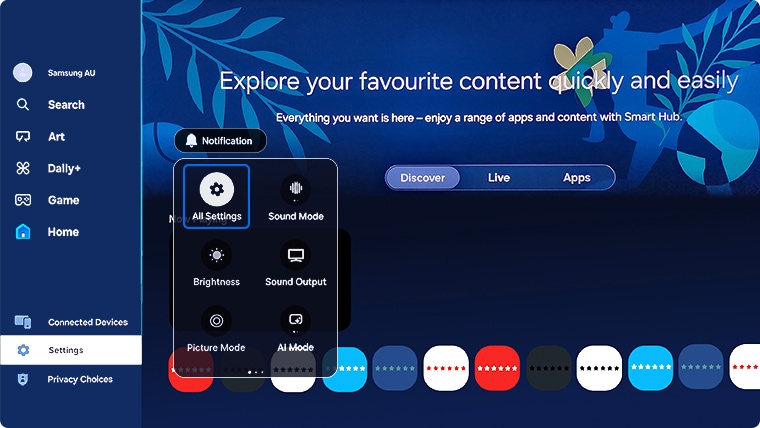


Note: This function is only available when the device is connected via HDMI-eARC or SPDIF.
Do you notice the audio delay when playing downloaded content such as movies? If so, then the audio of the content you are trying to play on your TV may not be synced correctly. Check the supported video codecs in the user manual of your particular TV model. Head to Manuals & Downloads to find your TV's user manual.
Here is an example below from a user manual.
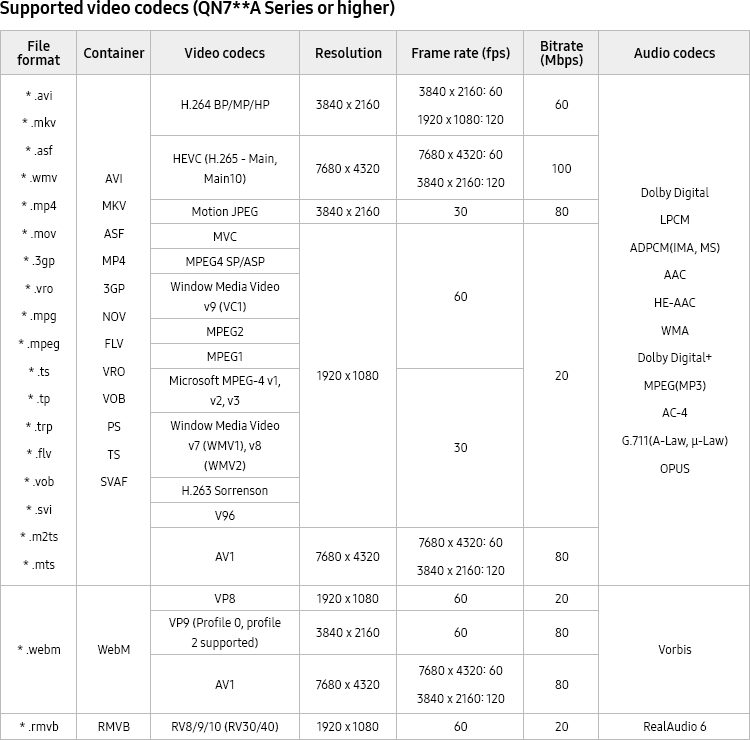
Note:
- Because the specifications are based on the current 8K connectivity and decoding standards, future connectivity, broadcasting, and decoding standards may not be supported. Upgrading for meeting future standards may require purchase of additional devices.
- Some third-party standards may not be supported.
Follow the steps in the video below to learn how to reset your sound settings.
Update the firmware to the latest version to get the best performance from your TV. Simply ensure your TV is connected to the internet and then follow the steps below to update your TV software. For more information, head to our guide Update the Firmware on a Samsung TV.
For further assistance, please contact our Chat Support. To find your Samsung product's User Manual, head to Manuals & Downloads.
 This product should be mounted to a wall or other suitable surface to avoid serious injury. Find out more here.
Contact Info
Contact us
WhatsApp
![]()
![]()


