How to Disable Samsung TV Plus
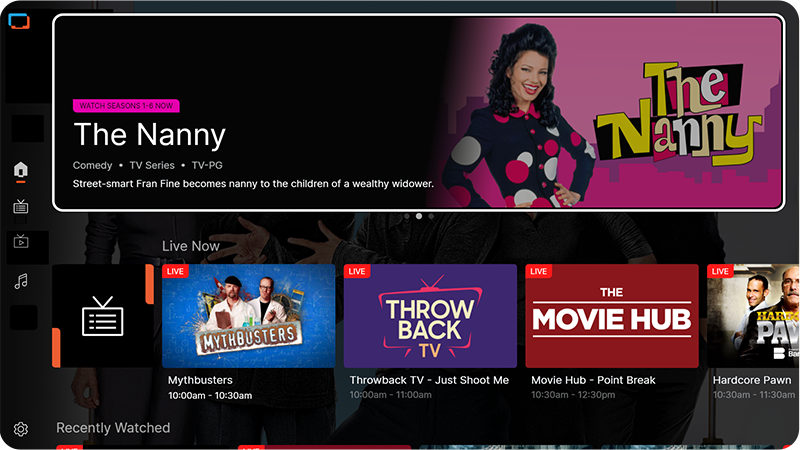
Samsung TV Plus is everything you love about TV at zero cost*. Choose from over 100 TV Channels and 1000s of movies and shows live and on demand. However, you are able to disable this service if you do not wish to use it. Just follow the simple steps below.
 Please Note:
- The information on this page is for Australian products only. Models, sequences or settings will vary depending on location and/or where the product had been purchased. To be redirected to your local support page please click here.
- Please be advised that you cannot uninstall the Samsung TV Plus app.
- Internet required and data usage fees may apply. Apps and channels are subject to change at any time without notice.
Disabling Samsung TV Plus
1
Select  Edit List on the TV Home page
![Select Edit List]()
 Edit List on the TV Home page

Note: The images below were taken from a 2025 model TV. Steps and layout may differ depending on the model of your TV.
By model year:
- 2022 - 2025 Model TVs: Edit LIst icon on Home page > select app > Remove > Disable
- 2020 - 2021 Model TVs: On the Home page, head to the Samsung TV app and press the down button on the remote > Remove > Disable
2
Select the Samsung TV Plus app and choose Remove
![Choose Remove]()

3
Click on Disable. This will remove the service from the launcher bar and remove the channels from the TV Guide
![Choose Disable]()

Re-enabling Samsung TV Plus
Note: The images were taken from a 2025 model TV. Steps and layout may differ depending on the model of your TV.
1
Head to Connected Devices and hover over the Samsung TV Plus tile
![Select Connected devices]()

2
Hold the select button (2025 model TVs) on your remote until a pop up appears. Then select Add to Home
![Press direction button on your remote]()
Note: To re-enable Samsung TV Plus on prior models:
- 2022 - 2024 Model TVs: Connected Devices > hover over Samsung TV Plus app > Press down button on remote > Add to Home
- 2020 - 2021 Model TVs: Source > hover on Samsung TV Plus app > press the up button on your TV remote > Add to Home


Contact Info
Contact us
For support buying a product, help with an order or technical product support
WhatsApp
![]()
![]()


It's now even easier to get in contact with Samsung Customer Care, now on WhatsApp.
Troubleshoot and book a repair
Support for your mobile devices, home appliances, TV and computing products
