Setting the Clock on your Samsung TV
Set the clock on your Samsung TV to ensure you don't miss the latest TV shows and movies. When connected to the internet, your TV can automatically set the time and adjust itself during Daylight Savings. When Clock Mode is set to Manual, you can directly enter the current date and time.
 Please Note: The information on this page is for Australian products only. Models, sequences or settings will vary depending on location and/or where the product had been purchased. To be redirected to your local support page please click here.
- The Auto function works only when the TV is connected to the network or is receiving digital broadcasts through a connected antennae.
- The accuracy of the time information received may differ with the channel and signal.
- If you get your TV signal from a cable broadcast receiver/set-top box or a satellite receiver/satellite set-top box connected to an HDMI or Component port, you must set the current time manually.
- Time Offset is available only when Clock Mode is set to Auto, the TV fails to receive time information through normal broadcast signals and the TV is connected to a network.
Follow the steps below to learn to change the clock of your TV to Auto or Manual.
Note: These images were taken from a 2025 model TV. Steps and layout may differ depending on the model of your TV.
 Settings and then All Settings
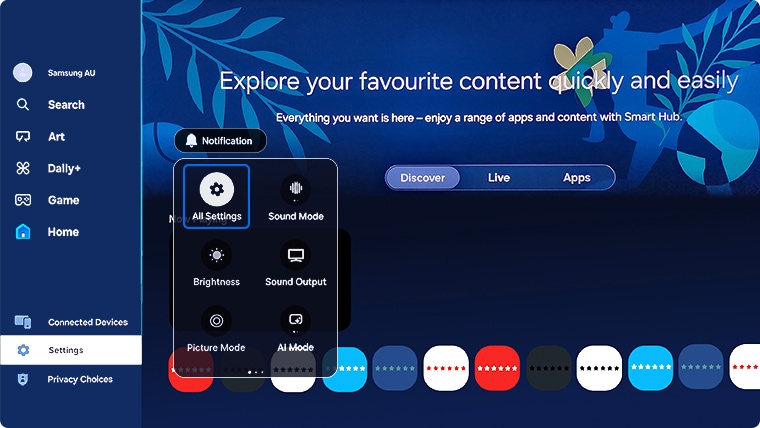
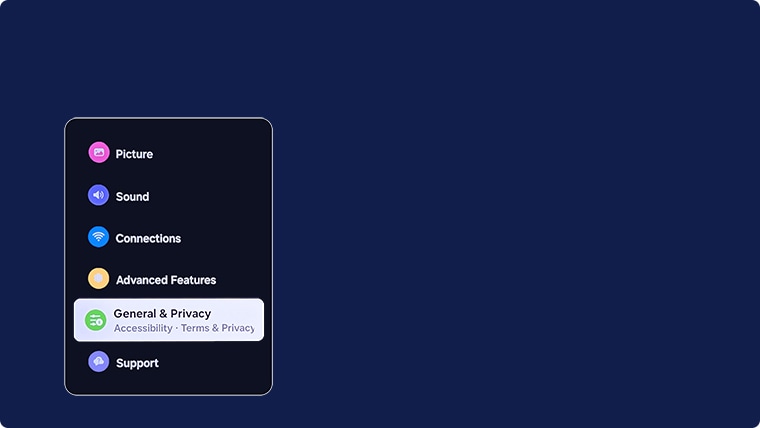


Steps by Model Year:
- 2025 TVs: Settings > All Settings > General > Time > Clock > Clock Mode
- 2022 - 2024 TVs: Settings > All Settings > General > System Manager > Time > Clock > Clock Mode
- 2017 - 2021 TVs: Settings > General > System Manager > Time > Clock > Clock Mode
- 2016 TVs: Settings > System > Time > Clock > Clock Mode
- 2015 TVs: Menu > System > Time > Clock
- 2014 TVs: System > Time > Clock
For further assistance, please contact our Chat Support. To find your Samsung product's User Manual, head to Manuals & Downloads.
 This product should be mounted to a wall or other suitable surface to avoid serious injury. Find out more here.
Contact Info
Contact us
WhatsApp
![]()
![]()


