Using Parental Controls on your Samsung TV
Ensure your child views kid-friendly content through parental controls on your Samsung TV. You can restrict usage of TV apps, channels and programme ratings and allow usage only via your TV's PIN. Perhaps there are some TV programmes that may not be so age-appropriate. Learn how to set up a Programme Rating Lock to make sure that your child watches appropriate programmes based on their programme rating.
 Please Note: The information on this page is for Australian products only. Sequences or settings will vary depending on the location and/or where the product had been purchased. To be redirected to your local support page please click here.

Note: Parental controls available on Samsung TVs from 2008 and onwards. The steps below are taken from a 2025 model TV. Settings and steps may differ depending on the model of your TV.
You might not want your child viewing certain apps. You can lock the app so that it can only be used by entering a PIN. Follow the steps belows to learn how to do so.
 Settings and then All Settings
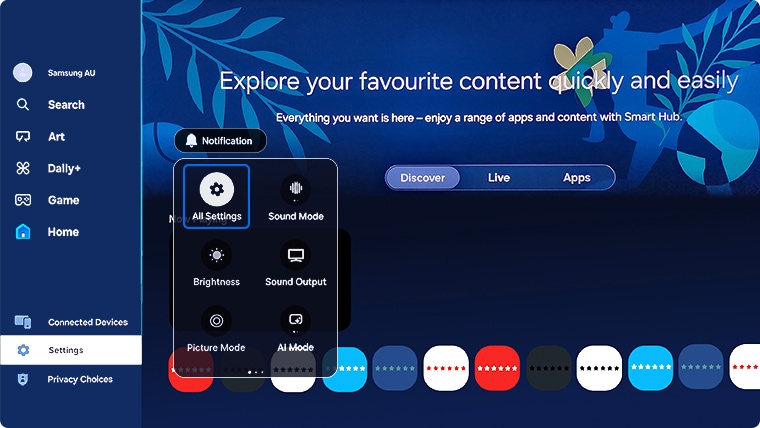
Note: The steps below are taken from a 2025 model TV. Settings and steps may differ depending on the model of your TV.
Steps by model year:
- 2022 - 2025 Models: Settings > All Settings > General & Privacy > Parental Settings > App Lock Settings > select an app > Lock/Unlock
- 2017 - 2021 Models: Apps > App Settings > select an app > Lock/Unlock
- 2016 Models: My Apps > Options > Lock/Unlock > select an app to lock or unlock > Done



You will be prompted to enter your TV's PIN. If you have forgotten your PIN, head to
Change your Samsung TV PIN Code to learn how to change it.

Some TV channels may be geared towards content you might not like your child viewing. Learn how to lock a TV channel through the steps below.
Note: Before locking a free-to-air TV channel, you will need to ensure you have a digital TV Antenna installed to receive a digital broadcast and that the Antenna Cable has been connected properly to your TV or TV's One Connect Box.
Settings and then All Settings
Note: The steps below are taken from a 2025 model TV. Settings and steps may differ depending on the model of your TV.
By model year:
- 2023 - 2025 Models: Settings > All Settings > General & Privacy > Parental Settings > Channel Lock Settings > select channel/s > Lock
- 2022 Models: Home > Live TV app > Press the volume button on your remote to open up Live TV Guide > Scroll left of TV guide > Edit Channels > select channel/s > Lock
- 2017 - 2021 Models: Home > Live TV app > Channel List > Edit Channels > select channel/s > Lock
- 2016 Models: Home > Live TV app > Channel List > Right directional button on remote > Edit Channels > Lock


To access Apply Channel Lock settings by model year:
- 2022 - 2025 Models: Settings > All Settings > General & Privacy > Parental Settings > Apply Channel Lock
- 2017 - 2021 Models: Settings > Broadcasting > Apply Channel Lock
- 2016 Models: Settings > Broadcast > Channel Lock
Ensure your child only view programs according to program ratings through Programme Rating Lock. When this is set, all programmes rated at that level and higher will require a PIN to watch. Programme Rating Lock does not however, block programmes originating from external sources.
Settings and then All Settings
Note: The steps below are taken from a 2025 model TV. Settings and steps may differ depending on the model of your TV.
For previous models:
- 2022 - 2025 Models: Settings > All Settings > General & Privacy > Parental Settings > Programme Rating Lock
- 2016 - 2021 Models: Settings > Broadcast > Programme Rating Lock

You will be prompted to enter your TV's PIN. If you have forgotten your PIN, head to
Change your Samsung TV PIN Code to learn how to change it.


For further assistance, please contact our Chat Support. To find your Samsung product's User Manual, head to Manuals & Downloads.
 This product should be mounted to a wall or other suitable surface to avoid serious injury. Find out more here.
Contact Info
Contact us
WhatsApp
![]()
![]()


