Enhance your messages with Writing Assist on your Samsung Galaxy
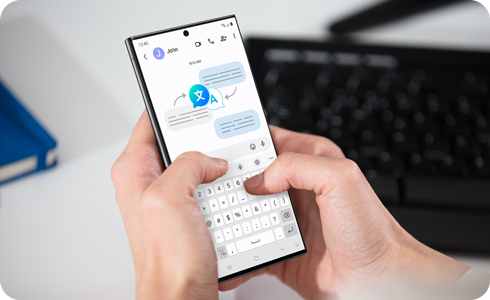
Samsung Galaxy AI offers enhanced messaging features such as a writing composer, suggested replies, real-time translation, sentence style chances and proofreading. Using these features, you can enhance your conversations for more convenient interactions when sending and receiving messages.
Note:
- Make sure you are signed in to your Samsung account to use this feature.
- Due to the nature of AI, results such as translations, suggestions, and tone adjustments may vary.
- The images in this article are based on the Samsung Messages app. Instructions may vary depending on the messaging app used.
- Available screens and settings may vary by wireless service provider, software version, and device model.
Unlock your creative potential with Writing Assist features on a Samsung Galaxy device running One UI 8. This version of One UI was first introduced on the Galaxy Z Fold7, Galaxy Z Flip7, Galaxy Z Flip7 FE, Galaxy S25 FE, Galaxy Tab S11 Ultra, and Galaxy Tab S11. As the update continues to roll out, more Samsung Galaxy devices will support One UI 8, allowing even more users to explore intelligent writing features.

Here’s a list of devices that were released with One UI 8 or are expected to receive the update:
- Galaxy S phones: S26, S26+, S26 Ultra, S25 FE, S25 Edge, S25 Ultra, S25+, S25, S24 Ultra, S24+, S24, S24 FE, S23 Ultra, S23+, S23, S23 FE, S22 Ultra, S22+, S22, and S21 FE
- Galaxy Z phones: Z Fold7, Z Flip7, Z Flip7 FE, Z Fold6, Z Flip6, Z Fold5, Z Flip5, Z Fold4, and Z Flip4
- Galaxy Tab S tablets: Tab S11 Ultra, Tab S11, Tab S10 Ultra, Tab S10+, Tab S10 FE+, Tab S10 FE, Tab S9 Ultra, Tab S9+, Tab S9, Tab S9 FE+, Tab S9 FE, Tab S8 Ultra, Tab S8+, and Tab S8
- Galaxy A phones: A56 5G, A54 5G, A53 5G, A36 5G, A35 5G, A26 5G, A25 5G, A16 5G, and A15 5G
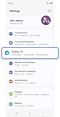

Step 1. Open Settings > Tap Galaxy AI.
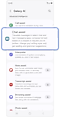

Step 2. Tap Chat assist.
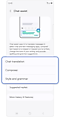

Step 3. Tap Chat translation, Composer, or Style and grammar > Turn the switch On.
Notes:
- This guide is based on One UI 6.1.1, and accessing the Galaxy AI feature may vary depending on your model and software version.
- Devices with a version earlier than One UI 6.1.1 can access Chat assist by going to Settings > Advanced features > Advanced intelligence.
The Composer feature will generate messages that best fit the keywords and ideas you enter.
Note: This feature is only available on the Galaxy Z Flip6 and Z Fold6.
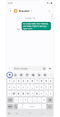

Step 1. Tap the Chat assist icon.
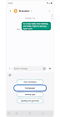

Step 2. Tap Composer.
Step 3. Write keywords in the text box > Select the format and tone of your message.
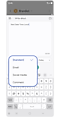

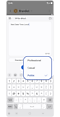

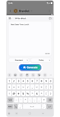

Step 4. Tap Generate.
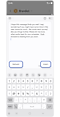

Step 5. Tap Refresh until desired text is generated > Tap Insert.
The Chat translation feature allows you to translate messages in a conversation, and is currently supported in the following messaging apps:
Samsung / Android Messages
Google Chat
Kakao Talk
Signal
Whatsapp
Line Messenger
Instagram (DM)
Tango
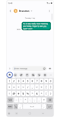

Step 1. In a conversation, tap the Chat assist icon.
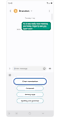

Step 2. Select Chat translation.
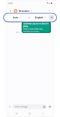

Step 3. Select your preferred language in the popup at the top of the screen. The translated text will appear below the original text.
Note: If no language is selected, the phone's system language is automatically selected as the default.
Chat assist also offers suggestions for writing style, grammar, and spelling.
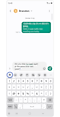

Step 1. After writing a message, tap the Chat assist icon.
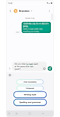

Step 2. Choose the option to change
Writing style or to check Spelling and grammar.
Step 3. Select and apply your desired writing style or check your spelling and grammar.
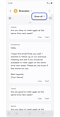

Writing style. Choose the preferred writing style or filter styles by clicking on the Show all drop-down menu.
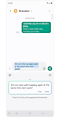

Spelling and grammar. Check for errors and suggested improvements.
When a message or chat notification appears on the cover screen, you can automatically generate and send responses using the Suggested replies feature.
Note: This feature is only available on the Galaxy Z Flip6.


Step 1. Swipe right to pull up notifications > Tap the message notification.


Step 2. Tap Suggest replies.


Step 3. Choose a message to send out of the suggested replies.
* Tap the Suggest replies icon again to regenerate the reply suggestion.
Supported languages (and associated countries): Arabic, Bahasa Indonesia, Simplified Chinese, Traditional Chinese (Hong Kong, Taiwan), Dutch, English (Australia, India, United Kingdom, United States), French (Canada, France), German, Hindi, Italian, Japanese, Korean, Polish, Portuguese (Brazil, Portugal), Romanian, Russian (Russia), Spanish (Mexico, Spain, United States), Swedish, Thai, Turkish, and Vietnamese.

Thank you for your feedback!
Please answer all questions.
RC01_Static Content : Hide call number function