How to use Drawing assist on your Samsung Galaxy device
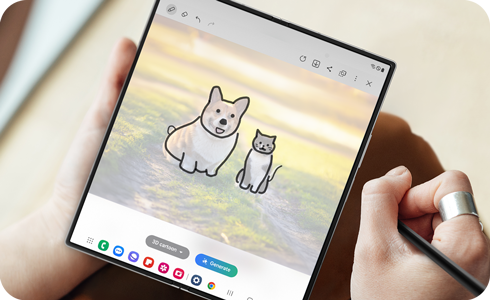
Drawing assist transforms simple sketches into more detailed and artistic images using the Sketch to image option from the Edge panels or the Air command menu. You can enhance your own drawings or add new creative elements to existing images with Drawing assist.
Note:
- Make sure you are signed in to your Samsung account to use this feature.
- Images generated by AI include an AI watermark in the bottom-left corner.
- When generating images from drawings, your sketches are sent to a server. The data is processed only to provide the feature and is not stored by Samsung.
- Available screens and settings may vary by wireless service provider, software version and device model.
Unlocking your creative potential with the intelligent photo tools presented in this article requires a Samsung Galaxy device running One UI 8. This version of One UI was first introduced with the Galaxy Z Fold7, Z Flip7, Z Flip7 FE, S25 FE, Tab S11 Ultra, and Tab S11. As the software update continues to roll out, more Galaxy devices will receive One UI 8, allowing even more users to explore intelligent photo editing features.

Here’s a list of devices that were released with One UI 8 or are expected to receive the update:
- Galaxy S phones: S25 FE, S25 Edge, S25 Ultra, S25+, S25, S24 Ultra, S24+, S24, S24 FE, S23 Ultra, S23+, S23, S23 FE, S22 Ultra, S22+, S22, and S21 FE
- Galaxy Z phones: Z Fold7, Z Flip7, Z Flip7 FE, Z Fold6, Z Flip6, Z Fold5, Z Flip5, Z Fold4, and Z Flip4
- Galaxy Tab S tablets: Tab S11 Ultra, Tab S11, Tab S10 Ultra, Tab S10+, Tab S10 FE+, Tab S10 FE, Tab S9 Ultra, Tab S9+, Tab S9, Tab S9 FE+, Tab S9 FE, Tab S8 Ultra, Tab S8+, and Tab S8
- Galaxy A phones: A56 5G, A54 5G, A53 5G, A36 5G, A35 5G, A26 5G, A25 5G, A16 5G, and A15 5G
To use the Drawing assist feature, enable it in Settings. It will also activate when you run the Sketch to image app. If you wish not to use this feature, turn it off in Settings.
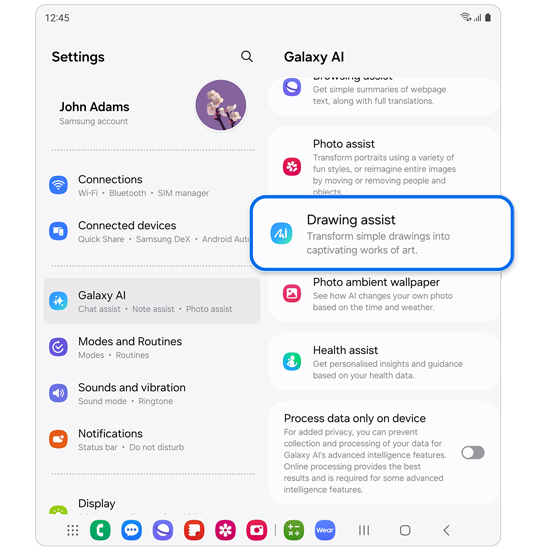
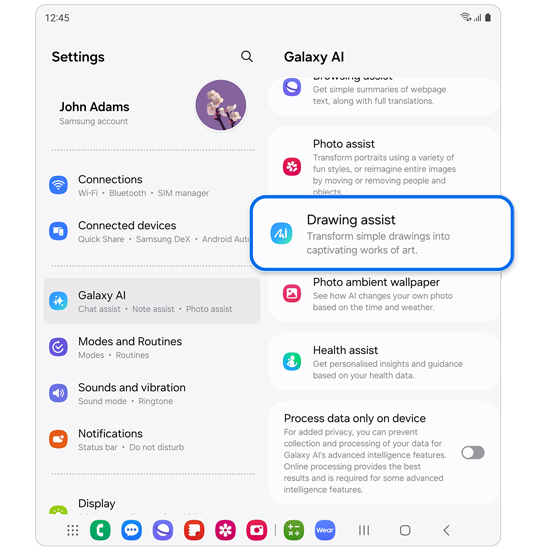
Step 1. Open Settings > Tap Galaxy AI > Tap Drawing assist.
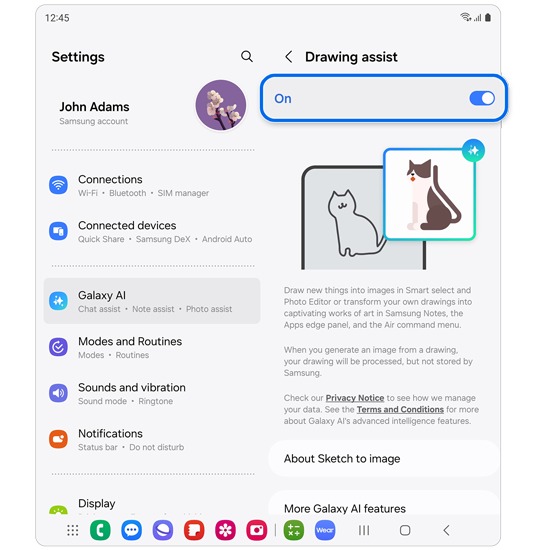
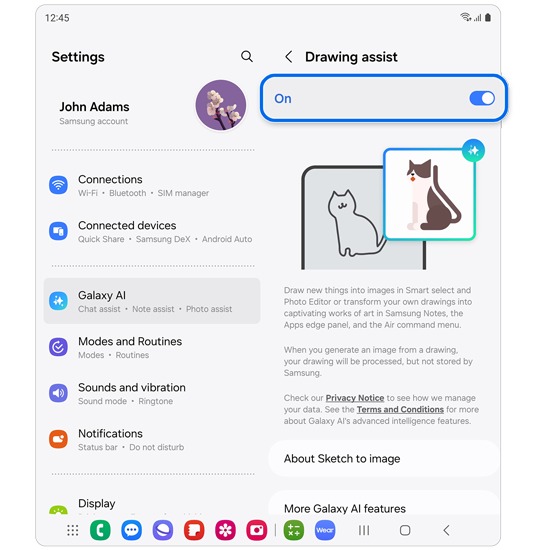
Step 2. Tap the switch to On.
Sketch to image
'Sketch to image' is an AI feature that converts your sketches into images in various styles, accessible from the Edge panels.
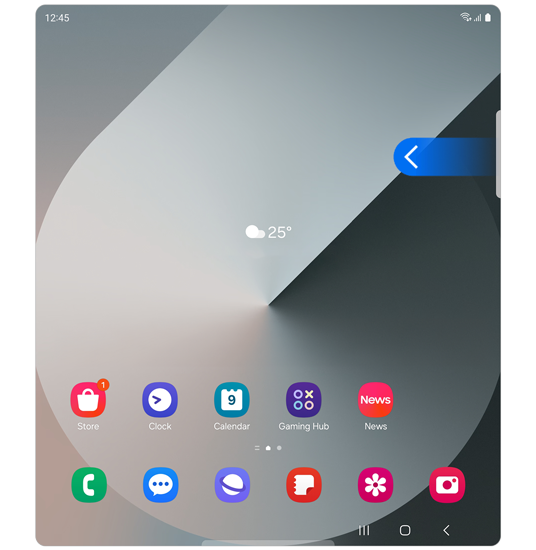
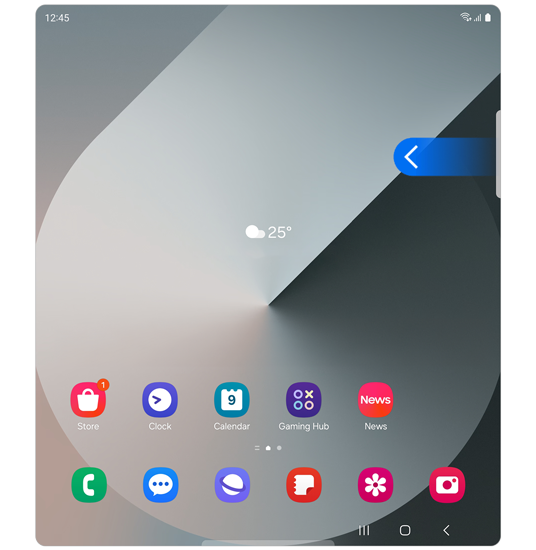
Step 1. Swipe left on the top-right side of the screen to open the Edge panels.
* You can activate the Edge panels in Settings > Display.
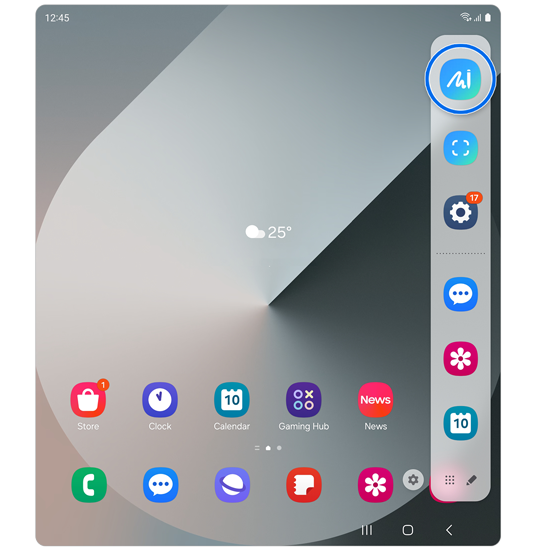
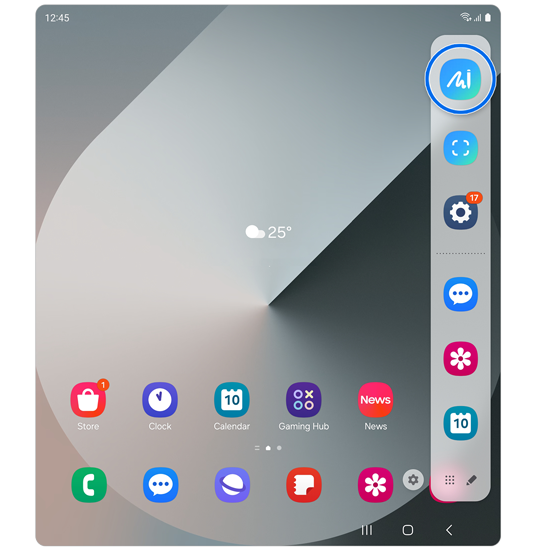
Step 2. Select the Sketch to image icon.
* You can also access Sketch to image from the S Pen's Air command menu.
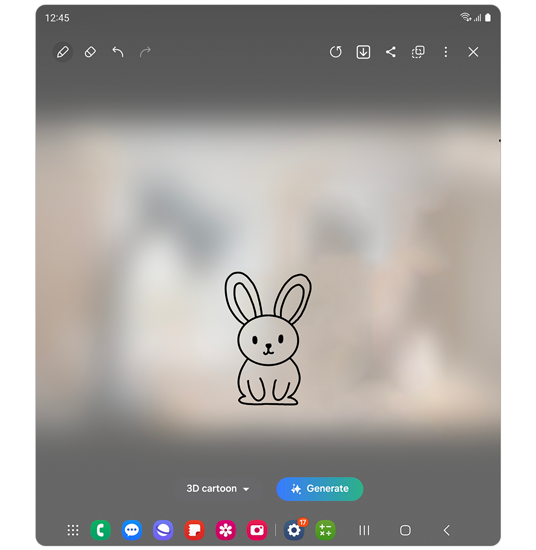
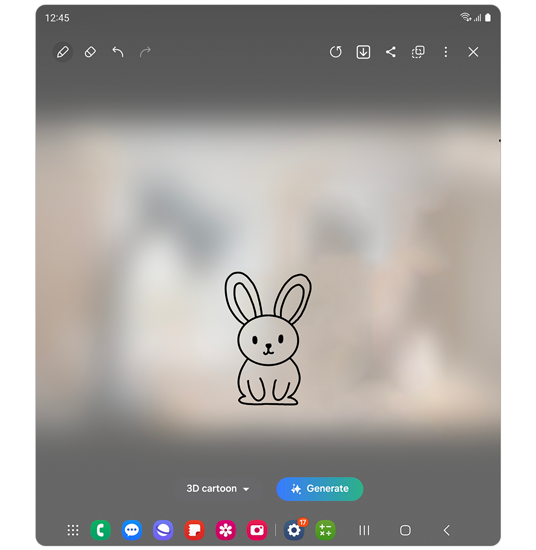
Step 3. Draw something of your choice on the canvas.
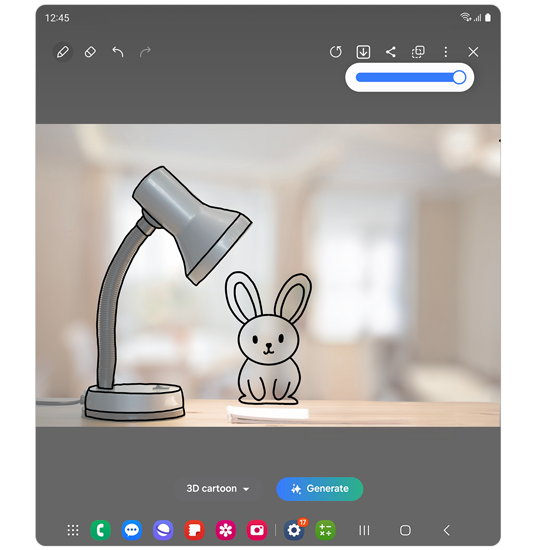
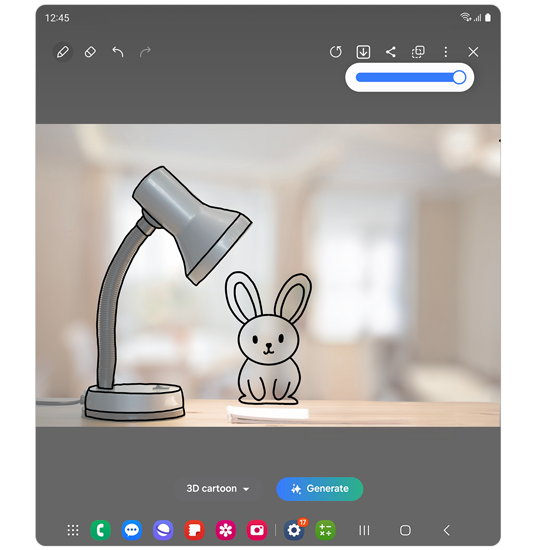
Step 4. You can also adjust the transparency of the background screen to draw along the object.
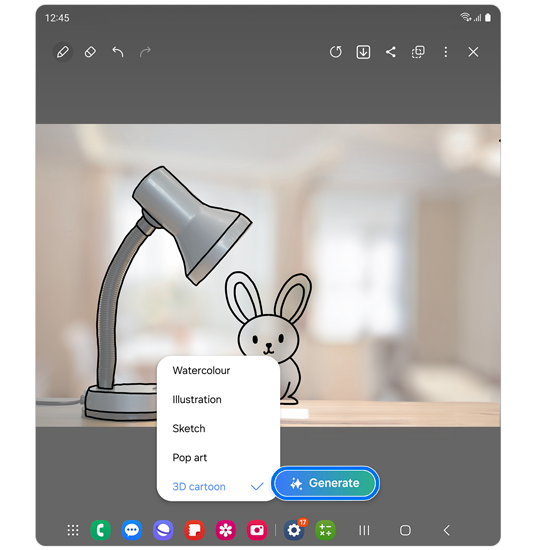
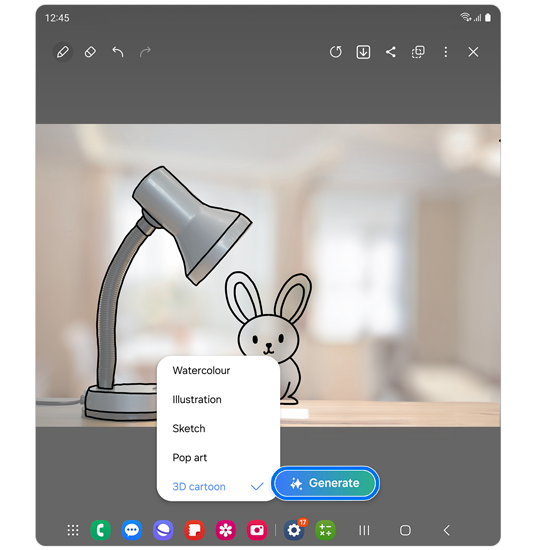
Step 5. Choose a drawing style for the image you want to generate: Watercolor, Illustrations, Sketch, Pop art, and 3D cartoon > Tap Generate.


Step 6. Swipe to the side to review the generated image options. You can copy or save the generated image from the top menu.
* Even after you've finished generating the image, you can swipe right to return to the drawing screen to edit it again or choose a different drawing style to re-generate the image.
Note: Images used are simulated for illustrative purposes and the actual UI may vary by OS version, device model, region, etc.
Additional resources:

Thank you for your feedback!
Please answer all questions.
RC01_Static Content : Hide call number function