How to pair rear speakers with a Samsung soundbar
How to Connect Rear Speakers to Your Samsung Soundbar?
To connect rear speakers and a subwoofer to your Samsung Soundbar, ensure proper power connections, use manual pairing if needed, and verify LED indicators for successful setup. Follow the steps below for seamless integration.
1. How to Connect the Subwoofer to the Soundbar
The subwoofer connects automatically to the Soundbar when powered on. If automatic connection fails, use the manual pairing method.
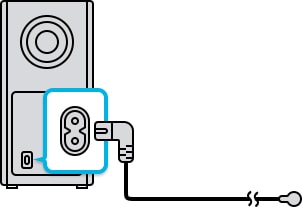
- Plug the subwoofer's power cable into an electrical outlet.
- Connect the power cord to the AC/DC adapter and link the adapter to the Soundbar's power cable.
- Turn on the Soundbar. The subwoofer should connect automatically.
- Check if the blue LED on the subwoofer lights up solidly, indicating a successful connection.
If the automatic connection fails:
- Turn off the Soundbar.
- Press the ID SET button on the subwoofer and rear speaker using a paperclip until the blue LED blinks rapidly.
- Press the UP button on the remote control until the Soundbar displays the 'ID SET' message.
- Once ID SET is complete, the Soundbar will turn on automatically.
- The blue LED on the subwoofer and rear speaker will stop blinking when the connection is complete.
2. How to Connect Rear Speakers to the Soundbar
Connect rear speakers to the wireless receiver module using speaker cables.
- Connect the speaker cable to the Wireless Receiver Module. Plug the gray cable into the gray jack and the blue plug into the blue jack on the receiver.
- Connect the speaker cables to the rear speaker, matching the colored jacks with the labels on the speaker.
- Power on the wireless receiver module and check if the blue LED blinks.
- If the LED doesn't blink, press and hold the ID SET button on the receiver for 5 seconds.
- Turn off the Soundbar and press the UP button on the remote until the 'ID SET' message appears on the display.
- Once ID SET is complete, the Soundbar will turn on automatically. The LED on the receiver should turn solid blue, indicating a successful connection.
3. Troubleshooting by LED Indicator Lights
- Blue light on LINK Indicator: Solid = Successfully connected (normal operation). Blinking = Recovering the connection. Ensure the Soundbar's power cable is properly connected or wait 5 minutes. If blinking persists, manually reconnect the subwoofer.
- Red light on STANDBY Indicator: Solid = Standby (Soundbar turned off). Connection failed = Reconnect using manual pairing instructions.
- Red and blue light on LINK and STANDBY indicators: Blinking = Malfunction. Contact the Samsung Service Centre for assistance.
4. Additional Things to Check
- Ensure the Soundbar's volume is not muted or set too low. Adjust the volume on the Soundbar or connected devices.
- For TV sound output, select the Soundbar (Samsung TV: Home → Settings → Sound → Sound Output → Select Soundbar).
- Ensure the cable connections to the Soundbar are secure. Reconnect if loose.
- Remove and reconnect the power cord. Initialize the product and retry.
- Avoid obstacles between the Soundbar and subwoofer. Reposition devices to eliminate interference.
- Ensure speaker wires make contact with the metal clamps. Avoid inserting wires too deeply, which can cause no sound.
- Update the Soundbar's firmware to the latest version.
5. Supported Samsung Soundbar Models
This guide applies to most Samsung Soundbar models, including the Q Series, HW-Q800A, HW-Q950A, and HW-S60A. Refer to your user manual for model-specific details.
6. Related Samsung Support Topics
Thank you for your feedback!
Please answer all questions.