How do I activate Maintenance Mode on my Galaxy Phone?
Maintenance Mode protects your privacy while someone else is using your phone, such as when you're sending it for repairs. Follow the below steps for more info on enabling and disabling Maintenance Mode.
In Maintenance Mode, your personal data, including pictures, messages, and accounts can't be accessed and only preinstalled apps can be used. You'll need to unlock your phone and turn off Maintenance Mode. When you do, everything will go back to the way it was when Maintenance Mode was first turned on. Changes made while Maintenance Mode is on, such as downloaded data or settings changes aren't saved.
Please Note: This guide is designed for Australian variant Galaxy devices, if you have an international device and require further support click here to get in touch with your Samsung subsidiary.


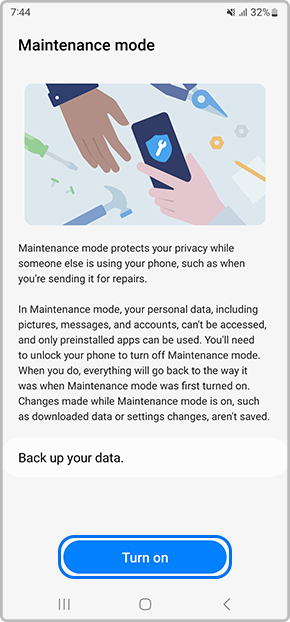
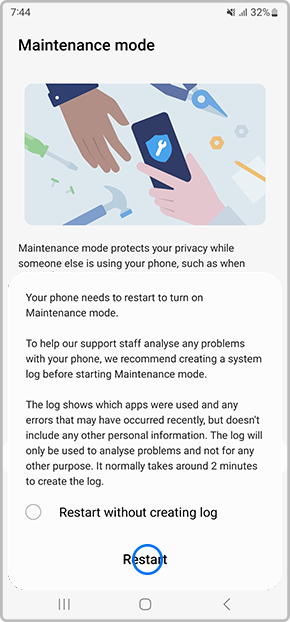
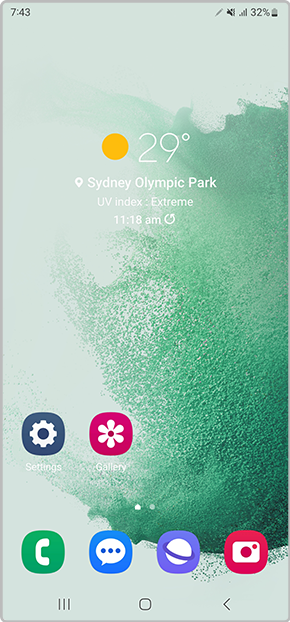
To turn off Maintenance Mode simply head into your Settings > Battery and device care > Maintenance Mode > Exit > Restart > then enter your screen lock type to confirm the request. Once complete, your device will restart again and exit out of Maintenance Mode.

*Samsung uses AI generated images across its website and there may be some minor differences in product depictions.
Thank you for your feedback!
Please answer all questions.
Contact Info
Contact us
WhatsApp
![]()
![]()

