Connect External Devices and Switch Sources on a Samsung TV
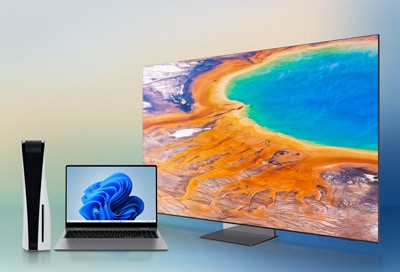
External video devices such as game consoles, satellite boxes and PCs can be connected to your Samsung Smart TV. Once the connection is complete, you’ll be able to switch the TV’s input source in the Connected Devices menu so you can use your desired device.
Note: For TVs with a One Connect Box, connect the cables to the correct ports on the One Connect Box.
The information on this page is for Australian products only. Models, sequences or settings will vary depending on location and/or where the product had been purchased. To be redirected to your local support page please click here.
You can check your Samsung TV’s connected external devices in the Connected Devices menu. Selecting an external device will switch to its screen so you can begin using it.
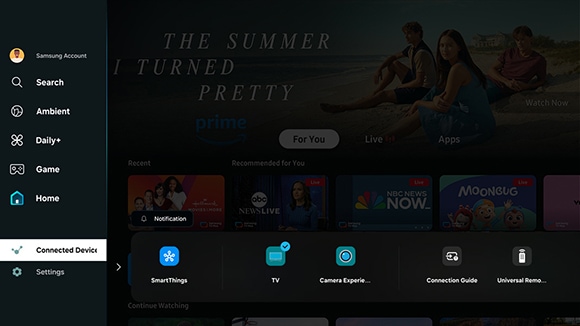
To find the Connected Devices menu from the TV’s Smart Hub Home screen, navigate to the left sidebar of the screen and then select Connected Devices. Press the right button on the remote control to navigate through the input options.
You can set up antennae channels in the Auto Program menu.
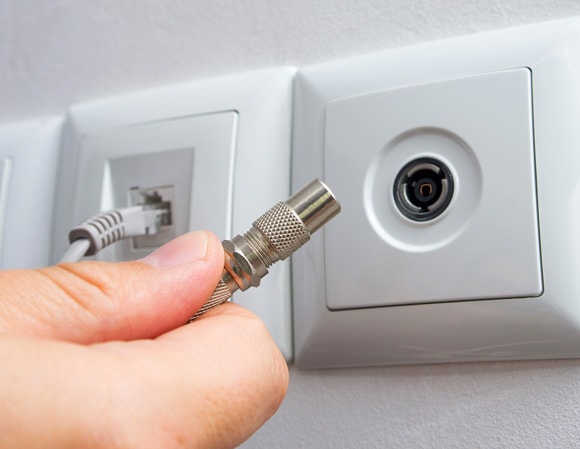
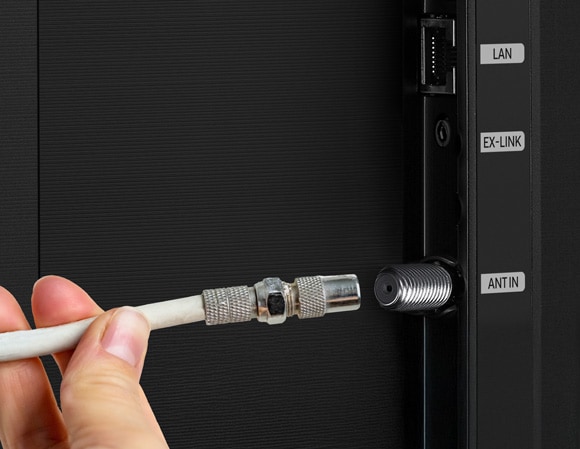
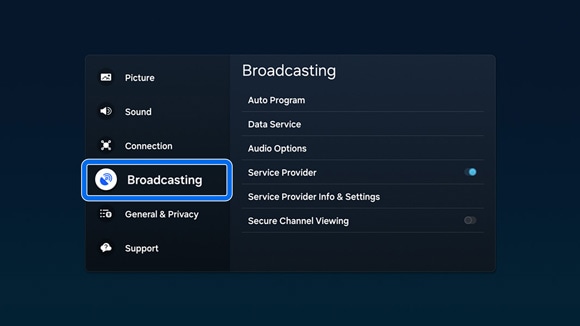
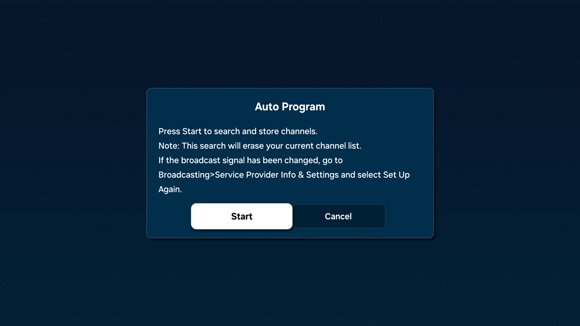
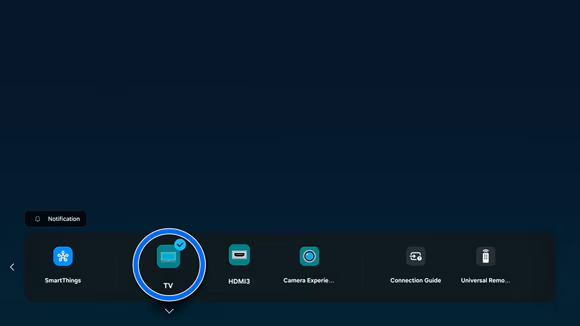
Notes:
- Menu names may vary depending on the region and model. The Auto Program menu may be called Auto Tuning instead.
- The menu path may differ depending on the model (you may need to select General & Privacy, then select Broadcasting).
You can connect a cable or satellite box, OTT box or a game console using an HDMI cable.
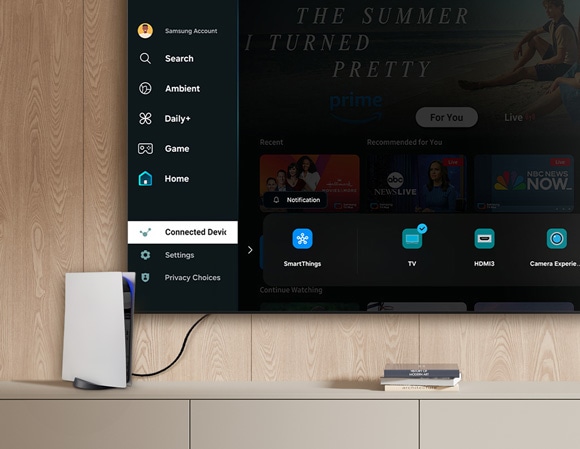
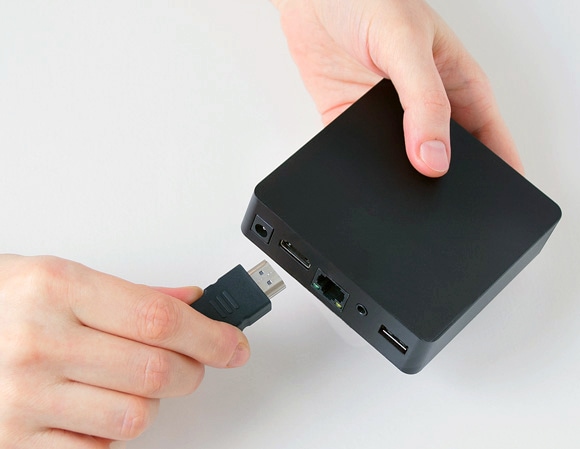
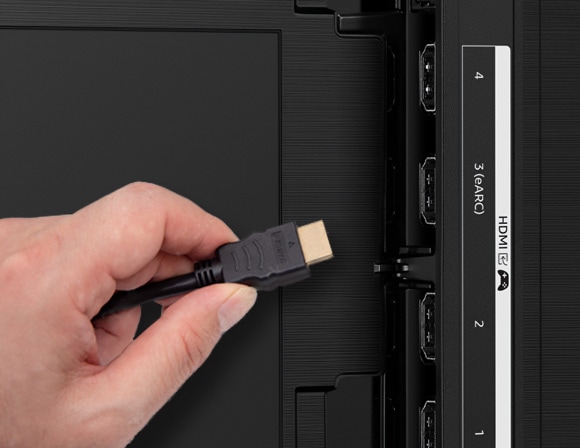
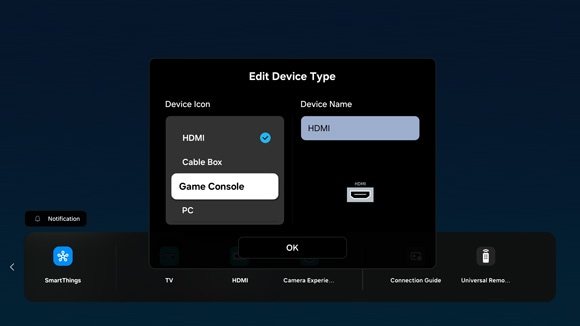
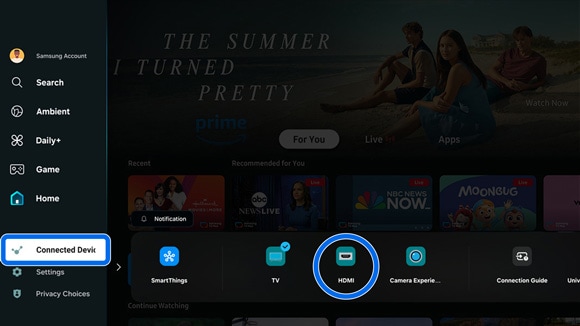
Note: Depending on the model, you will need to press and hold the Select button on the remote control.
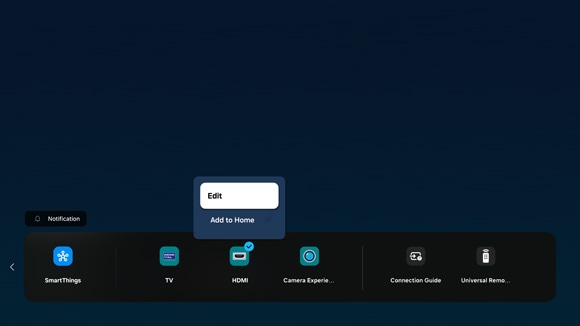
- Edit: Rename the input port or change the device icon.
- Add to Home: Add a device shortcut to the Home screen for quick input switching.
You can connect a PC using an HDMI cable.
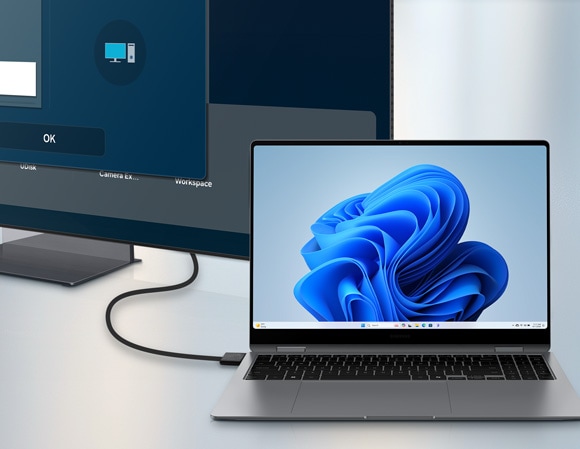
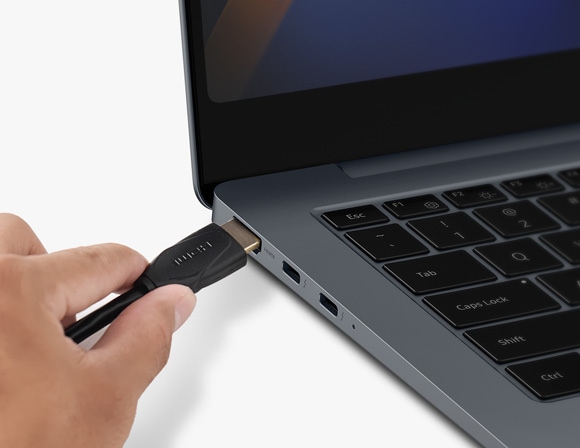
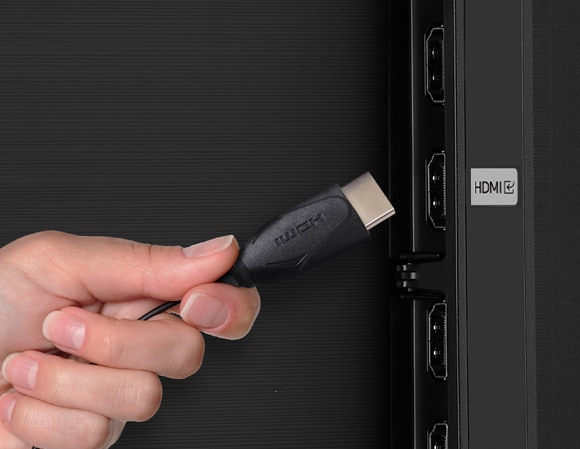
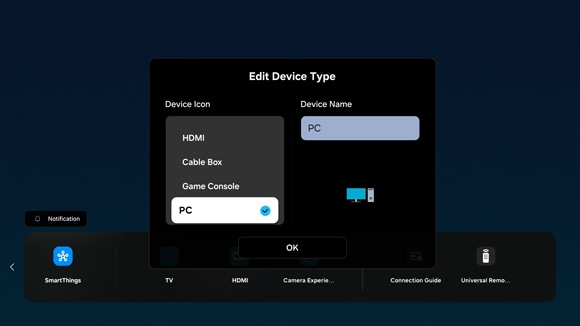
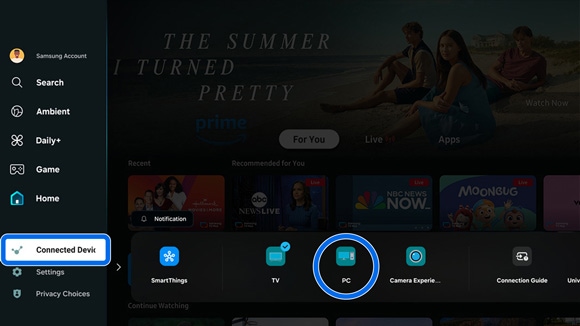
Note: Depending on the model, you will need to press and hold the Select button on the remote control.
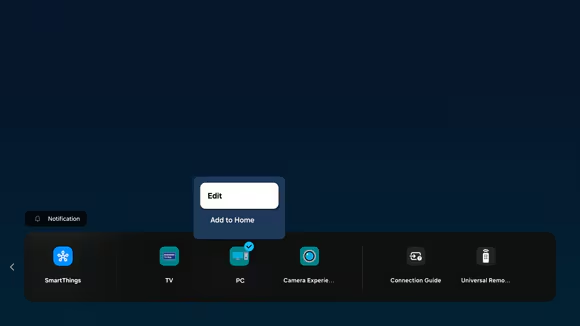
- Edit: Rename the input port or change the device icon.
- Add to Home: Add a device shortcut to the Home screen for quick input switching.
You can view video content and other media that is stored on a USB drive.
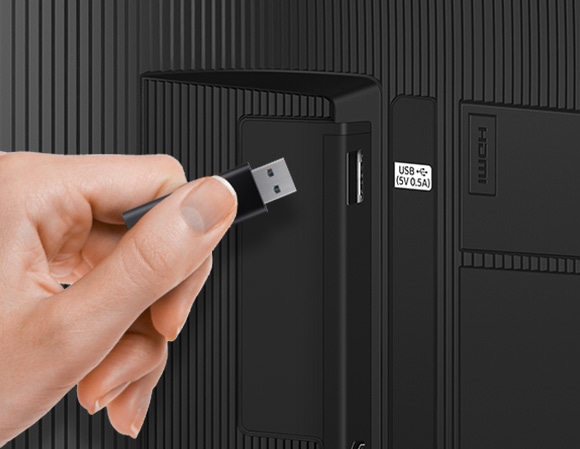
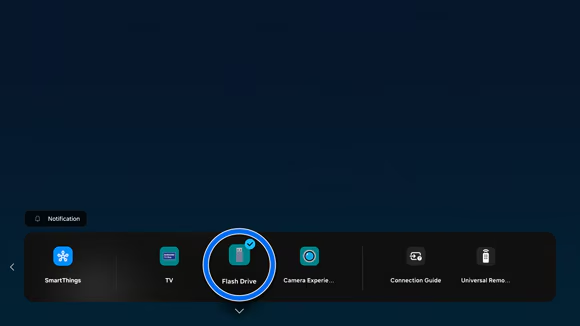
Notes:
- USB devices only support USB MSC (Mass Storage Class).
- Connect directly to the USB port. Using a USB extension cable or connecting more than two external hard drives simultaneously may result in the device not being recognised or the inability to read files on the device.
- To connect an external hard drive, ensure it is connected to the dedicated USB (HDD 5V 1A) port. For some unsupported models, if the model has USB (5V 1.0A/0.5A) ports, connect to one of these ports. It is recommended to use an external hard drive with a power adaptor.
- Supported file systems include FAT, exFAT and NTFS formats.
- Some files may not be supported depending on the model.
Notes:
- If you are having trouble with your Samsung Smart TV, you can check for available software updates, as these may contain a solution to your problem.
- Device screenshots and menus may vary depending on the device model and software version.
For further assistance, please contact our Chat Support. To find your Samsung product's User Manual, head to Manuals & Downloads.
 This product should be mounted to a wall or other suitable surface to avoid serious injury. Find out more here.
Thank you for your feedback!
Please answer all questions.
Contact Info
Contact us
WhatsApp
![]()
![]()

