Add and manage devices and appliances in SmartThings
 Please Note: The information on this page is for Australian products only. Models, sequences, error codes or settings will vary depending on location and/or where the product had been purchased. To be redirected to your local support page please click here.
With the ever-growing number of smart devices and appliances in your home, you need a way to keep up with them all. Did you know there is an app that lets you control your smart devices right from your phone? That's right, the SmartThings App helps you add and manage all your smart devices from one place.
Note:
- If you are adding Z-Wave devices that have been connected previously, make sure they have been removed or excluded before adding them to the new hub.
- The SmartThings App is available on Android and iOS devices. A Wi-Fi connection and a Samsung account are required. Data fees may apply.
- Settings may vary by phone and software version.
For Android Devices:
When you are ready to take control of all your smart devices, just use the following guidelines. But first, you should double check that your devices are compatible.
Step 1


Open the SmartThings App and tap the Plus Button on the Home Page of your selected Home/Location.
Step 2


From the Dropdown menu, select Add Device.
Step 3


Select Samsung Devices or Partner Devices as relevant depending on the device you wish to add.
Step 4


Choose your Device Type and follow the steps to connect it.
For more assistance with connecting specific devices, Click Here.
For iOS Devices:
Your devices can be added using your iPhone as well. But first, you should double check if your devices are compatible.
01 Navigate to and open the SmartThings App.
02 Tap the Devices tab, then tap the Home icon, then choose your desired location for the device.
03 Tap Add (the plus sign). If the device uses Bluetooth, you can tap Scan nearby at the bottom to find it too.
04 You can also add it manually by tapping either By device type or By brand, then choosing the device from the list. Or, tap the Search icon to search for it.
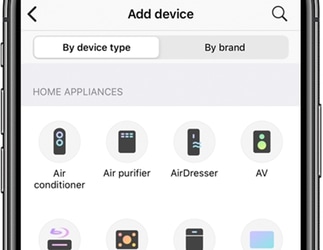
05 Once you've selected your device, follow the on-screen instructions to complete the setup and connect your device.
06 When connecting a Samsung smart appliance, you may be required to press a button on the appliance to turn on its smart features and complete the connection. This is similar to agreeing to the terms to use the smart features.
So, you've added your smart devices - now what? You can easily monitor and control them right from the app. You can even use your phone as a TV remote through SmartThings, if your TV is compatible and connected.
For Android Devices:
Step 1


Open the SmartThings App.
Step 2


Select the Devices tab from the bottom menu.
Step 3


Choose the Device Card of the product you want to control via SmartThings.
Note:
- To select a different location, tap the Home icon and tap your desired location. Tap the drop-down menu, then tap All devices again.
- The available controls may vary depending on the device.
- With some devices you may be prompted to tap Download so you can download the device’s controller.
For iOS Devices:
You can control your smart devices on your iPhone too.
01 Navigate to and open the SmartThings App. Tap the Devices tab, then tap the Home icon.
02 Select your desired location with the devices you’d like to manage. Then, tap the Home icon again and tap All devices.
03 Tap your desired device to use the available settings.
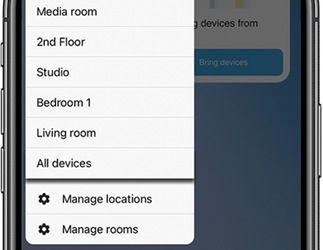
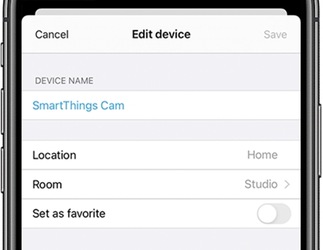
If necessary, you can change the name or location of a connected device. For example, maybe you have multiple smart bulbs added and want to give them different names so you can tell them apart. Or maybe you moved a device to a new room in your house and want to change it in the app as well.
Follow the steps below to change the name or location of a connected device.
Note:
- You cannot edit the details for Bluetooth devices.
For Android Devices:
Step 1
Open the SmartThings App.
Step 2
Select the Devices tab from the bottom menu.
Step 3


Select the Card of the device you wish to edit the details of.
Step 4


Tap on the Three Dots in the top right to open a menu.
Step 5


From the menu, select Edit Device.
Step 6


In this menu, you can edit the Location, Room, and Name of your device.
Once you're done, click Save.
For iOS Devices:
You can edit the details on your iOS device as well.
01 Navigate to and open the SmartThings App. Tap the Devices tab, then tap the Home icon.
02 Select your desired location, then swipe through the rooms to find the device.
03 Select the device, then tap More options (the three vertical dots).
04 Tap Edit to adjust the device’s details.
If you just got a new device and want to remove the old one from SmartThings, it's easy to do so.
For Android Devices:
Step 1
Open the SmartThings App.
Step 2
Select the Devices tab from the bottom menu.
Step 3
Select the Card of the device you wish to delete.
Step 4
Tap on the Three Dots in the top right to open a menu.
Step 5


Select Remove Device from the menu.
Step 6


Tap on Delete to confirm removal.
This cannot be undone. You will have to reconnect the device to SmartThings if you want it connected to your Smart Home.
For iOS Devices:
If you aren't using a device anymore, you can remove it from your iPhone as well.
01 Navigate to and open the SmartThings App. Tap the Devices tab, then tap the Home icon.
02 Select your desired location, then swipe through the rooms to find the device you’d like to remove.
03 Tap the device, then tap More options (the three vertical dots).
04 Tap Edit, then tap Delete device at the bottom. Tap Delete to confirm.
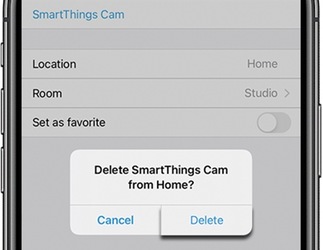
For further assistance, please contact our Chat Support. To find your Samsung product's User Manual, head to Manuals & Downloads.
Thank you for your feedback!
Please answer all questions.
Contact Info
Contact us
WhatsApp
![]()
![]()

