How to use Samsung DeX
 Please Note: The information on this page is for Australian products only. Models, sequences, error codes or settings will vary depending on location and/or where the product had been purchased. To be redirected to your local support page please click here.
Samsung offers many applications to make your work day easier. One of them is Samsung DeX, which gives users the experience of working on a desktop by connecting their mobile device (a smartphone or tablet) to an external display device (a TV or monitor) or a PC.
In order to use Samsung DeX, you may need to purchase separate accessories depending on the situation.

|
When Connecting to: |
Required Accessories
|
|---|---|
|
An external display (TV or Monitor) using a cable |
Either a DeX Station, DeX Pad, or HDMI Adapter.
|
|
a PC, using a cable |
You must use a USB Type-C cable to connect your Smartphone to your PC.
|
|
a TV or PC, wirelessly |
No accessories are required.
|
What accessories officially support Samsung DeX?
Officially supported accessories for smartphones to use Samsung DeX through a wired connection are different from those used for tablets and foldable devices.
Genuine accessories that support Samsung DeX: DeX Station (EE-MG950), DeX Pad (EE-M5100), HDMI adapters (EE-HG950, EE-P5000, EE-I3100, EE-P3200 and EE-P5400).
Please note: The product names of models may vary depending on the country. Products that are not genuine Samsung DeX-supported products may not be compatible depending on their characteristics.
How to use Samsung DeX on a tablet
You can use Samsung DeX on a tablet in one of the following three ways:
Directly on the Tablet's Touchscreen


Connect to a Monitor or TV


Connect a TV Wirelessly
Open the “Notifications” panel by swiping down from the top of the tablet screen and long press the DeX icon in the “Quick settings” menu. You can search for displays available for connection and wirelessly connect a selected display.


If “DeX on PC” appears instead of a selection option, select “More Options” at the top right of the window and then press “Switch to TV or monitor”.
Note:
- The performance may depend on the specifications of the TV that is used for wireless connection. We recommend using a Samsung Smart TV released in or after 2019.
- Wireless connection can be used with other TVs or dongles that support a phone screen mirroring/sharing feature (compatible with Miracast), but their performance is not guaranteed. Please check your TV whether it supports the screen mirroring/sharing feature. The name of the feature may differ by manufacturer. (Samsung TV – Screen Sharing/Mirroring, Sony TV – Screen Mirroring, and LG TV – Screen Share)
- If the surrounding wireless network is busy, it may lead to a poorer performance. Please try to connect again later.
- In order to connect the mobile device to a TV at 5GHz bandwidth for a smooth wireless connection, connect both the mobile device and TV to a wireless router that supports 5 GHz bandwidth and try the wireless connection. However, this may not work if the TV does not support the 5 GHz band Wi-Fi. Please check the TV specifications with the manufacturer. (Please visit Support for inquiries related to Samsung TVs.)
- Maintaining a short distance between the mobile device and TV is recommended for a smooth wireless connection.
Step 1
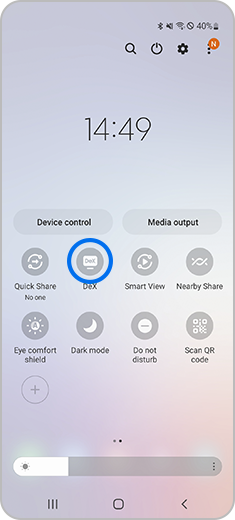
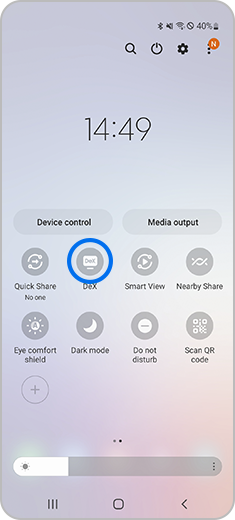
Select the "DeX icon" on your main screen.
Step 2
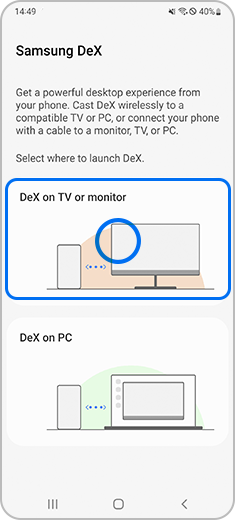
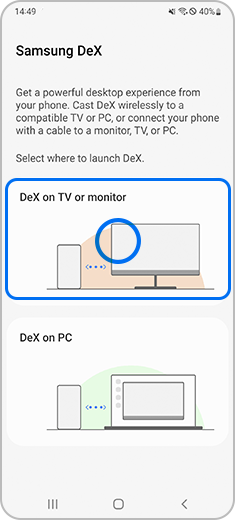
Select “DeX on TV or monitor”.
Step 3
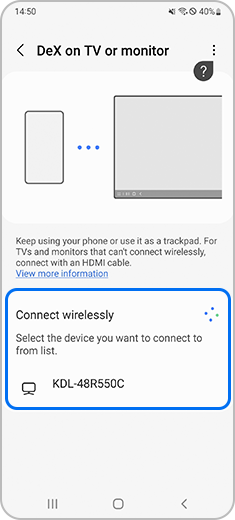
Select the TV or monitor to connect and press “Start now”.
Step 4
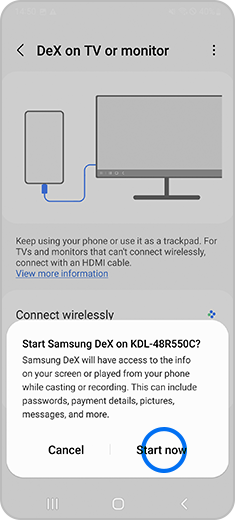
Tap “Start Now” to accept the connection request.
Your PC should meet the following system requirements to run Samsung DeX:
|
Components |
Requirements
|
|---|---|
|
OS (Operating System)
|
Windows 10 (32/64 bit) or above |
|
CPU
|
Intel® Core™ i3 2.4 GHz processor or higher (Intel® Core™ i5 2.5 GHz or higher recommended) Qualcomm Snapdragon 8cx or higher version
|
|
RAM
|
at least 4GB (8GB recommended) |
|
Disk Space |
at least 500MB (recommended) |
|
USB
|
1 free USB 2.0 port (USB 3.0 recommended) |
|
Screen Resolution
|
1024 X 768, 32 bit or above |
Samsung DeX may not work correctly if your device does not meet the minimum requirements. Minimum requirements are subject to change as software updates.
Step 1
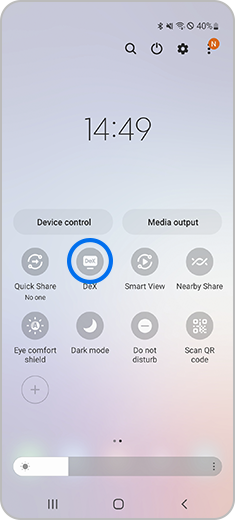
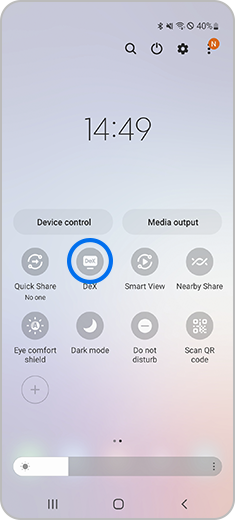
Pull down from the top right corner to open the quick panel. Select the "DeX icon".
Step 2


Select “DeX on PC”.
Step 3
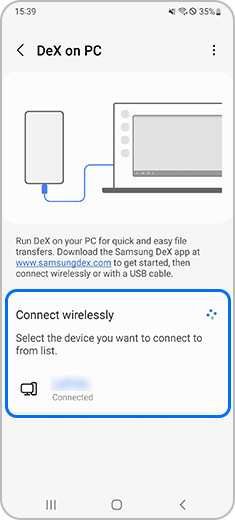
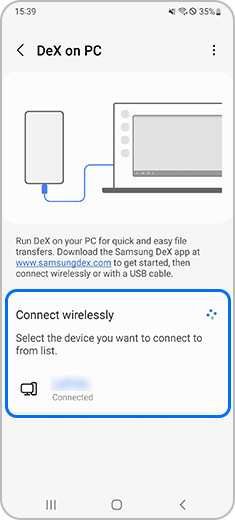
Select the device you want to connect to Samsung Dex.
Step 4
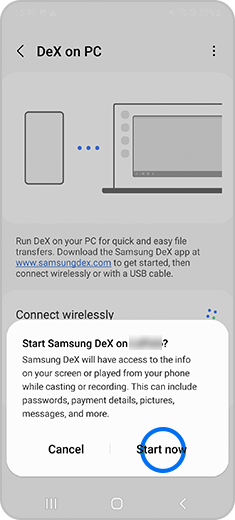
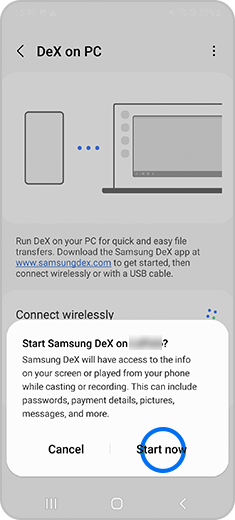
Select “Start Now” to begin DeX functionality.
- Samsung DeX must be installed on your computer. (Visit samsungdex.com for downloading and installing the program.)
- If “DeX on TV or monitor” appears instead of a selection option, select “More options” at the top right of the window and then press “Switch to PC”.
- If the “Samsung DeX” icon does not appear in the system tray in the PC taskbar, run the “Samsung DeX” program.
- Check the Wi-Fi connection between your PC and mobile device. Your PC and mobile device that you’re trying to connect with must share the same Wi-Fi AP (access point).
- For smooth wireless connection, please make sure that your PC and mobile device are connected to the same Wi-Fi AP at 5 GHz bandwidth.
- Wireless connection using the “Connection” feature in Windows is not supported.

Thank you for your feedback!
Please answer all questions.
Contact Info
Contact us
WhatsApp
![]()
![]()

