Know more about Bixby and how to activate it
Bixby is Samsung’s AI assistant that is integrated into your Samsung mobile devices and smart watches. With Bixby, you can command different tasks using your voice, text, or tapping gestures.
From setting reminders, sending messages, or controlling your devices, Bixby makes your life simpler. Follow the guide below to learn how to set up and use Bixby on your Galaxy device.

Notes:
- The extent of Bixby’s features and content may vary depending on the residing country, language, device model and OS version.
- The user interface may change depending on the device model.
How to Set Up Bixby
To use Bixby and its features, you need to be logged into your Samsung account. Click Here for a guide to logging in.
Step 1
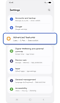

Open Settings, then tap Advanced features.
Step 2
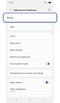

Tap on Bixby.
Step 3
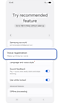

Tap Voice registration.
Step 4
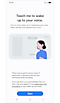

Tap on Start and record your voice to initiate ‘Wake up Bixby by voice’.
Once you've signed into your Samsung account and set up voice recognition, you can start Bixby by saying “Hi, Bixby”, and then giving a command.
Ways you can Use Bixby
There are many ways to take advantage of Bixby and its features. See the table to see some of the ways you can use Bixby to simplify your life.
Note: The path to Bixby may vary depending on device models and software versions.
Some screens will appear in English if your language is not supported by Bixby. Languages supported by Bixby in future updates will be displayed in their respective languages.
|
Potential Actions |
Prompt Examples |
|---|---|
|
Control your Devices
|
“Turn on the kitchen lights.” “Take a screenshot.”
|
|
Check your Schedules and set your Alarms
|
"Tell me today's schedule."
"Set an alarm for 7am tomorrow."
|
|
Play your favourite music and media
|
"Skip this song."
"Play songs by [Artist Name]."
|
|
Initiate quick searches |
"Open the images we took at the beach."
"Show me my most recent recieved message." |
For further assistance, please contact our Chat Support team. To find your Samsung product's User Manual, head to Manuals & Downloads.

Thank you for your feedback!
Please answer all questions.
Contact Info
Contact us
WhatsApp
![]()
![]()

