Unable to Download Apps from the Galaxy Store
 Please Note: The information on this page is for Australian products only. Models, sequences or settings will vary depending on location and/or where the product had been purchased. To be redirected to your local support page please click here.
It is possible that when downloading an application from Galaxy Store you may encounter an error. There are several ways to solve this.
Please note that this information is for the Galaxy Store, and not the Play Store.
Trying to download WhatsApp? Check out our guide Downloading WhatsApp on my Galaxy Phone for more information.
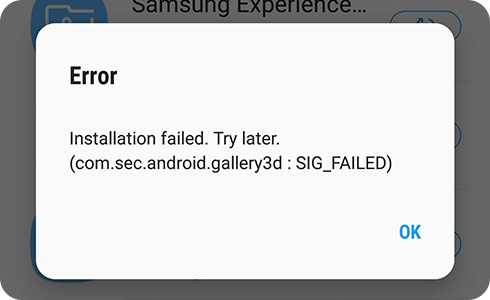
If an error occurs during the app installation and update stage, please try again after completing the following steps.
On your Galaxy phone
Step 1


Open your phone and access Settings. Scroll down and select the “Apps” option.
Step 2


In the Apps menu, tap on “Galaxy Store”.
Step 3
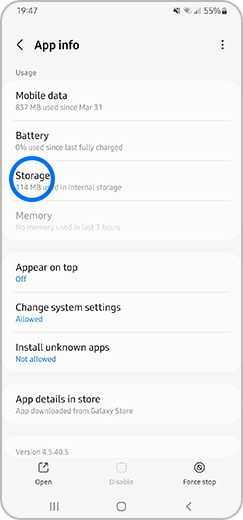
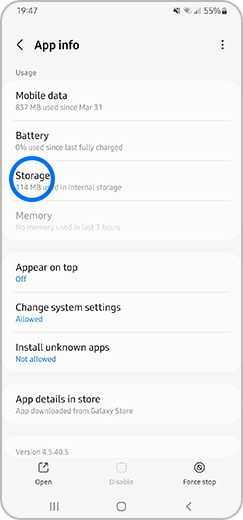
In the Usage section, tap on “Storage”.
Step 4


In the Storage menu, tap on "Clear Data”, then “Clear Cache" and try the app installation or update again.
If the same error persists, please contact us by attaching the system log data through Galaxy Store. To do this, please follow these steps.
Step 1


Open your Galaxy Store app and tap on the “Menu” option on the bottom right.
Step 2
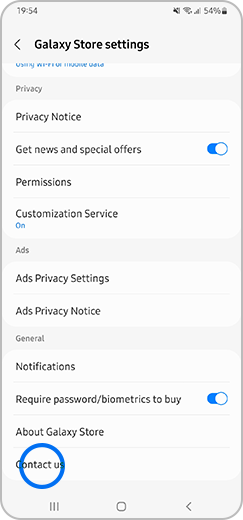
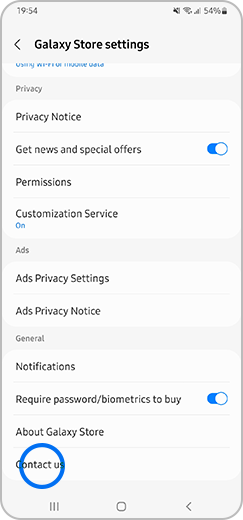
On this screen, tap on the Settings Icon and select the option “Contact us”.
Step 3


Tap on the “Error reports” menu to resolve the problem with our help.
Related problems
To download apps and resources to the device, it is recommended that you have at least 1.5 GB of free space or 2.5 times the app capacity. If there is no free space, the download may not be possible.
To check the device storage, please follow these steps.
Please check if the network (mobile network or Wi-Fi) is connected successfully and try again. If the mobile network or Wi-Fi is turned off or there is poor service, access to Galaxy Store may not be possible.
For help connecting your device to a Wi-Fi network, Click Here.

Thank you for your feedback!
Please answer all questions.
Contact Info
Contact us
WhatsApp
![]()
![]()

