Setting a Music File as a Notification Tone on my Samsung Phone

If you wish to set an Audio or music file as a Message notification or ringtone, the audio file must be placed into the Notifications or Ringtone folder. Follow the below guide to learn how to customise your Notification tones on your Samsung device.  If you would like to learn how to customise your Whatsapp Ringtone please refer to our guide Change WhatsApp Ringtone on my Samsung Phone for more information.

Please Note: This guide is designed for Australian variant Galaxy devices, if you have an international device and require further assistance click here to reach out to your Samsung Subsidiary. 

Using saved Music files
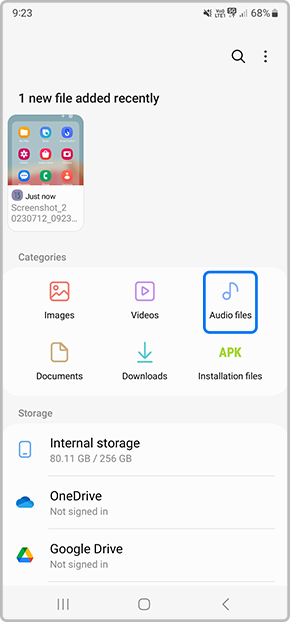
1 Head into the My Files app icon My Files app
head  to your My Files app
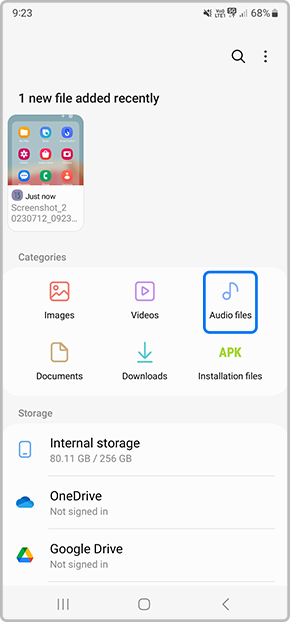
2 Tap on Audio
Tap on the Audio category
3 Select Music > long press the music file to select then either tap on Move or Copy
Select Music and Long tap the file to select the either tap on Move or Copy
4 Head back to the My File main page and select Internal storage
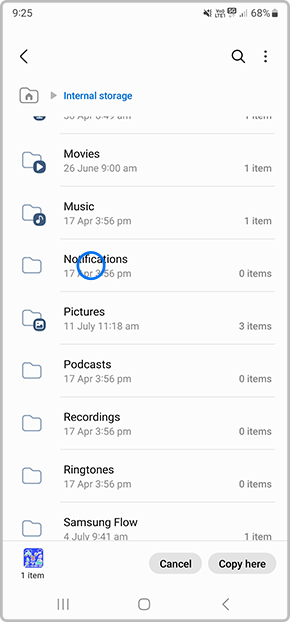
Head back to the My File main page and select Internal storage
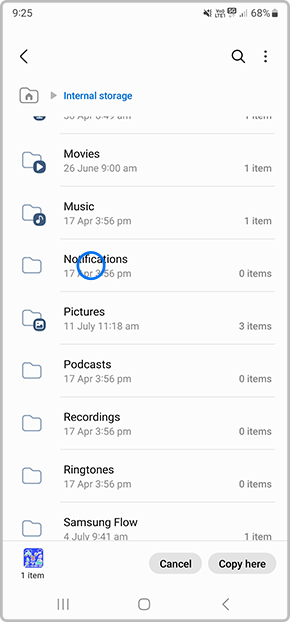
5 Select Notifications
Select Notifications

If you aren't noticing a Notification folder in your Internal Storage you can easily create one. Simply tap on the 3 dots > Create folder > name the folder Notifications.
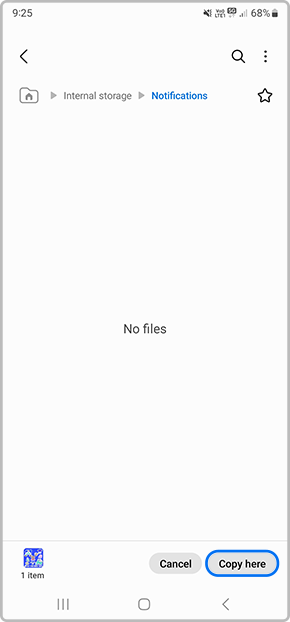
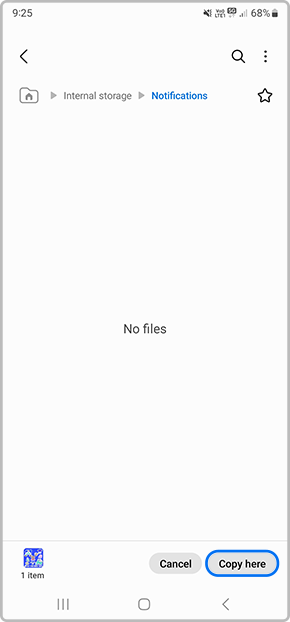
6 Tap on Copy here to copy your music file into your Notifications folder
Tap on Copy here to copy the file in your Notifications folder
7 Now you will be able to set the Voice Recording as the Notification tone.

Head into your SettingsSounds and vibration.
head into your settings > sounds and vibration
8 Tap on Notification sounds
Tap on notification sound
9 Select your Music file then tap on the back button to apply changes
select new notification tone
10 The selected Audio file has now been successfully set as your Notification Sound.

If you are unable to hear your Notification sounds, ensure you have set your Sound Mode has been set to Sound. You can check by heading into your Settings > Sounds and Vibrations > Sound Mode > Sound.

Using Voice Recording

This guide is based on the Voice Recorder app pre-installed on your Galaxy device. You will first need to have saved a Voice Recording within the app before proceeding with the below steps. Not too sure how to use the Voice Recorder app? Check out our guide Using the Voice Recorder app on my Samsung Phone for step-by-step instructions.

1 Head into the My Files app icon My Files app
head  to your My Files app
2 Tap on Internal Storage
Select Internal Storage
3 Scroll down the page and select the Voice Recorder folder
Select Voice Recorder folder
4 Long press the Voice Recording to select the file then tap on Move or Copy
Long press Voice Recording and tap on Move or Copy
5 Head back to your Internal Storage folders and select Notifications
Head back to your Internal Storage options and select Notifications
6 Tap on Copy here to copy your Voice Recording file into your Notifications folder
Tap on Copy here to copy the file in your Notifications folder
7 Now you will be able to set the Audio file as the Notification.

Go into the Settings menu → Sounds and vibration.
head into your settings > sounds and vibration
8 Tap on Notification sounds
Tap on notification sound
9 Select your Music file then tap on the back button to apply changes
select new notification tone
10 The selected Voice Recording has now been successfully set as your Notification Sound.

If you are unable to hear your Notification sounds, ensure you have set your Sound Mode has been set to Sound. You can check by heading into your Settings > Sounds and Vibrations > Sound Mode > Sound.

Customise Individual App Notifications Tones
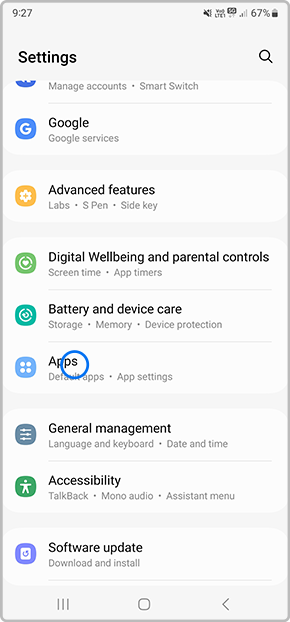
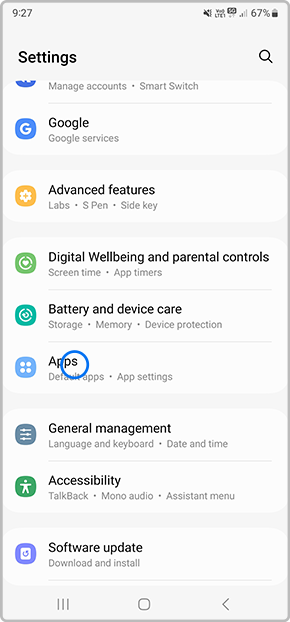
1 Head into your Settings > Apps
Head into your Settings > Apps
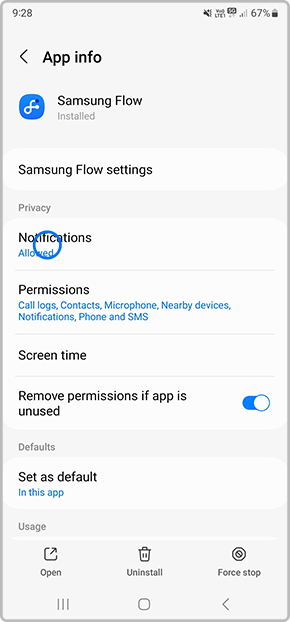
2 Tap on an app you would like to customise the Notification tone
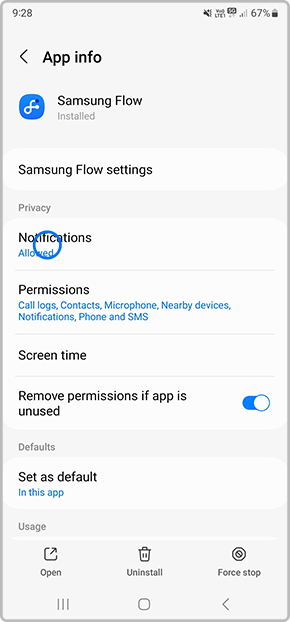
Select an app you would like to customse the notification tone
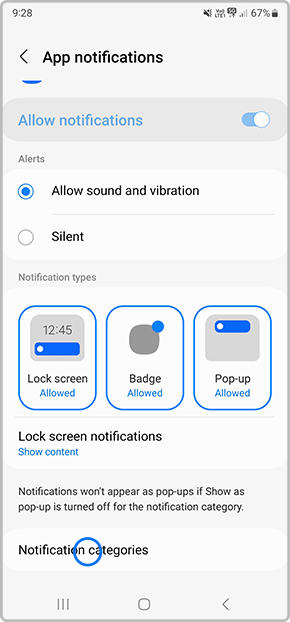
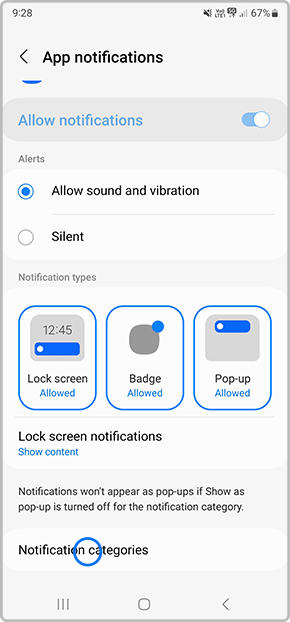
3 Tap on Notifications
Select Notifications
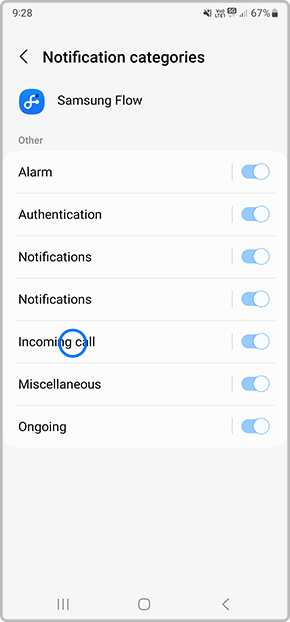
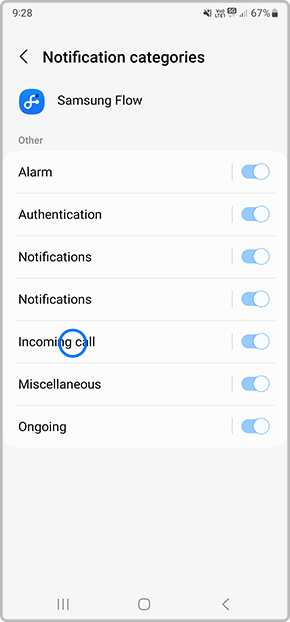
4 Select a category you would like to customise
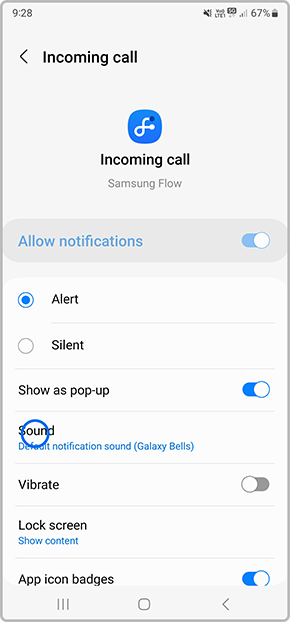
Tap on a category you would like to customise
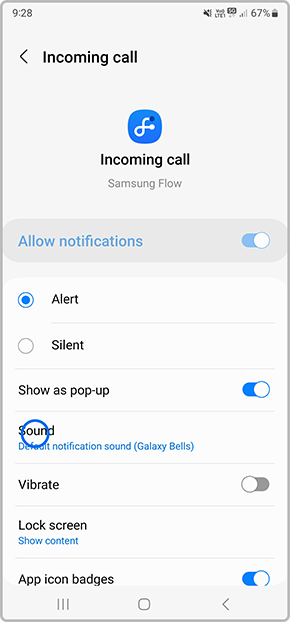
5 Ensure that you have selected Alert then tap on Sound
Ensure the alerts have been enabled then tap on sound
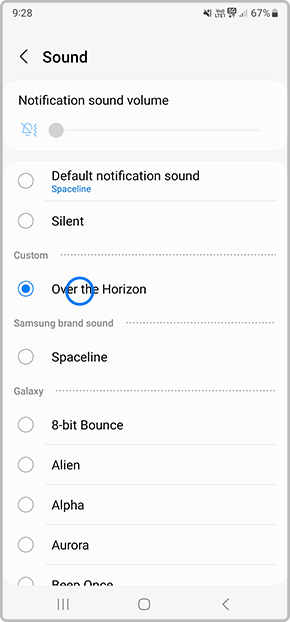
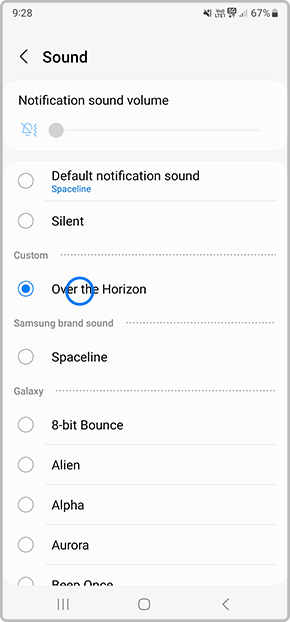
6 Tap on a sound then press the back button to apply changes
Select a tune

If you would like to use your own music file other than the pre-loaded sounds, follow steps  1-6 under Using saved Music Files to transfer your music files into your Notifications Folder.

If you require further assistance, please consult the user manual from our Manuals & Downloads page or contact our Samsung Care Australia experts on 1300 362 603 (Toll Free in Australia). You can also contact our Chat Support team or reach us through Samsung Members Community.