How to change your Samsung account country or region
Your Samsung account country determines which services and features are available on your device. If you moved to another country, you can update the one linked to your Samsung account through the Samsung account website in a web browser.
Note:
- After changing your country, you must wait 180 days (about 6 months) before changing it again or reverting to your original country.
- Devices connected to your Samsung account will be automatically signed out after the country is changed. You will need to sign in again on each device.
For security reasons, your Samsung account country can only be changed from the Samsung account website using a web browser. You can use a phone, tablet or computer to complete the process, depending on what is most convenient for you.
Step 1. Using a web browser, open the Samsung account website and sign in to your account.

Step 2. Select Profile at the top of the screen.

Step 3. Scroll down and select Edit personal information.

Step 4. Select Country or region.

Step 5. Select the desired country from the menu, then select Change.
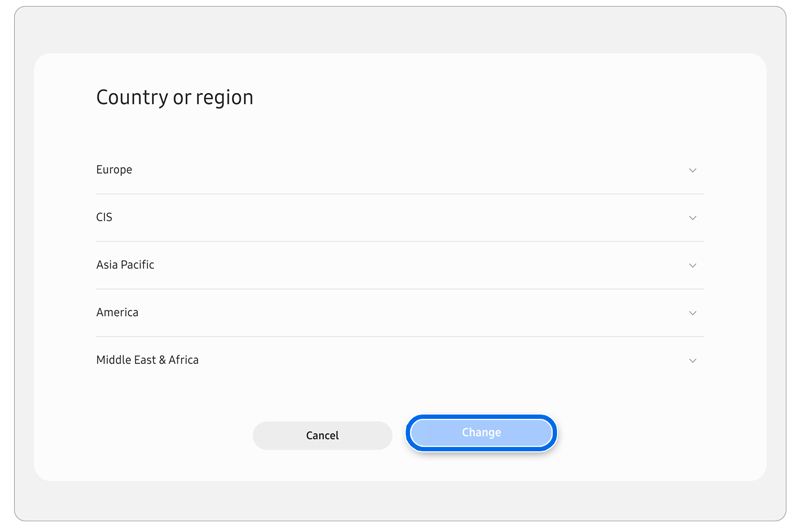
Step 6. Read the information provided on screen, select the checkbox, and then select Change.

Note: After changing your Samsung account country, devices connected to your account may be automatically signed out. Simply sign in again on each device.
Samsung account countries are tied to local services, laws and regulations. Because of this, some restrictions may apply when changing your Samsung account country.
- After changing your Samsung account country, you must wait 180 days (about 6 months) before changing it again or reverting to your original country.
- Some services and features, such as SmartThings, may not be available after changing your Samsung account country.
- Your purchase history will only display purchases made in the currently selected country. To view purchases from another country, you must change your Samsung account country back to the one used at the time of purchase. Please note that the 180-day (about 6 months) restriction still applies.
- Family group accounts and child accounts cannot change their Samsung account country.
- Accounts belonging to users below the minimum age required in a country may not be able to change countries. Age requirements vary by country.
- Samsung accounts using only a phone number as an ID cannot change countries.
- Some Samsung accounts in European countries may be temporarily restricted from changing countries due to local privacy regulations.
- Samsung accounts based in Mainland China cannot change countries. Likewise, accounts outside Mainland China cannot be changed to Mainland China.
- If you have a Galaxy Store seller account, you must submit a change request through the Samsung customer center.
Note: If you are unable to change your Samsung account country or experience issues during the process, contact Samsung Support for assistance. Support is available through several contact options depending on your country.
Additional resources:

Thank you for your feedback!
Please answer all questions.
RC01_Static Content : Hide call number function