Do I need a Samsung account to download a theme?
 Please Note: The information on this page is for Australian products only. Models, sequences or settings will vary depending on location and/or where the product had been purchased. To be redirected to your local support page please click here.
To download a theme from Galaxy Themes, you must log in to the app with your Samsung account. From there, the process is simple.
How to log in to Galaxy Themes using your Samsung account
To download a theme, you must sign into the Galaxy Themes app using your Samsung account:
Step 1


Long press on an empty spot of your Galaxy device’s home screen.
Step 2


Tap on Themes.
Step 3


Tap on Menu in the bottom right.
Step 4


Tap on the Settings icon in the top right.
Step 5
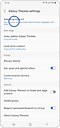

Tap on the Samsung Account option.
Step 6


Enter your Samsung Account credentials.
More information about your Samsung account
Yes. To log in to Galaxy Themes with a different account, log out of the Samsung account you are currently using and then log in with the desired account.
Step 1
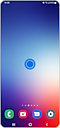

Long press on an empty spot of your Galaxy device’s home screen.
Step 2
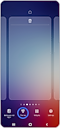

Tap on Themes.
Step 3
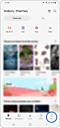

Tap on Menu in the bottom right.
Step 4
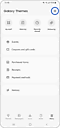

Tap on the Settings icon in the top right.
Step 5
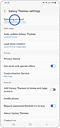

Tap on the Samsung Account option.
Step 6
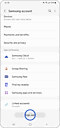

Tap on Sign Out at the bottom.
Step 7
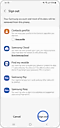

Tap Sign Out again.
Step 8
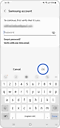

Enter your credentials, and tap OK.
Step 9
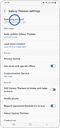

Tap on Samsung Account.
Step 10


Enter your Samsung account credentials to log in again.
Please note: If there is data (for example, Samsung Cloud, Samsung Pay, or more) connected to the Samsung account from which you are logging out, it is deleted from the device.
If you want to publish your themes in Galaxy Themes, apply through the Samsung Developer website.
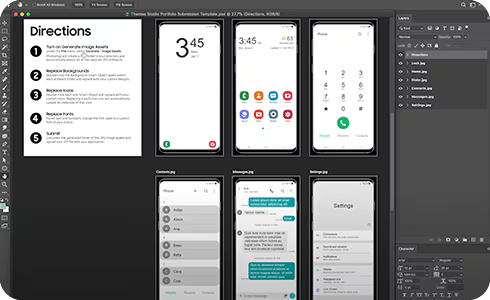
Individuals, designers, brands, companies, or anyone who is interested in developing and publishing themes content can apply through the Samsung Developer site.
Visit the Samsung Developer website to find more information on how to become a developer and publisher of Galaxy Themes. You can also check the dates for submitting an application to become a themes developer and publisher for Samsung.
If you do not remember your Samsung account and password, you can find your ID or reset your password.
After logging in to Galaxy Themes, you can change your password by following the next steps:
Step 1


Launch Galaxy Themes and tap Menu in the bottom right.
Step 2


Tap the settings icon located on the top right.
Step 3


Tap Samsung Account.
Step 4


Tap on Security and Privacy in the menu.
Step 5


Tap on Password.
In this screen, you can change your password after tapping “Change”. Enter your new credentials and tap “Save”.
Please note: If you change your password, you will be logged out of all devices connected to your Samsung account. You must log in on these devices to synchronise data for contacts, SmartThings, Samsung Pass, and more.

Thank you for your feedback!
Please answer all questions.
Contact Info
Contact us
WhatsApp
![]()
![]()

