Washing Machine Control Panel Layout
 Please Note: The information on this page is for Australian products only. Models, sequences, error codes or settings will vary depending on location and/or where the product had been purchased. To be redirected to your local support page please click here.
When you first use your Samsung Washing Machine, you may be wondering how to use the control panel.
Read below for information on what the meaning of each function is for the various kinds of control panels.
Note: Please keep in mind that designs and functions can vary. Please refer to your User Manual to check details specific to your washing machine model.
Type 1 - Washing Machine
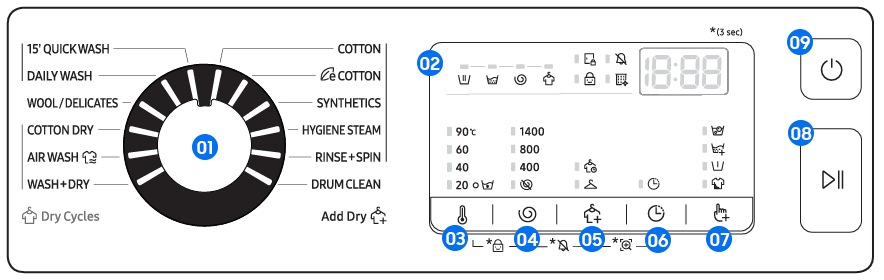
01 - Cycle Selector Turn the dial to select a cycle.
02 - Display The display shows current cycle information and estimated time remaining, or an information code when a problem occurs.
03 - Temp Press to change the water temperature for the current cycle.
04 - Spin Press to change the spinning speed for the current cycle.
- Rinse Hold (no indicator) The final rinse cycle is suspended so that the laundry remains in the water. To unload the laundry, run a drain or spin cycle.
- No Spin The drum does not spin after the final drain cycle.
- Spin Only To run the spin only cycle, press Spin for 3 seconds. When the cycle time and spinning speed appear, press Spin repeatedly until a desired spinning speed is selected. Then, press Start/Pause (08) to start the cycle. The spinning time depends on the selected cycle.
05 - Dry Option Press this button to select proper drying option.
06 - Delay End Delay End lets you set the end time of the current cycle. Based on your settings, the start time of the cycle will be determined by the machine’s internal logic. For example, this setting is useful for programming your machine to finish a wash at the time you normally return home from work.
Press to choose a preset unit of hours.
07 - Options Press this button to select proper drying option.
08 - Start/Pause Press to start or stop operation.
09 - Power Press to turn on/off the Washing Machine.
Type 2 - Simple UX Design
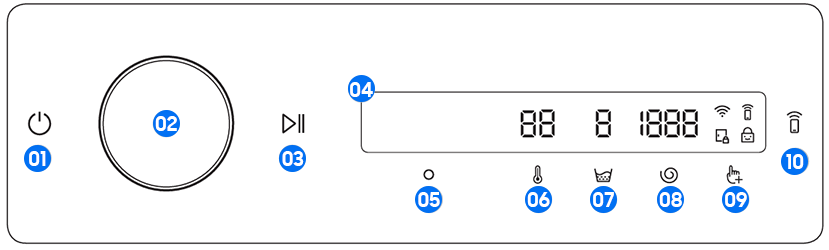
01 - Power Tap to turn the Washing Machine on or off.
If you do not manipulate the control panel for 10 minutes after the washing machine is turned on, the washing machine automatically turns off. The washing machine automatically turns off when the cycle completes.
02 - Navigation Dial Turn the navigation dial left or right to navigate through cycles and functions. When you turn the navigation dial, LCD displays your selection (such as cycle, additional functions, and system functions).
03 - Start/Pause Tap and hold to start or pause an operation.
04 - Display The display shows current cycle information and estimated time remaining, or an information message when a problem occurs.
05 - OK Tap to confirm your selection of function or settings.
06 - Temperature Tap to change the water temperature for the selected cycle. The indicator above the button indicates the default or selected setting.
07 - Rinse Tap to change the rinse count for the selected cycle. The indicator above the button indicates the default or selected setting.
08 - Spin Tap to change the spin speed for the selected cycle. The indicator above the button indicates the default or selected setting.
09 - Additional Functions Tap to enter the additional functions menu. Tap and hold for 3 seconds to enter the system functions menu.
10 - Smart Control Tap to activate or deactivate the Smart Control function. Tap and hold to enter pairing mode to connect to the SmartThings app.
When the Smart Control function is activated, you can control your washing machine remotely using the SmartThings app on your smartphone or tablet (Android or iOS).
Note:
- Some models may have a 'Quick Drive' function underneath the 'Smart Control' button. Tap this to turn on or off the function.
Type 3 - Washer/Dryer Combo
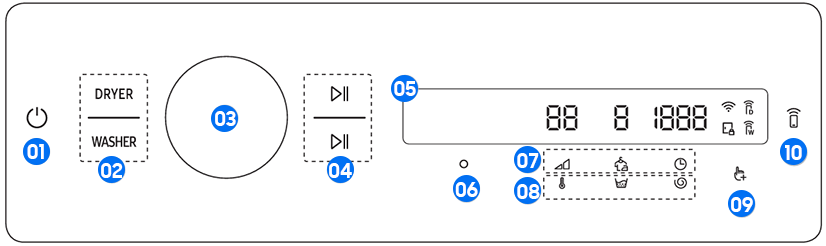
01 - Power Tap to turn the Washing Machine on or off.
If you do not manipulate the control panel for 10 minutes after turning on the washing machine, the washing machine automatically turns off. The washing machine automatically turns off when the cycle completes.
After connecting the washing machine and the dryer with the multi-control cable, only the washing machine will turn on when you tap the button. Once the washing machine turns on, tap DRYER to turn on the dryer.
02 - Washer/Dryer Tap Washer to select the washing machine and use its features - or tap Dryer to select the Dryer and use its features. You can hold the buttons to cancel any washing machine or dryer operations.
03 - Navigation Dial Turn the navigation dial left or right to navigate through cycles and functions. Your selection (such as cycle, additional functions, and system functions) is displayed on the LCD as you turn the navigation dial.
04 - Start/Pause Press this to start or pause an operation.
The upper button controls the Dryer, and the lower button controls the Washing Machine.
05 - Display The display shows current cycle information and estimated time remaining, or an informational message when a problem occurs. To learn more about Information Codes, Click Here.
06 - OK Tap to confirm your function or setting.
The button is inactive when the selected function or setting is not supported.
07 - Dry Cycle Settings Tap the desired button to change the default dry cycle settings.
- Dry Level Tap to change the dry level. You can select from levels 1 to 4, but levels available may depend on current selected cycle.
- Wrinkle Prevent Tap to turn on or off the Wrinkle Prevent function. When the function is on, the dryer rotates the drum intermittently after completing the dry cycle to prevent wrinkles.
- Time Tap to change the cycle time.
Some cycles do not support a time setting. You can set the drying time between 20 minutes and 240 minutes. However, available drying time depends on the selected cycle.
1 Gently dries items to protect the fabric. Suitable for delicate items or items you want to naturally dry (by hanging or laying flat on the drying rack) while they are damp.
2 The Damp dry level is designed to partially dry items. Use for items that lay flat or hang to dry.
3 Standard drying level.
4 Suitable for large and thick items.
08 - Wash Cycle Settings Tap the desired button to change the default wash cycle settings.
- Temperature Tap to change the water temperature for the selected cycle.
- Rinse Tap to change the rinse cycle settings for the selected cycle.
- Spin Tap to change the spin speed setting for the selected cycle.
09 - Additional Functions Tap to enter the additional functions menu. Tap and hold for 3 seconds to enter the system functions menu.
10 - Smart Control Tap to activate or deactivate the Smart Control function. Tap and hold to enter pairing mode to connect to the SmartThings app.
When the Smart Control function is activated, you can control your washing machine remotely using the SmartThings app on your smartphone or tablet (Android or iOS).
For further assistance, please contact our Chat Support. To find your Samsung product's User Manual, head to Manuals & Downloads.

Contact Info
Contact us
WhatsApp
![]()
![]()


