Connect a Keyboard & Mouse to your Samsung TV
Connect a Bluetooth or USB keyboard and mouse to your Samsung TV to make it easier to navigate the internet and easily type up account credentials. While most Samsung TVs are bluetooth enabled, you may need to double check the specifications of your specific TV. Follow the steps below to learn how.
Note: Bluetooth or USB keyboard and mouse connection may not be supported on certain TV models. Please refer to our Support page for Specs (BT/USB HID Bult-in capabilities). The information on this page is for Australian products only. Models, sequences or settings will vary depending on location and/or where the product had been purchased. To be redirected to your local support page please click here.
USB Keyboards and Mice
Plug in the wireless USB connection of your keyboard and/or mouse into your Samsung TV. Most Samsung TVs manufactured before 2018 will automatically recognise the device without needing to change any settings on the TV.
Bluetooth Keyboards and Mice
To add a Bluetooth mouse or keyboard, make sure the device is in Bluetooth pairing mode. If your device is not detected, move it closer to the TV and select refresh on the TV screen. Follow the steps below to learn how.
 Settings and then All Settings
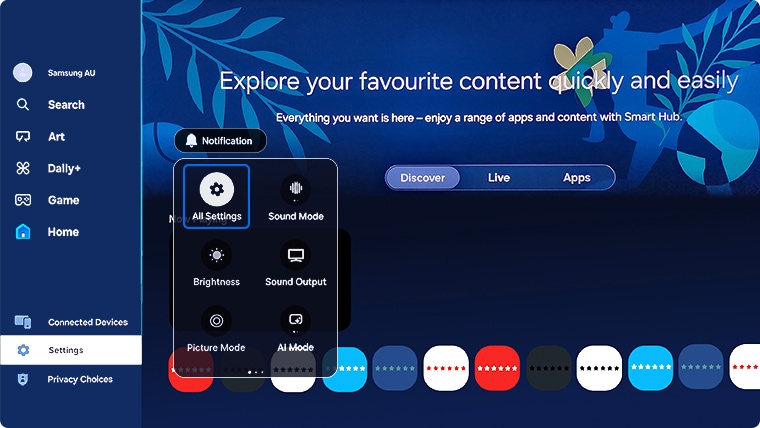


Using a Keyboard and Mouse

 Home button on your remote control and then head to Settings
Note: Images were taken from a 2023 model TV. Steps and layout may differ depending on the model of your TV.
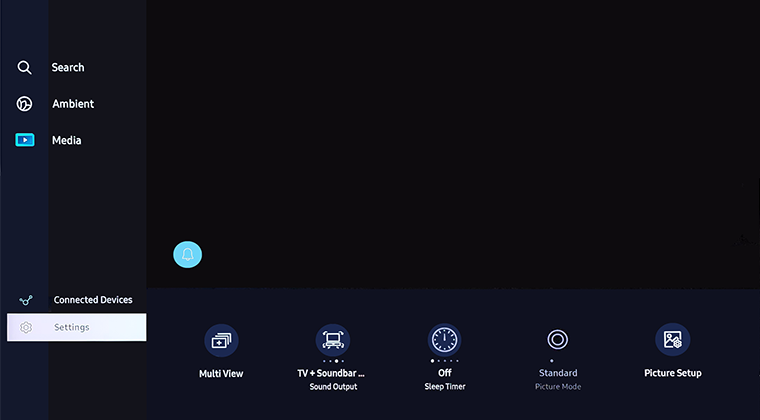 All Settings
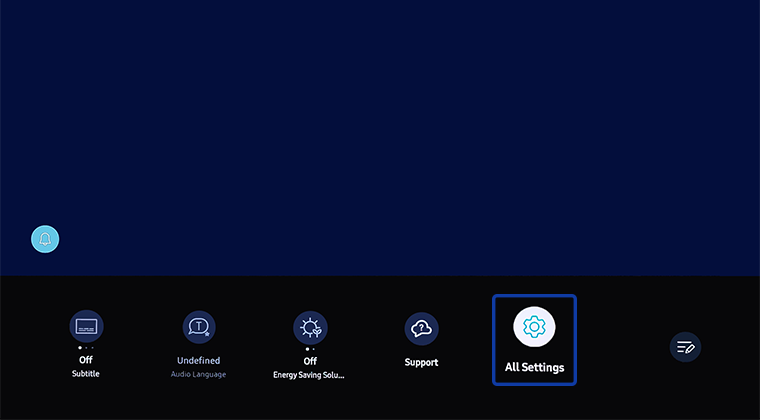
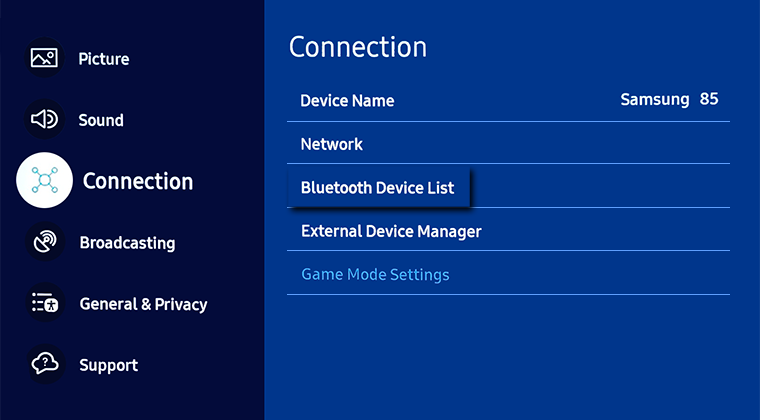
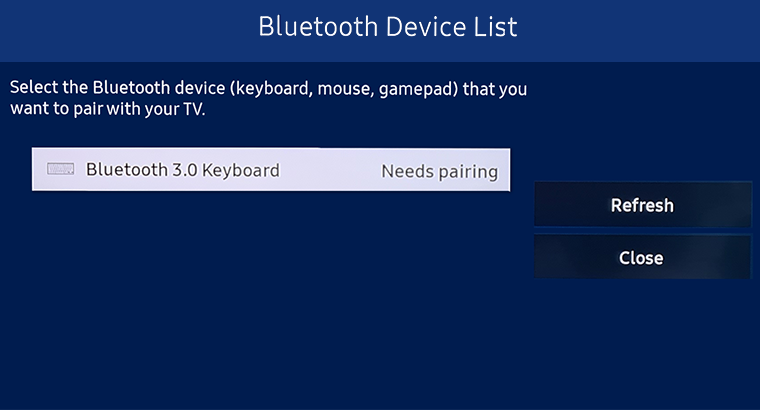
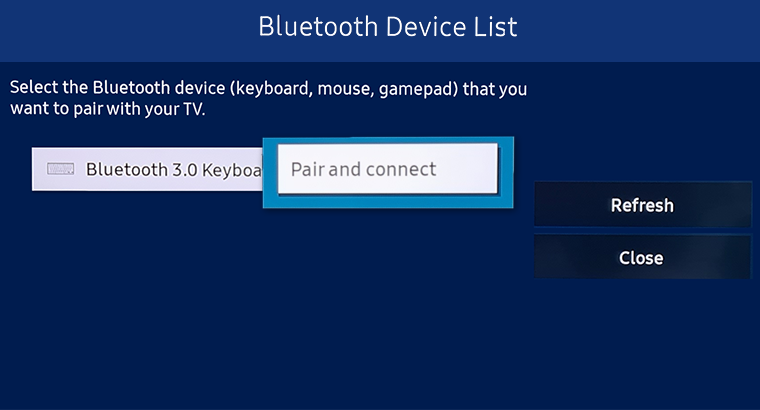
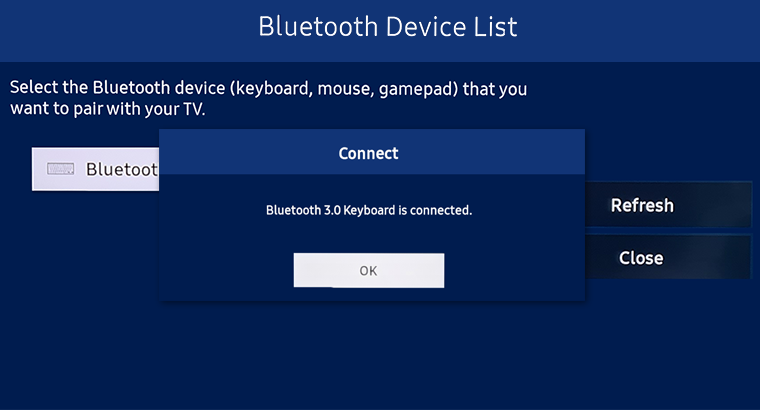
Using a Keyboard and Mouse
Home button on your remote control and then select Menu
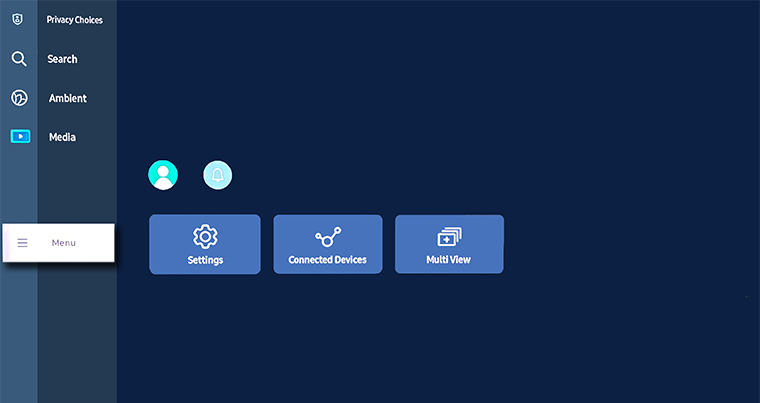 Settings and then All Settings
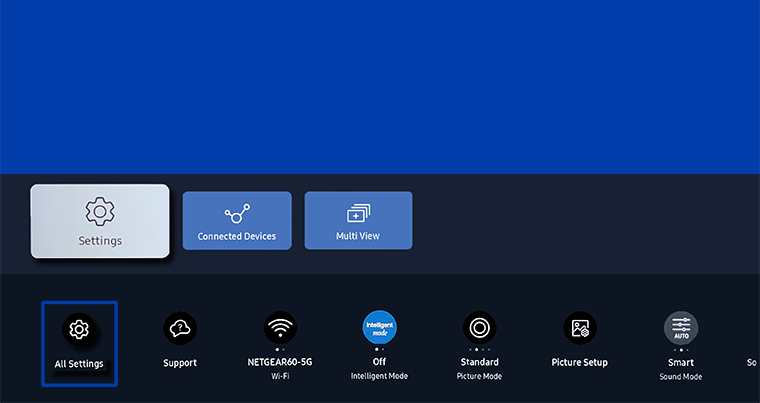
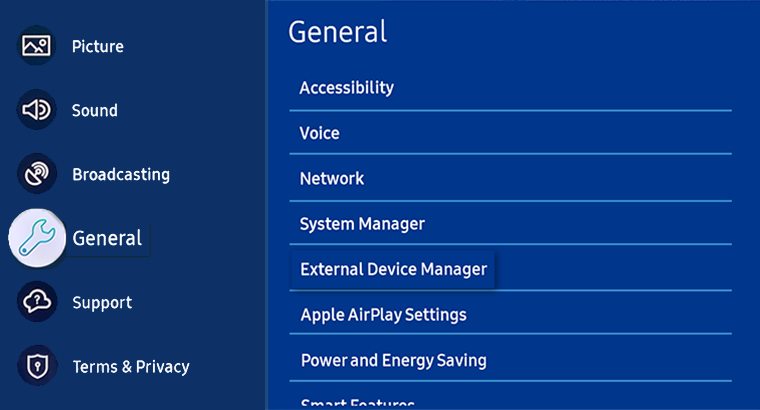
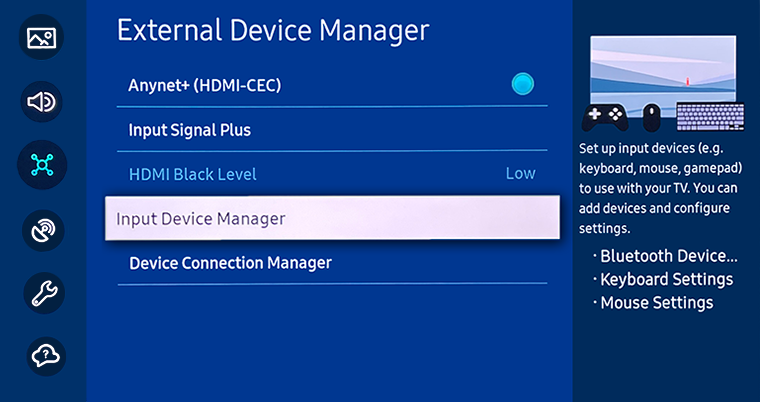
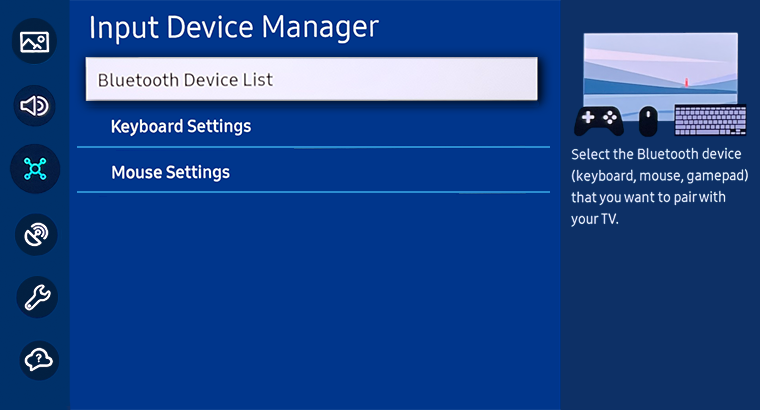
Using a Keyboard and Mouse
For previous models, you can add a Bluetooth device via:
- 2018 - 2021 Model TVs: Settings > General > External Device Manager > Input Device Manager > Bluetooth Device List
- 2017 Model TVs: Settings > General > External Device Manager > Keyboard Manager > Add Bluetooth Keyboard
- 2016 Model TVs: Settings > System > Input Device Manager > Add Bluetooth Keyboard & Gamepad
- 2015 Model TVs: MENU/123 > Menu > System > Device Manager > Keyboard Settings > Add Bluetooth Keyboard
- 2014 Model TVs: System > Device Manager > Keyboard Settings > Add Bluetooth Keyboard
For further assistance, please contact our Chat Support. To find your Samsung product's User Manual, head to Manuals & Downloads.
 This product should be mounted to a wall or other suitable surface to avoid serious injury. Find out more here.
Thank you for your feedback!
Please answer all questions.
Contact Info
Contact us
WhatsApp
![]()
![]()

