What is Anynet+ on your Samsung TV
 Please Note: The information on this page is for Australian products only. Models, sequences or settings will vary depending on location and/or where the product had been purchased. To be redirected to your local support page please click here.
Anynet+ is a Samsung TV feature that allows users to control devices attached by HDMI with a single remote control. This means you can use the TV remote to control a soundbar or Blu-ray player attached to the TV. Up to 12 devices can be connected to the TV, ensuring that it is connected with a HDMI cable and supports Anynet+ (HDMI-CEC). Anynet+ can't be used with incompatible (ie. not HDMI-CEC enabled) devices, and some HDMI cables may not support it. Anynet+ is enabled on the HDMI ports on most Samsung TVs manufactured after 2008.
- Anynet+ (HDMI-CEC) enabled devices must be connected to the TV with an HDMI cable. Some HDMI cables may not support Anynet+ (HDMI-CEC).
- You can configure the TV's Universal Remote to control third-party cable boxes, Blu-ray players and home theatres that do not support HDMI-CEC.
- Anynet+ cannot be used to control external devices that do not support HDMI-CEC.
- Anynet+ (HDMI-CEC) works only with external devices that support HDMI-CEC and only when those devices are either in standby mode or turned on.
- Anynet+ (HDMI-CEC) can control up to 12 compliant external devices (up to 3 of the same type) except for home theatres. Anynet+ (HDMI-CEC) can control only one home theatre system.
- If an external device has been set up for both Anynet+ and a universal remote control, the device can be controlled only with the universal remote control.
 Settings and then All Settings
Note: The images below were taken on a 2025 model TV. Settings and layout may vary depending on the model and software version of your TV.
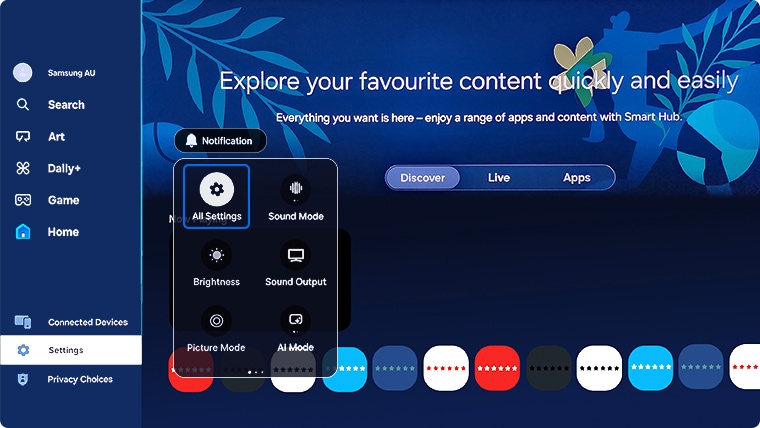
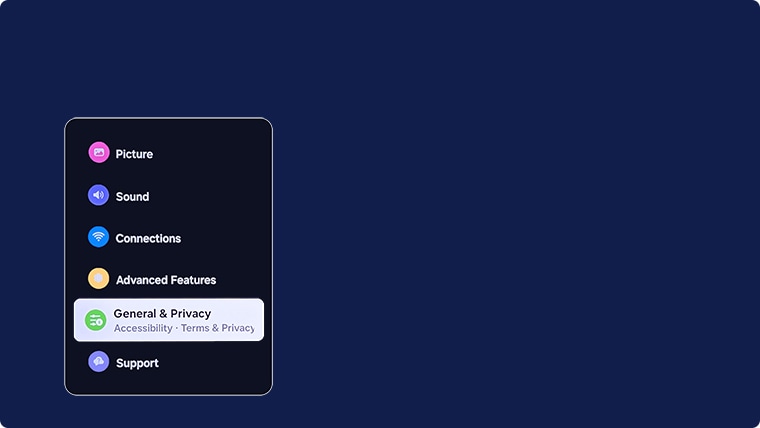


For steps by model year:
- 2025 - 2026 model TVs: Settings > All Settings > General & Privacy > External Device Manager > Anynet+ (HDMI-CEC)
- 2023 - 2024 model TVs: Settings > All Settings > Connection > External Device Manager > Anynet+ (HDMI-CEC)
- 2022 model TVs: Settings > General & Privacy > External Device Manager > Anynet+ (HDMI-CEC)
- 2017 - 2021 model TVs: Settings > General > External Device Manager > Anynet+
- 2016 model TVs: Settings > System > Expert Settings > Anynet+
- 2015 model TVs: Menu > System > Anynet+
- 2014 model TVs: Menu > System > Anynet+
Please Note: The connecting process can take up to 2 minutes to complete.
If you are having trouble with Anynet+ on your TV, you can refer to the content below for assistance.
Anynet+ does not work. The connected device is not displayed.
- Make sure the device is an Anynet+ (HDMI-CEC) device. From the settings menu on the device, check and confirm that the HDMI-CEC option is enabled.
- From the TV, check and confirm that the Anynet+ (HDMI-CEC) feature is set to On:
 > Left Directional Button >
  Settings > All Settings > General & Privacy > External Device Manager > Anynet+ (HDMI-CEC)*
 - Check and confirm that the device’s power cord is securely plugged in.
- Check the device's HDMI cable connection.
- Anynet+ (HDMI-CEC) cannot function under specific circumstances. (when the TV is scanning channels or performing Factory data reset)
- When connecting or disconnecting an HDMI cable, turn the TV off and then back on again.
I want to exit Anynet+. It is inconvenient to turn on other devices because the TV also turns on. It is inconvenient because the connected devices (e.g. set-top box) turn off together.
To turn off the Anynet+ function of a device connected to the TV, turn off the Anynet+ (HDMI-CEC) function of the device:  > Left Directional Button > Settings > All Settings > General & Privacy > External Device Manager > Anynet+ (HDMI-CEC)*
When Anynet+ (HDMI-CEC) is turned off, the soundbar connected via the HDMI (eARC) port does not turn off and on together with the TV. To prevent a specific device connected to the TV from turning off automatically, turn off the HDMI-CEC function on a specific device connected to the TV.
The message "Connecting to Anynet+ device..." or "Disconnecting from Anynet+ device" appears on the screen.
You cannot use the remote control when the TV is configuring Anynet+ or switching to the TV viewing screen. Use the remote control after the TV has completed the Anynet+ configuration or has switched to the TV viewing screen.
*For steps by model year:
- 2025 - 2026 model TVs: Settings > All Settings > General & Privacy > External Device Manager > Anynet+ (HDMI-CEC)
- 2023 - 2024 model TVs: Settings > All Settings > Connection > External Device Manager > Anynet+ (HDMI-CEC)
- 2022 model TVs: Settings > General & Privacy > External Device Manager > Anynet+ (HDMI-CEC)
- 2017 - 2021 model TVs: Settings > General > External Device Manager > Anynet+
- 2016 model TVs: Settings > System > Expert Settings > Anynet+
- 2015 model TVs: Menu > System > Anynet+
- 2014 model TVs: Menu > System > Anynet+

 This product should be mounted to a wall or other suitable surface to avoid serious injury. Find out more here.
Thank you for your feedback!
Please answer all questions.
Contact Info
Contact us
WhatsApp
![]()
![]()

