What is eARC and how to set on Samsung Smart TV?
eARC enables the sending of audio to a TV that originates from cable, satellite, streaming or source devices to be sent to an AVR or sound bar through a single HDMI cable. This ensures the simplicity of the connectivity and that the original audio can be experienced.
HDMI ARC and eARC differences
Most TVs compress audio signals in advance before going through HDMI cables. The eARC (Enhanced Audio Return Channel) enables you to transmit the original full resolution audio signal through an HDMI cable and reproduce the best sound without compromise.
The eARC is a feature implemented in the latest HDMI 2.1 specification, the biggest advantage is that it exceedingly improves bandwidth and speed. This allows you to transmit high quality audio from your TV to your Soundbar or AV receiver and is compatible with the high bitrate formats Dolby Atmos.
eARC is also popularly referred to as the next-gen ARC. It proves support for larger bandwidth and supports faster speeds. Therefore, you are able to deliver higher quality audio from your TV to your soundbar or audio receiver.
|
Function |
HDMI ARC |
HDMI eARC |
|---|---|---|
|
Compressed 5.1 |
Yes |
Yes |
|
Uncompressed 5.1 |
No |
Yes |
|
Uncompressed 7.1 |
No |
Yes |
|
High Bitrate and object based up to 192 kHz, 23-bit (e.g. Dolby Atmos |
No |
Yes |
Supported models for eARC
- TV: selected models from 2020 onwards.
- Soundbar: selected models from 2019 onwards.
- Audio format: The latest high bitrate audio formats are supported including Dolby TrueHD, Dolby Atmos and more.
Note:
- DTS is not supported for eARC pass-through and only support on Soundbar HDMI input
- You must use an eARC supported HDMI cable. (HEAC or HEC)
- Anynet+ (HDMI-CEC) function must be enabled on the smart TV.
- If using an unauthorised cable, an error may occur.
- Both TV and soundbar must support eARC
- DTS codecs not supported on select TVs
Settings for HDMI eARC Mode
For the devices supporting eARC, you can consider the HDMI eARC Mode. Muting occurs temporarily during device connection. Follow the steps below to set up the TV's input audio.
 Settings and then All Settings
Note: Images were taken from a 2025 model TV. Steps and layout may differ depending on the model of your TV.
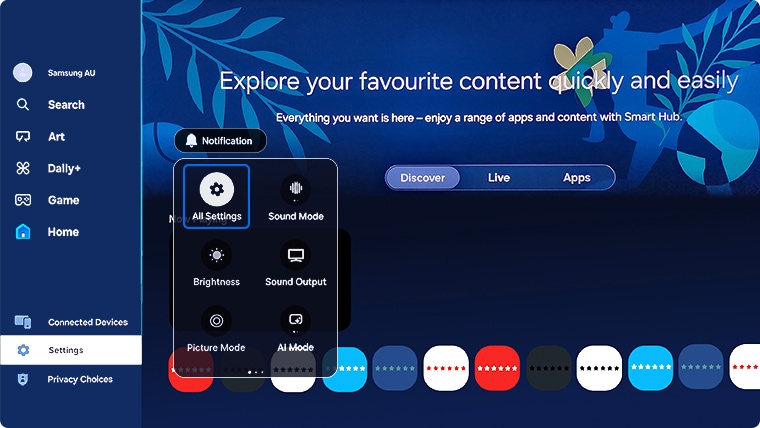


Note:
- Ensure that your TV and external device are connected via the eARC port of the unit. If the connection is not made, make sure the Anynet+ function is enabled on your TV.
- Default setting for eARC Mode is off. (Connect to ARC automatically)
- eARC is only activated when HDMI-eARC Mode is turned on.
You will need to enable HDMI-CEC protocols in the Settings Menu on your TV. Samsung TVs call the HDMI-CEC protocol Anynet+. Anynet+ allows you to use the TV remote to control external devices and listen to TV sound through a soundbar (receiver) connected via HDMI-ARC or eARC.
Settings and then All Settings
Note: The images below were taken on a 2025 model TV. Settings and layout may vary depending on the model and software version of your TV.



For steps by model year:
- 2025 model TVs: Settings > All Settings > General & Privacy > External Device Manager > Anynet+ (HDMI-CEC)
- 2023 - 2024 model TVs: Settings > All Settings > Connection > External Device Manager > Anynet+ (HDMI-CEC)
- 2022 model TVs: Settings > General & Privacy > External Device Manager > Anynet+ (HDMI-CEC)
- 2017 - 2021 model TVs: Settings > General > External Device Manager > Anynet+
- 2016 model TVs: Settings > System > Expert Settings > Anynet+
- 2015 model TVs: Menu > System > Anynet+
- 2014 model TVs: Menu > System > Anynet+
If there is a problem with the ARC/eARC operation, first remove all external devices (STB,OTT devices, etc.) connected to the TV, then try playing again. Some external devices may not properly comply with HDMI connection specifications, which may cause problems.
You need to check the following to connect eARC to a TV.
- Check the eARC port (the same port as ARC) is connected.
- Check the connected AV device is an eARC-enabled device.
- Check the HDMI cable is HEAC or HEC supported.
- Reconnect HDMI cable, and then reset HDMI-eARC Mode to Auto.
If you are having problem with poor sound output even when eARC is connected properly, you need to check the Digital Output Audio Format. To check if the AV device does not support the Audio Output Format, test the output sound by changing Digital Output Audio Format to PCM / Auto / Pass-Through once each.
Settings and then All Settings
Note: Images were taken from a 2025 model TV. Steps and layout may differ depending on the model of your TV.


For further assistance, please contact our Chat Support. To find your Samsung product's User Manual, head to Manuals & Downloads.
 This product should be mounted to a wall or other suitable surface to avoid serious injury. Find out more here.
Thank you for your feedback!
Please answer all questions.
Contact Info
Contact us
WhatsApp
![]()
![]()

