How to manage two-step verification for your Samsung account sign-in
Two-step verification is a way of adding another layer of security to your account. Along with your password, two-factor authentication will require a verification code from a text message sent to your phone, from an authenticator app or from a set of backup codes. Even if someone gets hold of your password, they still will not be able to sign in because they will not have your verification codes.
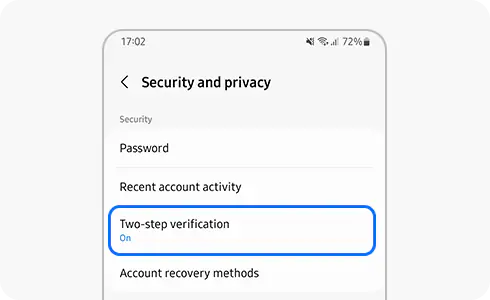
Why do I need Two-step verification?
It is easier than you think for someone to steal your password. One bad app downloaded from the internet, or one malicious link clicked, and someone could:
- Access your call history and text messages
- See any pictures you have synced with the cloud
- Access any of your linked accounts
The Two-step verification keeps people who want your data out of your account, even if they have your password.
Visit the two-step verification guide to learn more about this feature.
How to set up the two-step verification
Your Samsung account provides more than one option to receive a verification code. These options include receiving a code via SMS text message, using an authenticator app (e.g., Microsoft™ Authenticator) or a backup code.
An authenticator app is an application that generates verification codes. These codes are then used as part of the two-factor authentication process.
Even if you do not have the same phone number that you originally registered, you lose your mobile phone or you are not able to receive the text message, you will still be able to access your account with one of the other options provided. Feel free to choose your preferred method of verifying your account.
You can register up to three phone numbers to receive the verification code via SMS text message. These devices must already be registered to your Samsung account.
To set up two-step verification:
You will then be able to choose which method you want to use.

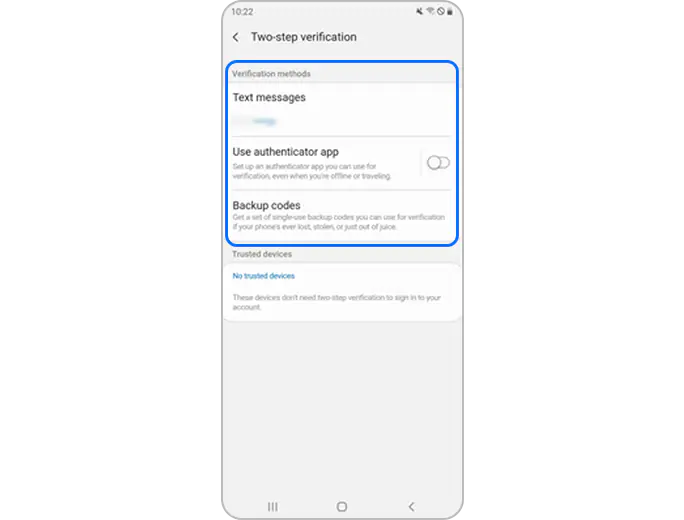
Text message
Authenticator app
Please note: In order to use this option, you will need to have an authenticator app installed on your device.
Backup codes
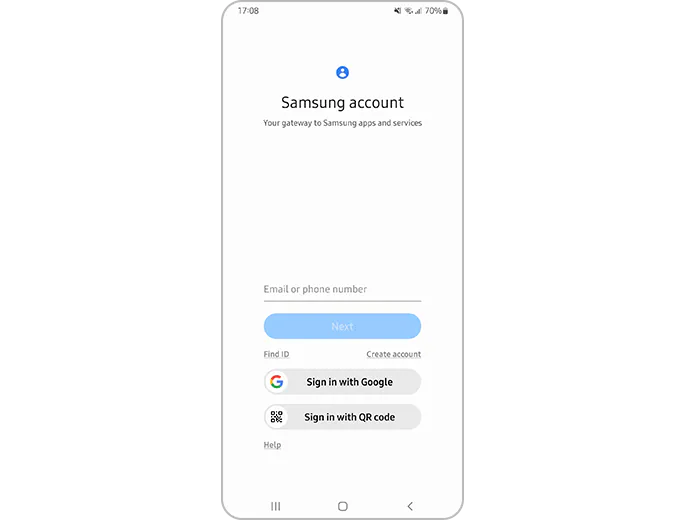
After setting up the two-step verification, every time you sign into your Samsung account you will need to enter the verification code sent to your phone number apart from other verification methods.
Sign in process:
You can select Skip two-step verification on this phone next time on the device you are using to sign in. Once this device is chosen as a trusted device, you will not need to complete the Two-step verification process on this device anymore.


Tips on password protection
To keep your information safe, remember to frequently update your password in addition to using the two-step verification, and do not use the same ID and password that you use for other services.
For more information, visit the Samsung Account user guide.
How do I change a phone number registered to my Samsung account?
If you have a new phone number or a phone number you are no longer using, you can add or remove those numbers from your account. Remember, you can register up to 3 phone numbers.
Mobile device:
PC Website:
Can I disable two-step verification?
For enhanced security and privacy, and to protect your personal information, Two-step verification cannot be disabled.
If you can’t remember your password, you can find out how to recover it here.
If you send too many requests for a two-step verification code in a short time, you will receive a notification saying "Too many verification attempts have been made, so we have blocked text and voice call verification for your account. Please try again in a few hours."
In this case, we recommend waiting at least 24 hours before trying again
If you have tried all of the above steps and are still unable to receive a two-factor authentication code to log into your Samsung account, please contact Samsung support.
Thank you for your feedback!
Please answer all questions.