Set up Alexa on your Samsung TV
Learn how to set up Alexa as your default voice assistant on your Samsung TV. With this comes an array of Alexa voice commands to help with your everyday needs.
Please Note: This guide is designed for Australian models only. If you have an international product and require further support, please click here to get in touch with your Samsung subsidiary.

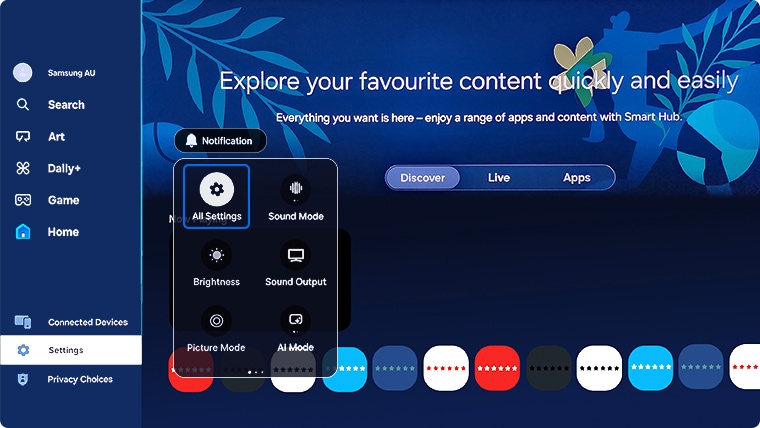
 Settings and then All Settings
Note: Images were taken from a 2025 model TV. Depending on the model of your TV, sequences and steps may vary.


Please Note: For help with scanning a QR code with your Samsung phone, please click here.
Note: The Voice Wake-up feature may not be supported depending on the model of your TV. This function can be used only when the microphone switch at the bottom of the TV is active. The microphone on TV may not be supported depending on the model of your TV.


To speak to Alexa:
Method 1. Start Alexa by holding the  Mic button on your remote control and speaking into your remote.
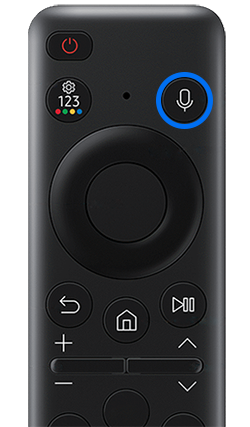
Method 2. You can also activate Alexa by saying "Hi, Alexa" (selected models). To see if this feature is available on your TV model, check if Voice Wake-up setting is present on your TV (Settings > General / Advanced Features > Voice > Alexa Settings > Voice (Hands-free) Wake-up On)
When Alexa is activated, the Alexa icon will appear and the LED on the remote will flash red. The appropriate distance between the user and the remote is 1.5 m.
Note:
- If you do not turn on the Voice Wake-up function or have this feature, you can activate Alexa only by pressing the voice icon on the remote.
- The battery life of the remote will be shortened by using Voice Wake-up.
- This feature requires an Internet connection.
- A Samsung account must be registered and logged in on the TV.
- Device screenshots and the menu are only a sample in English - they are also available in the language of your country.
- The layout of your remote may vary depending on the model of your TV.
Now that you have set up Alexa, it’s time to sit back, relax and navigate through your TV and menus by using specific voice commands. Below you will find what functions are available, their details and what voice commands you can use.
|
Category |
Function |
Voice Command |
|---|---|---|
|
Power |
Turn things on and off |
“Alexa, turn on living room TV” “Alexa, turn off living room TV” |
|
Channel |
Change the channel on a device |
“Alexa, change channel to 91 on living room TV” “Alexa, next channel on living room TV” “Alexa, channel up/down on living room TV” |
|
Input |
Change the input of a playback device -- Change the input by friendly name |
“Alexa, change the input to HDMI1” -- “Alexa, change the input to Xbox” |
|
Playback |
Control the playback of device; |
“Alexa, fast forward/rewind on living room TV” “Alexa, next song/video/photo on living room TV” “Alexa, go forward/back on living room TV” “Alexa, play/pause/resume/stop living room TV” |
|
Volume |
Change the volume in incremental steps -- Change the volume to anywhere on a continuous range -- Mute/unmute |
“Alexa, lower the volume on living room TV” “Alexa, volume up 20 on living room TV” -- “Alexa, set the volume of living room TV to 50” “Alexa, turn the volume down on living room TV by 20” -- “Alexa, mute/unmute living room TV” |
Accessing Bixby Settings
Follow the steps below to access Bixby Settings.
Settings and then All Settings
Note: Images were taken from a 2025 model TV. Depending on the model of your TV, sequences and steps may vary.
Please Note: If you change your selection from Bixby to Alexa, you will need to go through the setup process for using Amazon Alexa for your Voice Assistant.

Note: Settings and features may vary depending on the model of your TV.

Additional Help
If you are having troubles using Alexa on your TV, you can check out some of these helpful links.
- Additional information for downloading and using Alexa
For further assistance, please contact our Chat Support. To find your Samsung product's User Manual, head to Manuals & Downloads.
 This product should be mounted to a wall or other suitable surface to avoid serious injury. Find out more here.
Thank you for your feedback!
Please answer all questions.
Contact Info
Contact us
WhatsApp
![]()
![]()

