What to do if your Galaxy phone won’t power on properly?
If your Samsung Galaxy phone won't turn on, there are a few things to check to get your device powered up properly again. In most cases, the phone battery may be drained or the device is not charging properly. In other cases, your Galaxy phone may be damaged. Read our easy-to-follow guide below to check why your phone isn't powering up as it should.
What to do if your Galaxy phone won’t switch on properly:
1. Charge the battery sufficiently before turning on the phone
Make sure your battery is sufficiently charged.
Old devices or USB connection on a PC may require longer to charge.
2. Ensure you’re using a compatible charger
Use a charger certified by Samsung that is compatible with your device and model.
If you need to replace your charger you can find a range of authorised chargers and adapters at samsung.com/uk/mobile-accessories.
3. Verify your devices aren’t damaged
Check the charging port and cable for debris, corrosion, or bent pins.
Make sure there are no signs of liquid damage or water exposure.
Check that the device is not overheated, misshapen or damaged.
Ensure the charging cable is firmly connected to the port.
4. Attempt a forced restart of the phone
Press and hold the Side key and the Volume Down key simultaneously for more than 7 seconds.
Release the buttons when your device vibrates, the screen turns off and the Samsung logo appears.
On some devices, you’ll enter Android Recovery. Once there, use the Volume keys to navigate to Reboot system now and press the Side key to select it.
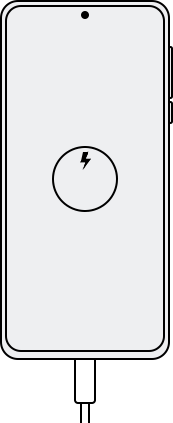
1. Charge the battery sufficiently before turning on the phone
You need to charge the phone battery first before turning on your phone. If the battery is completely depleted, your device won't turn on, even when it connected to the charger. Allow a few minutes of charging before turning on the phone.
Please note:
- The required charging time to turn on the device may differ by device and model.
- The USB connection on a PC may not provide enough power to charge and use the phone or tablet at the same time because it will require significantly more time to charge. Power it off for a faster charge.
If the voltage, amperage and plug type of the charger are not compatible with your phone, you run the risk of damaging your device. It is recommended to use a genuine charger certified by Samsung that is compatible with your device and model.
You can view and purchase authorised charging adapters and wireless chargers on the Samsung Mobile Accessories page.
Check your phone, charger, and USB cable for physical or liquid damage. If there is damage, it may be interfering with proper charging. After checking the following items, if any parts are damaged, you will need to replace them, or contact us for further assistance.
- Check the phone charging port and cables for corrosion, foreign objects, and bent pins.
- Make sure your phone has not been submerged in water or has signs of liquid in the ports.
- Check that your phone has not overheated, misshapen or damaged.
- The charging cable must be firmly attached to the charging port without shaking
With your phone turned off, press and hold the Side key and the Volume Up key simultaneously for more than 7 seconds to restart device. Release the buttons when your device vibrates and the Samsung logo appears.
Please note: On some devices, you can use the Volume Down and Side key or Power button to perform a forced restart.
When the phone enters Android recovery instead of restarting, use the volume up and down keys to select Reboot system now and press the side key to select it. Your phone will restart normally again.
Please note: If performed correctly, a forced restart will not erase any information from the phone.
If you are still experiencing issues and you're unable to turn on your Galaxy phone, you can try our Troubleshooting and book a repair.
Alternatively, speak to one of our Samsung Experts.
Thank you for your feedback!
Please answer all questions.