How to change your Samsung Account phone number
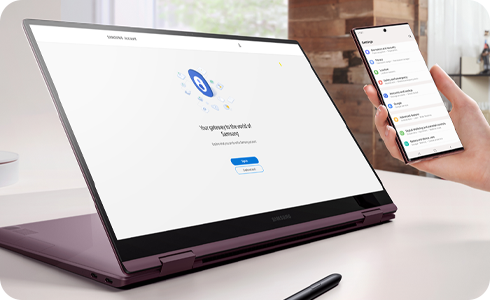
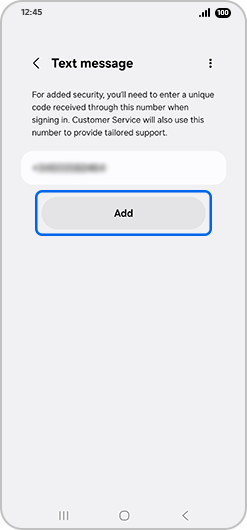
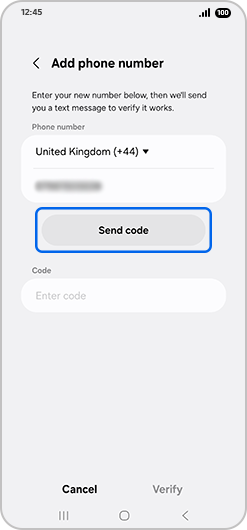
This is a guide on how to change your mobile number linked to your Samsung Account via Settings, using the two-step verification code linked to your registered mobile number.
If you no longer have access to the phone number linked to your Samsung Account, and are therefore not able to recieve the code via text message please read our guide on how to reset your phone number. Please note that if you cannot log in to Samsung Account to change your Phone Number, you will need to wait two weeks for security reasons to update the phone number.
Mobile device

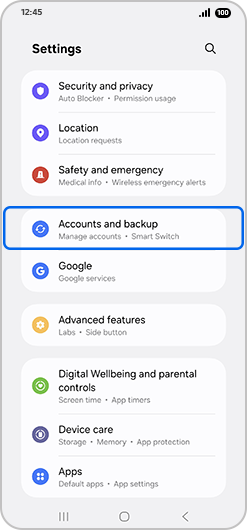
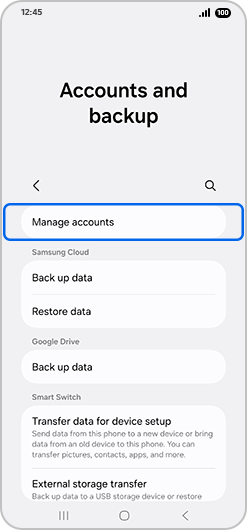
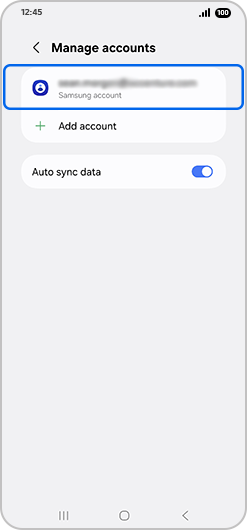
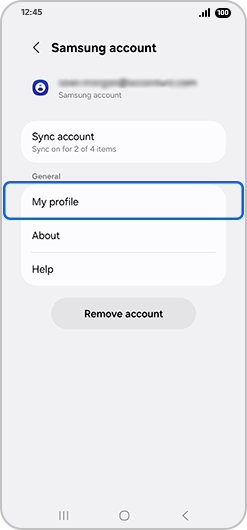
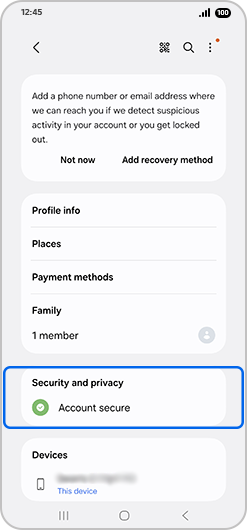
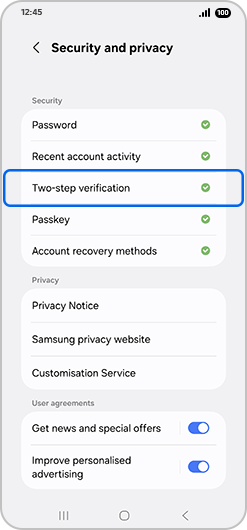
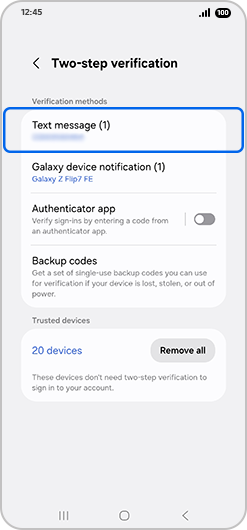
PC
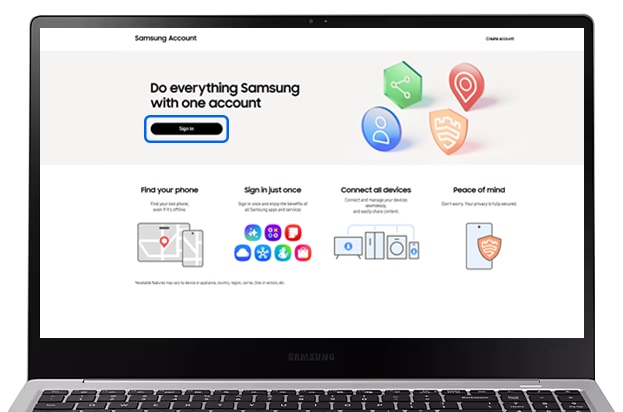
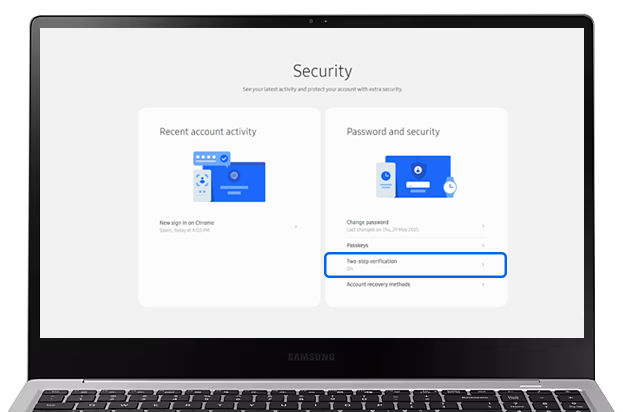
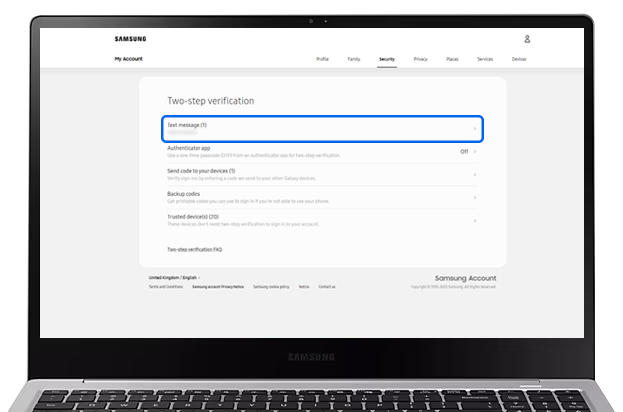
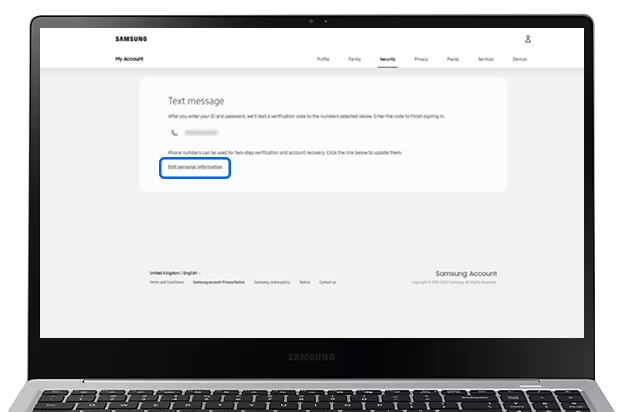
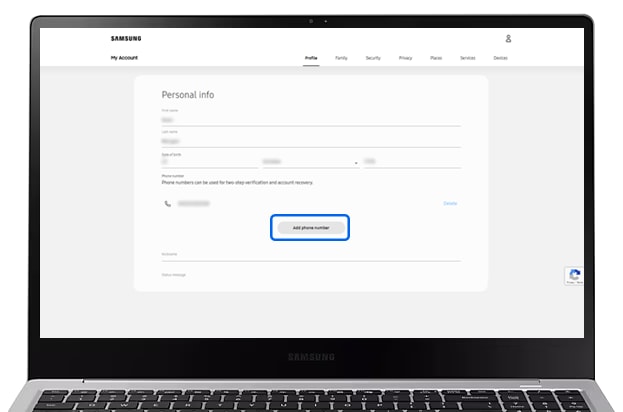
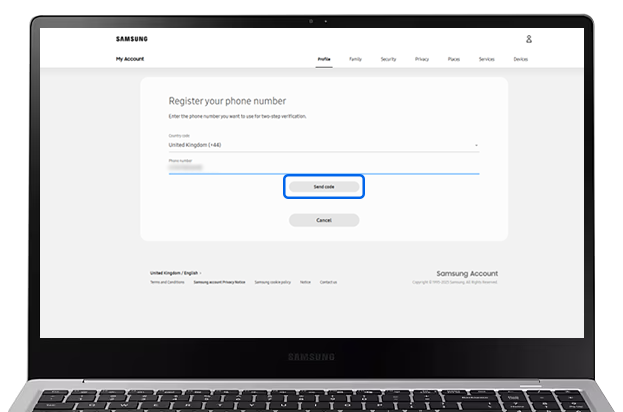
If you can’t log into your Samsung Account because you have a new phone number, please try the following:
1. Check to see if you have another Galaxy device on which you are already logged into your Samsung Account. If you do, select Verify with Galaxy device.
2. If you don’t have another device logged into a Samsung Account, you can authorise the login using the codes shared when you first set up your Samsung Account.
3. If the above options are unavailable, please contact Samsung Support.
Remove previous number
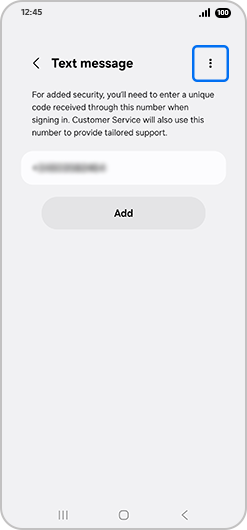
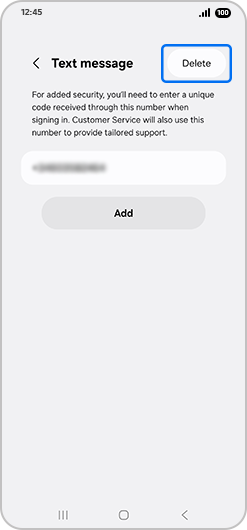
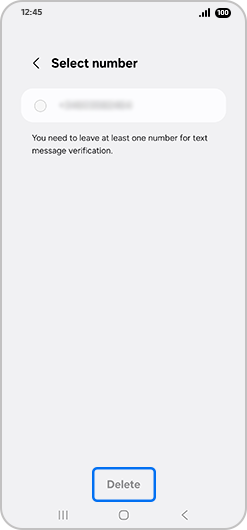
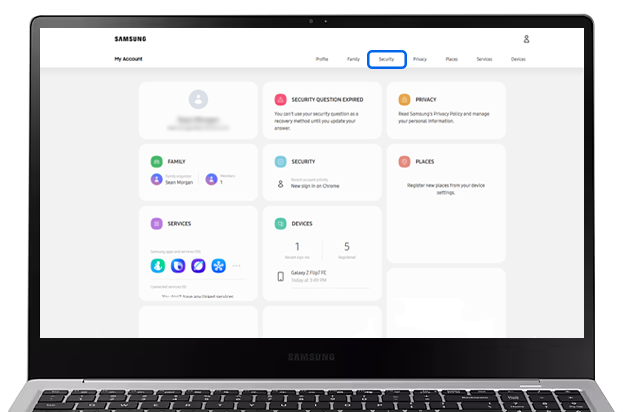
Please note: To delete a number on your PC, go to Profile > Edit personal information > Click Delete next to the phone number you’d like to remove from your account.
Thank you for your feedback!
Please answer all questions.