How to set up and manage a Samsung Account
This is a guide on how to set up and manage Samsung Account. A Samsung Account enables you to keep your Samsung devices tracked and synced, gives you access to Samsung Pay and gets you news and discount
If you already have a Samsung Account but cannot login, please read our guide on how to recover your details.
Many users cannot access their Samsung Account because they no longer have access to their phone number linked to two-step verification. Read our guide on how to recover your details.
Please note: it takes two weeks to change your phone number – this is a security precaution set up by Samsung in order to protect your Account.
If you have tried our self-help guidance and are still unable to login, or prefer to speak to a Samsung Support Expert, please contact us.
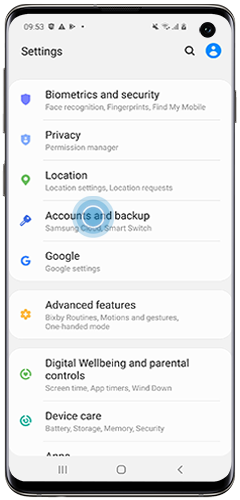
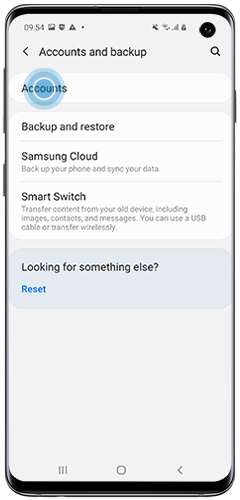
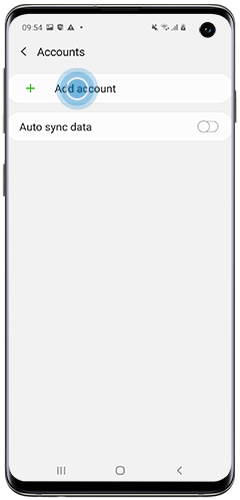
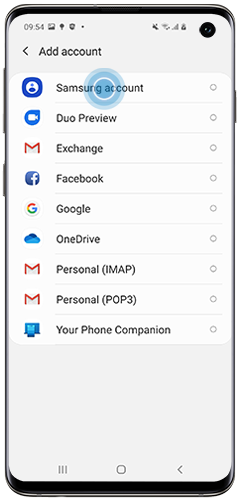
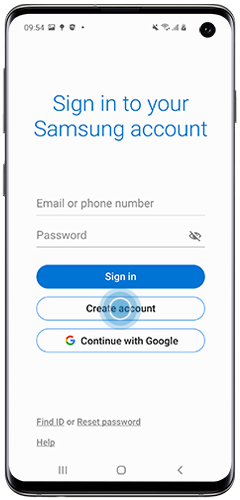
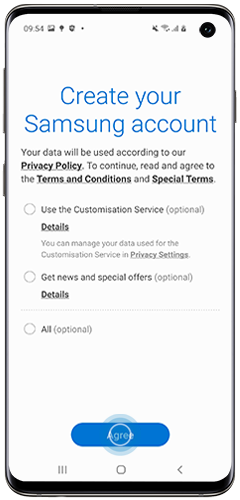
If you are setting up your account for the first time you will be prompted to read the Terms and Conditions. Tap "Agree" to continue.
Please note: You can click on the terms in bold to read the details.
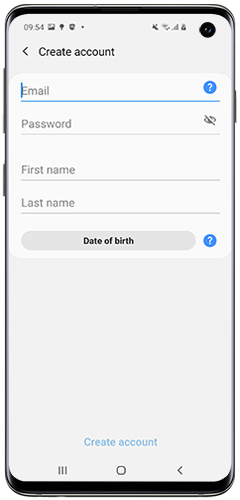
Fill in your email address, choose a password, enter your first and last name and date of birth, then tap "Create account".
Verify your email address by clicking on the link sent to you via email.
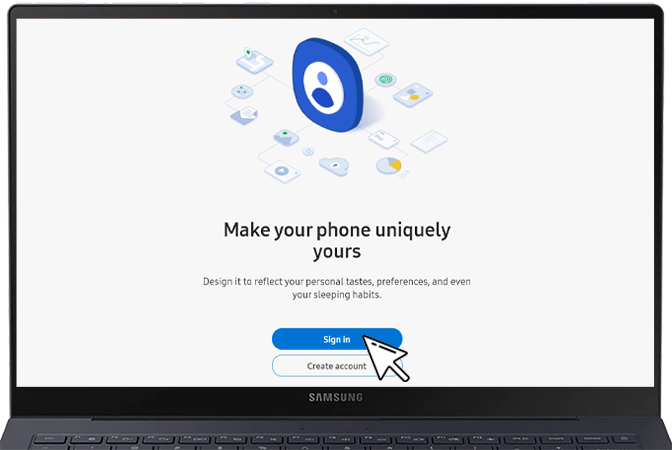
Once you have set up your Samsung account on your phone, you will be automatically logged in on that device. You can also log into your Samsung account on your computer by following the instructions below.
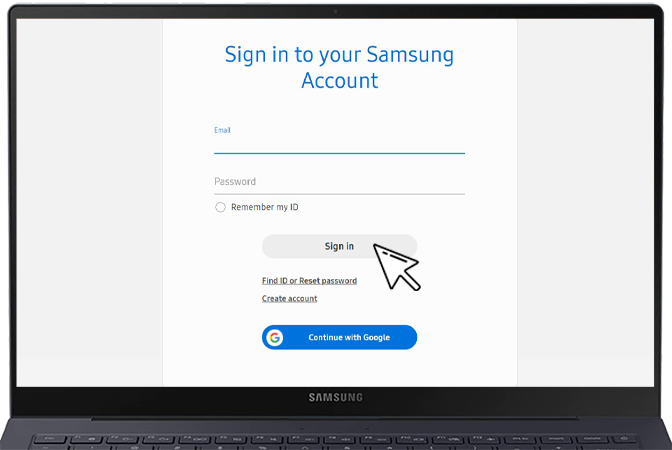
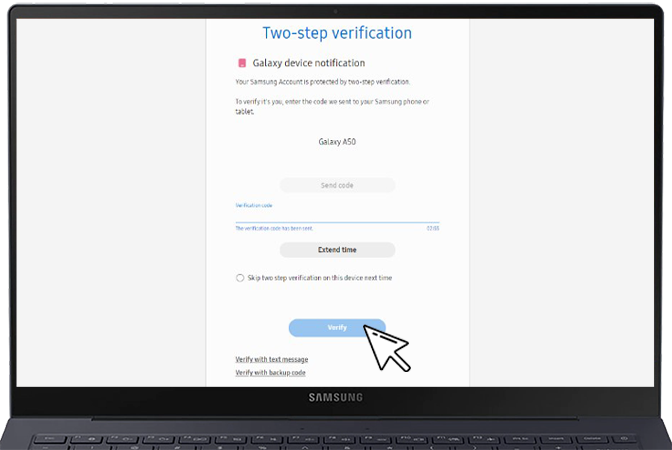
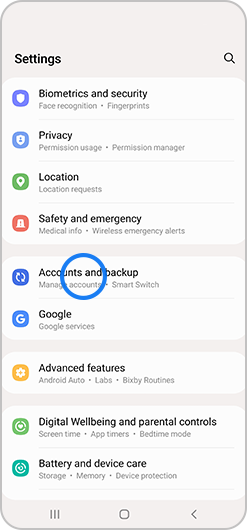
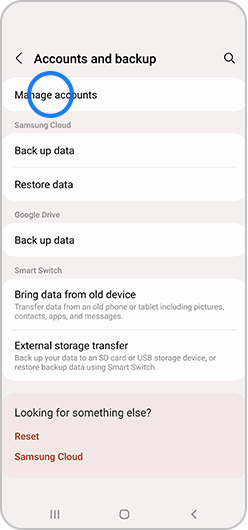
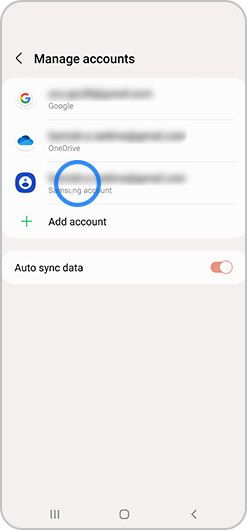
To remove a Samsung Account from your device, you need to know the password. If you have forgotten the password, first reset the password online, then log in and remove account by following the instructions below.
If you can't access the email address linked to your Samsung Account, you will need to perform a factory reset using the buttons on your device.
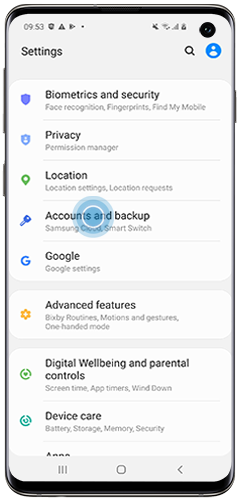
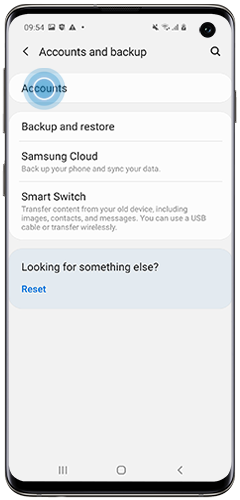
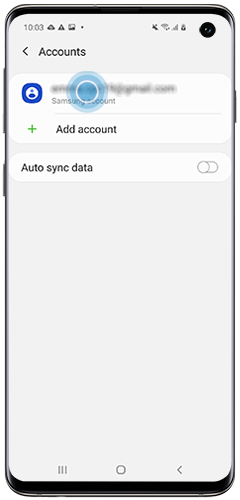
Please note: if the message "Processing failed" is displayed, make sure that your device is connected to the internet via a Wi-Fi or data network.
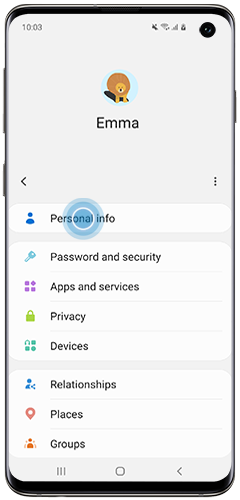
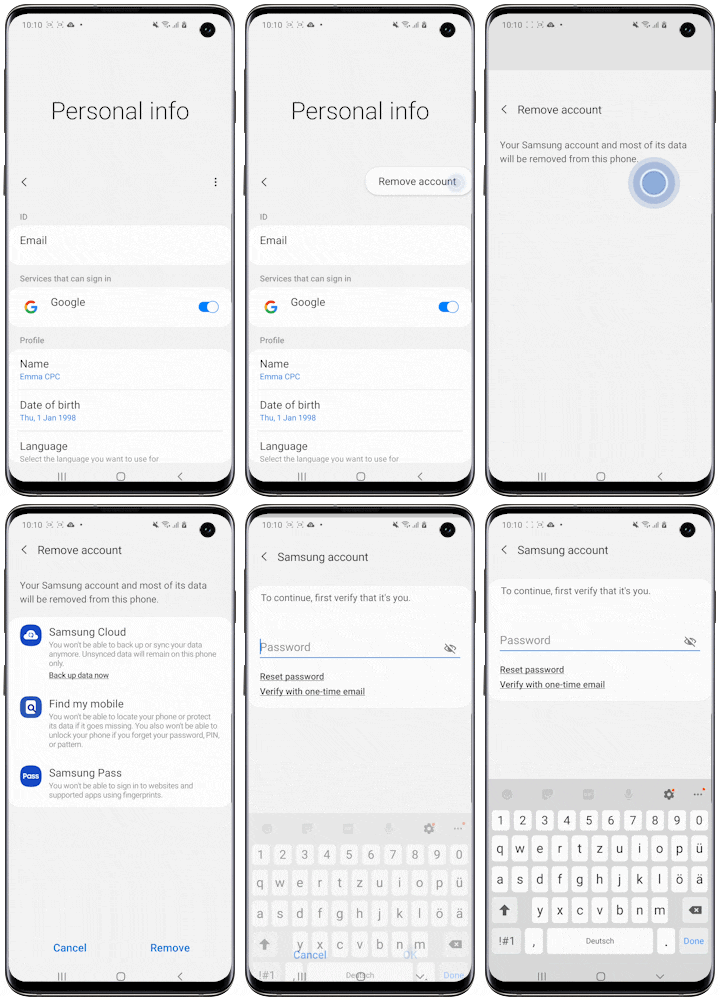
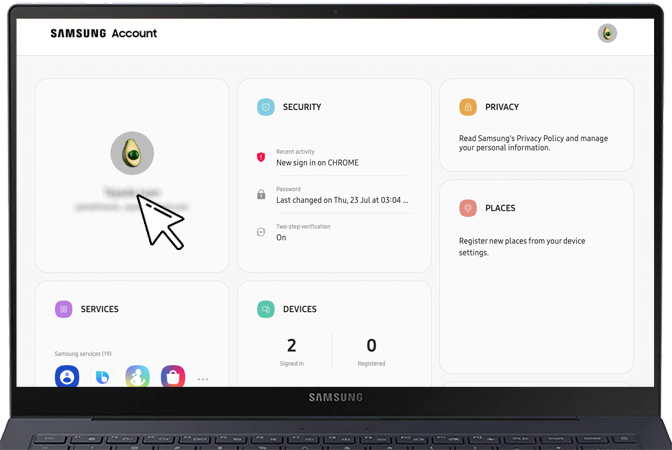
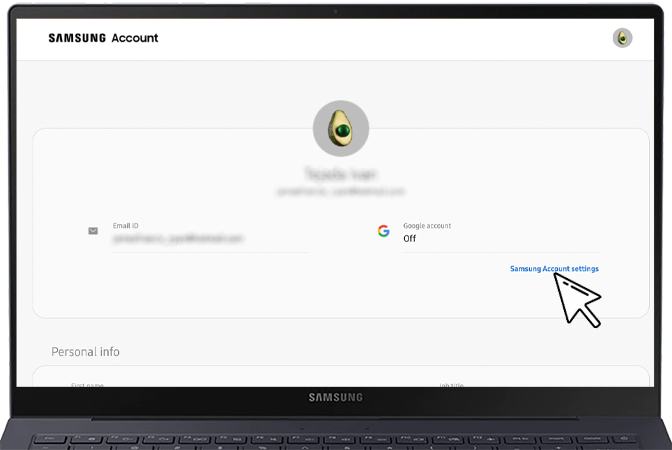
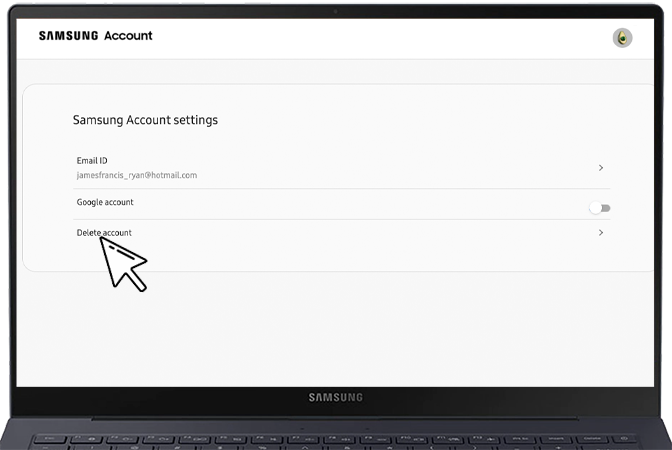
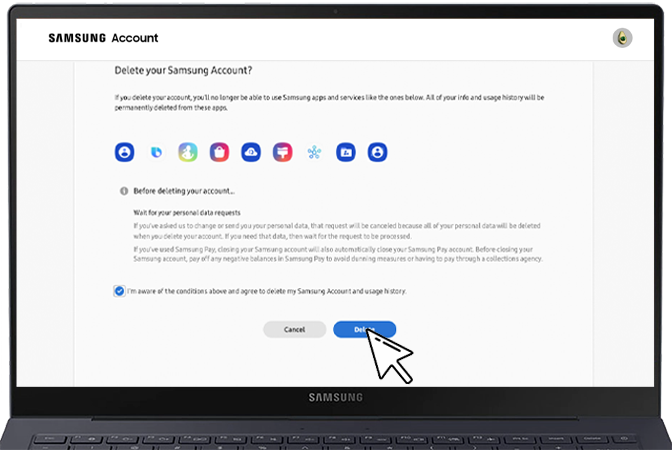
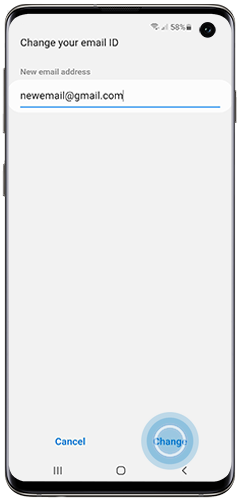
If you want to change the email address associated with your Samsung account:
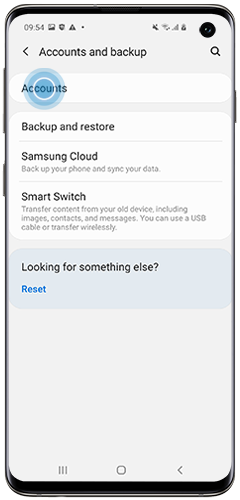
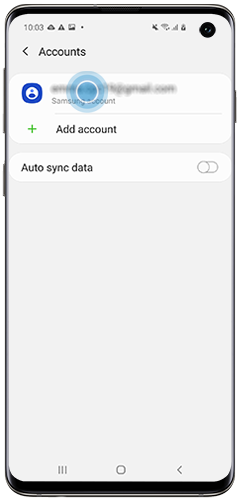
Please note: if the message "Processing failed" is displayed, make sure that your device is connected to the internet via a Wi-Fi or data network.
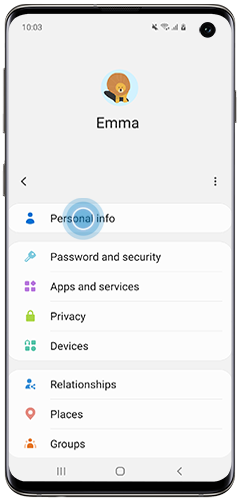
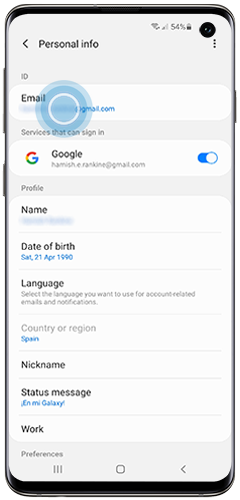
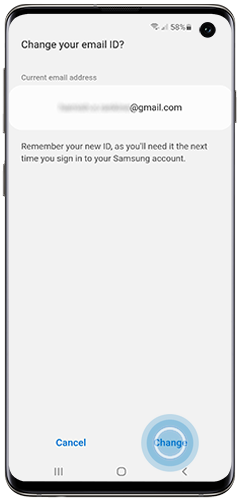
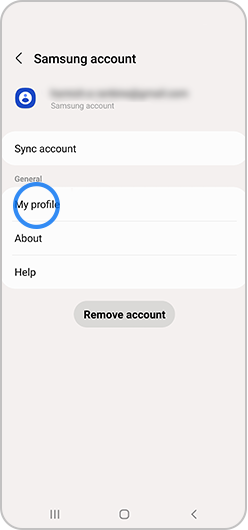
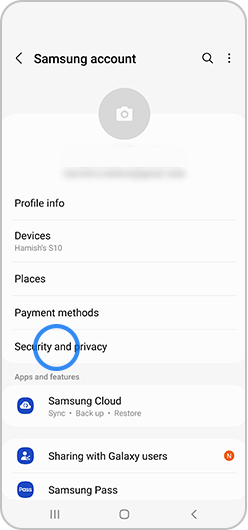
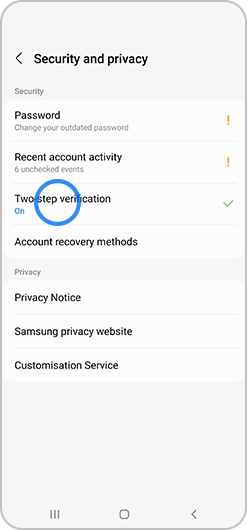
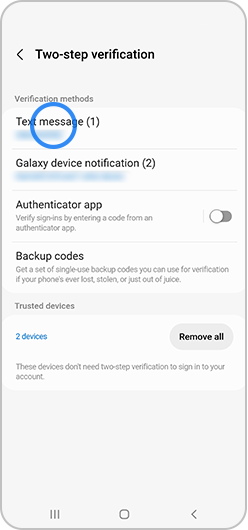
If you can access the phone number linked to your Samsung Account, and want to update it, please follow the steps below to change your registered phone number using two-step verification.
If you no longer have access to the phone number registererd to your Samsung Account you need to reset it. Follow our guide here to complete a phone number reset. Please note it takes two weeks to change your phone number – this is a security precaution set up by Samsung in order to protect your Account.
If you have tried our support guidance and are still unable to login, or prefer to speak to a Samsung Support Expert, please contact us.

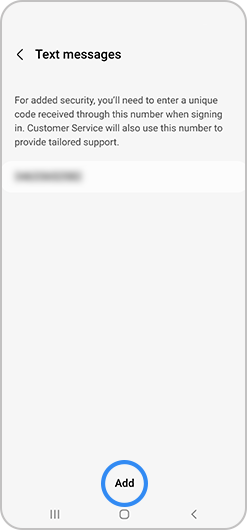
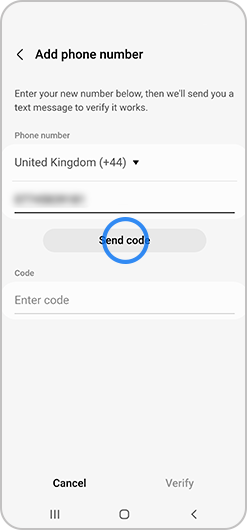
PC
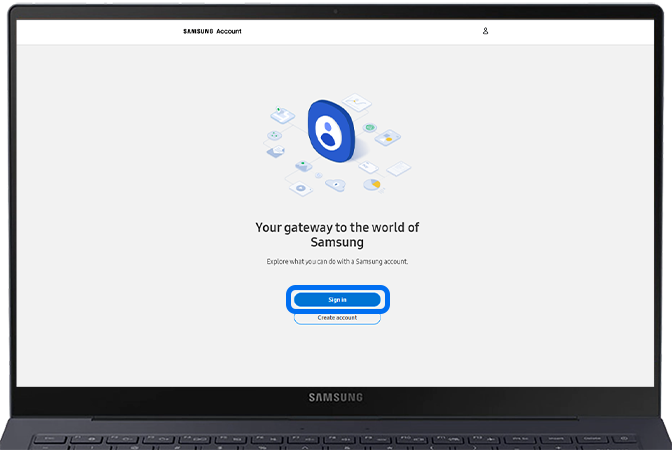
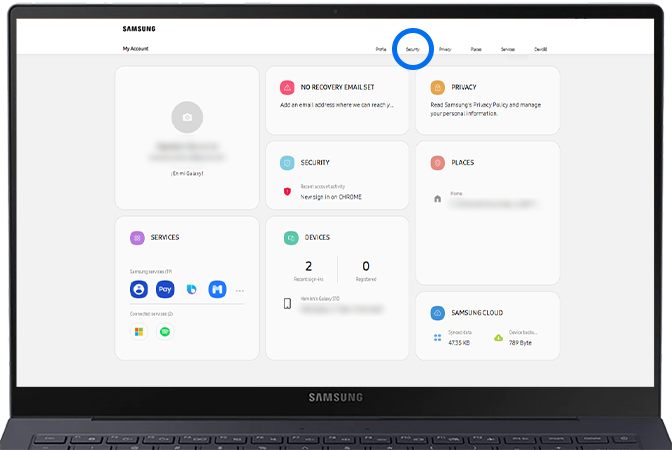
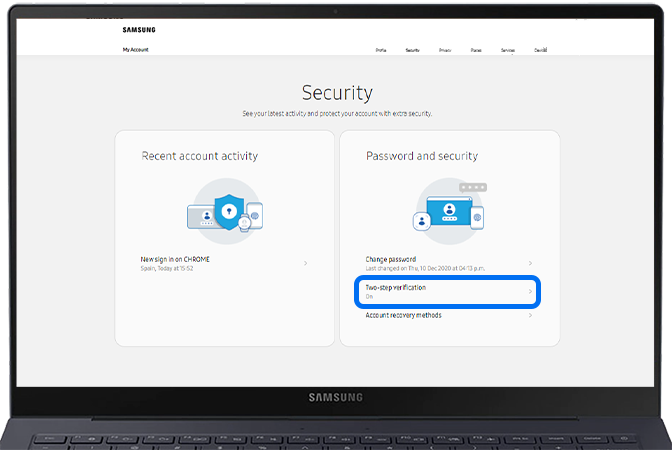
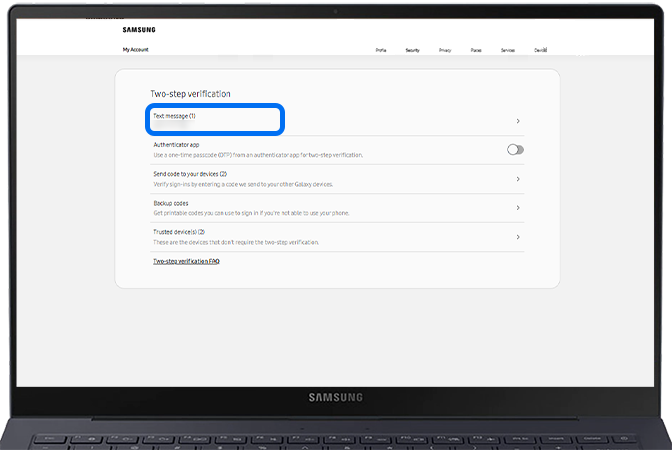
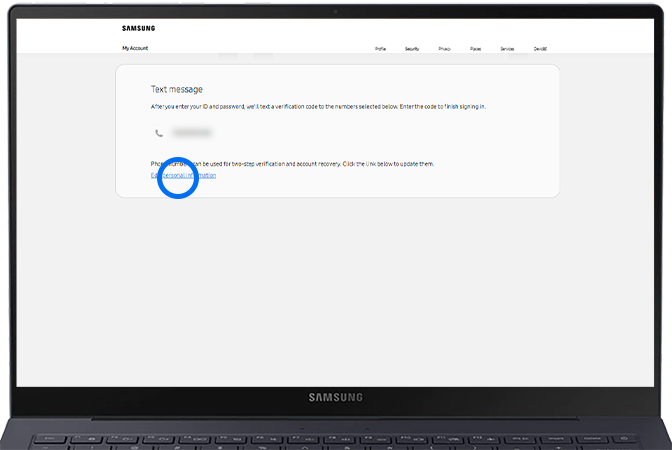
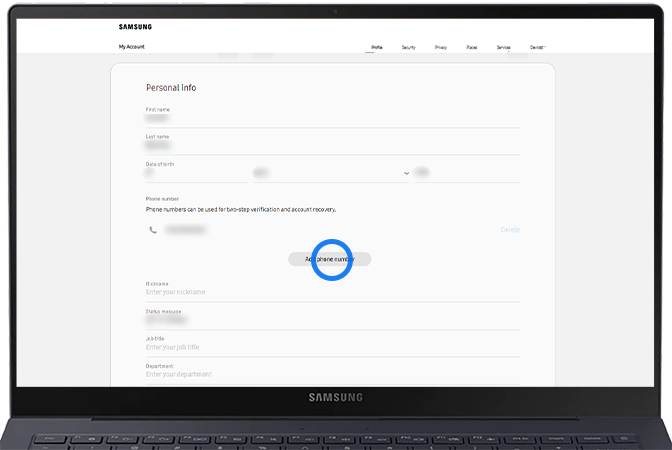
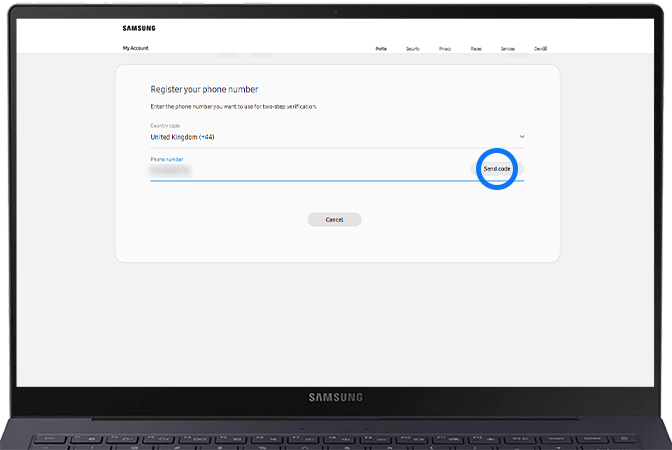
If you can’t log into your Samsung Account because you have a new phone number, please try the following:
Please note: changing your password will sign you out of your account on all your devices.
Follow the steps below if you have forgotten your password or Samsung Account ID and you're locked out of your Samsung Account.
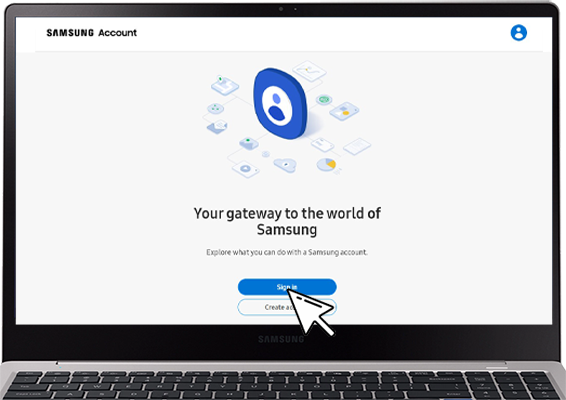
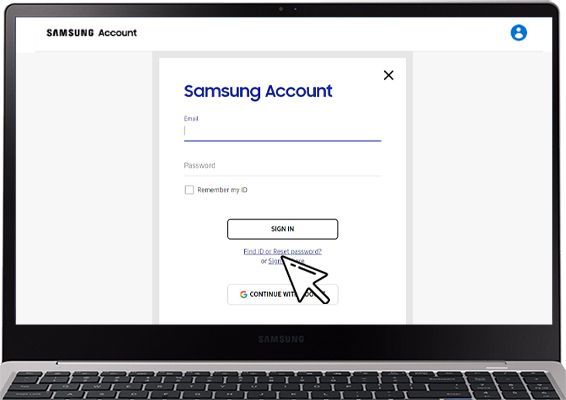
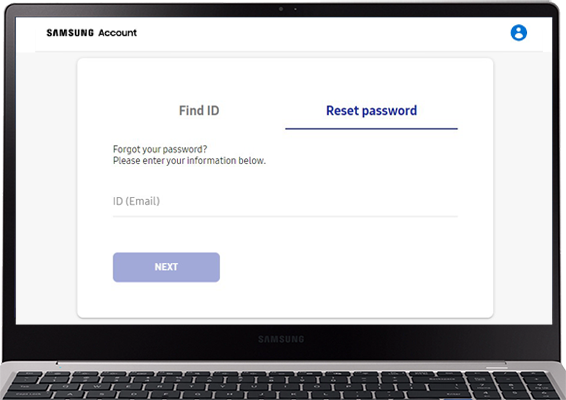
You can use your Samsung Account to back up or restore your data or set your device to create backups automatically.
Read our FAQ to find out about backing up and restoring data on your Galaxy device.
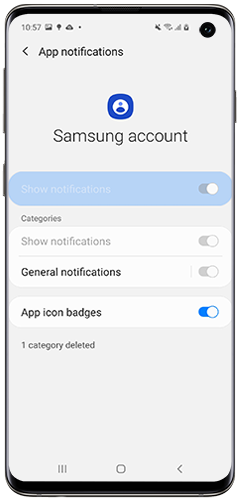
To manage which Samsung Account notifications you wish to see (or switch them off entirely):
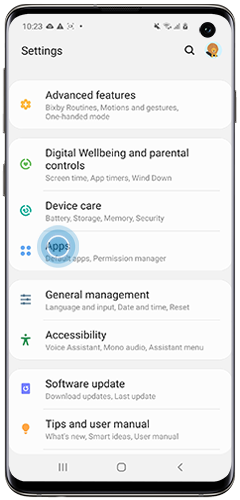
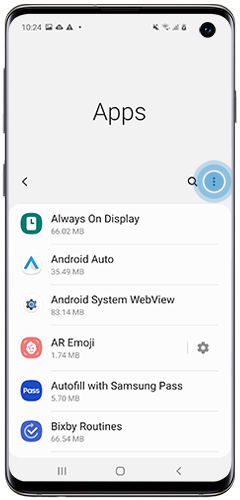
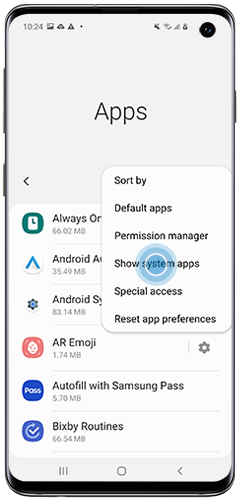
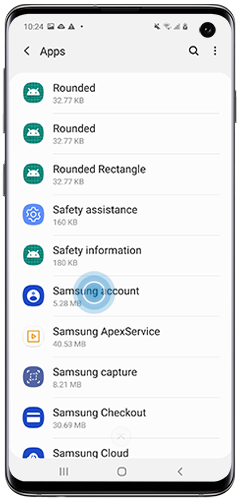
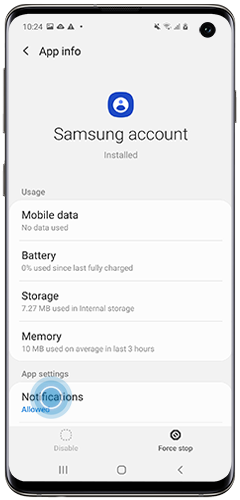
To remove a notification is currently displayed on your lock screen:
If you're experiencing unusual behaviour on Samsung mobiles, tablets or wearables, you can send us an error report or ask us a question in the Samsung Members app.
This allows us to a closer look at what is happening. The data is anonymised and only held for the duration of the investigation. Find out more about sending an error report through the Samsung Members app.
Thank you for your feedback!
Please answer all questions.