How to troubleshoot mobile data issues
If you’re having trouble using mobile data, there may be an issue with your mobile network coverage or with the settings. Check the guide below to troubleshoot your issue.
Script: How to troubleshoot mobile data issues
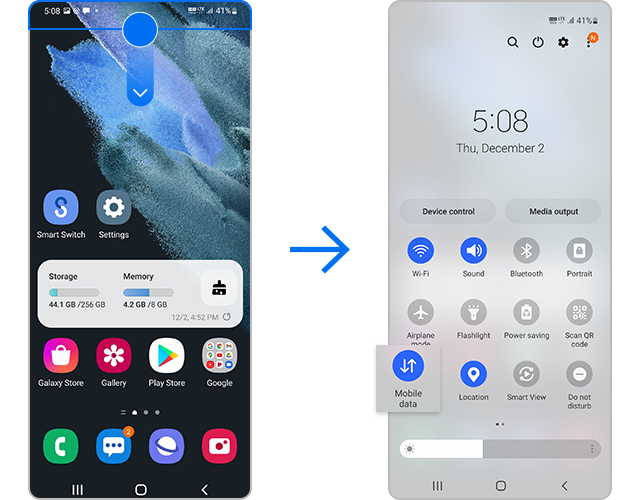
1. Check if mobile data is enabled
- Swipe down from the top of the screen.
- From the menu, check if Mobile data is on.
2. Force a restart on your device
- Hold both the Volume down key and the Side key simultaneously.
- The Volume and Side key locations will vary depending on the device model.
- Select Power off.
- Press and hold the Volume down key and the Side key simultaneously until the Samsung logo appears.
3. Reset network settings
- Go to Settings and select General management.
- Select Reset.
- Select Reset network settings.
- Tap Reset settings and then tap Reset.
- Resetting your network will reset your Wi-Fi, Bluetooth, and other network settings.
4. Contact your service provider
- Contact your service provider for further assistance.
Before you try the recommendations below, be sure to check if your device's software and related apps are updated to the latest version. To update your mobile device's software, follow these steps:
Check if Mobile data is enabled on your device:
First, check if Mobile data is enabled on your device:
Force a restart on your device
If Mobile data is enabled but you are still encountering issues, try force restarting your device:


Please note:
- The data and files on your device will be saved, even if you force a restart on your device.
- The volume and side key locations may vary depending on your device model.
Reset network settings
If your mobile network connection is unstable and you cannot use mobile data, try resetting your network settings:


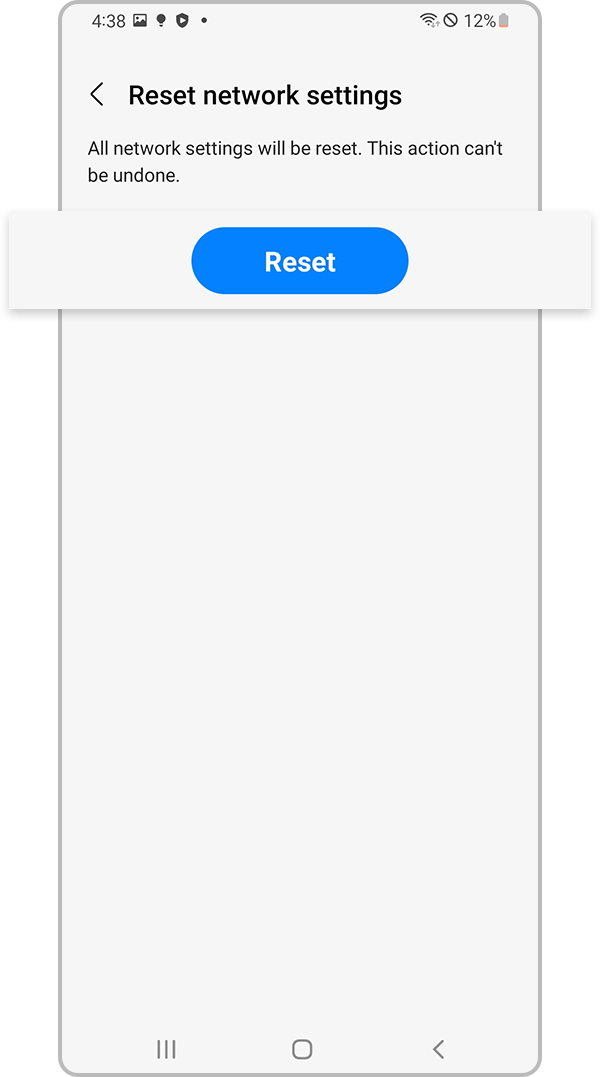
Please note: Resetting your network settings will reset your Wi-Fi, Bluetooth, and other network settings.
Contact your carrier
If you are still unable to use mobile data on your device, you may be experiencing a network coverage issue. If you recently changed carriers but kept the same phone, you may need to contact your current carrier to reset your device. Please contact your service provider for further assistance.
Please note:
- After each step, try using mobile data on your device.
- If you followed the steps listed above but the issue persists, please contact Samsung Support.
- Device screenshots and menus may vary depending on the device model and software version.

Thank you for your feedback!
Please answer all questions.